Logs and getting support
Where the logs are on Mac and Windows, how to make a support bundle, and what to send support. Logs contain no meeting content.
Last updated
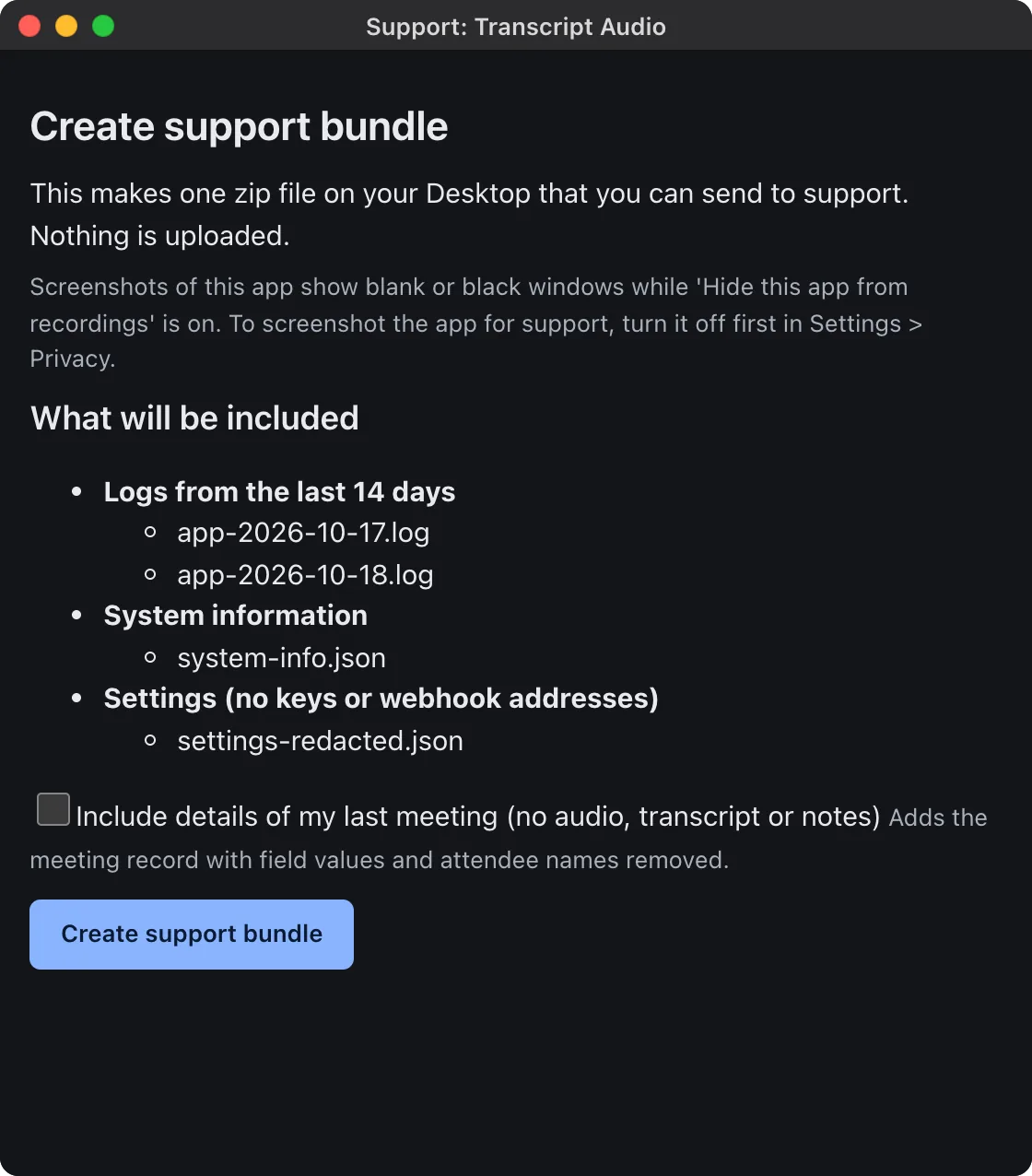
Make a support bundle
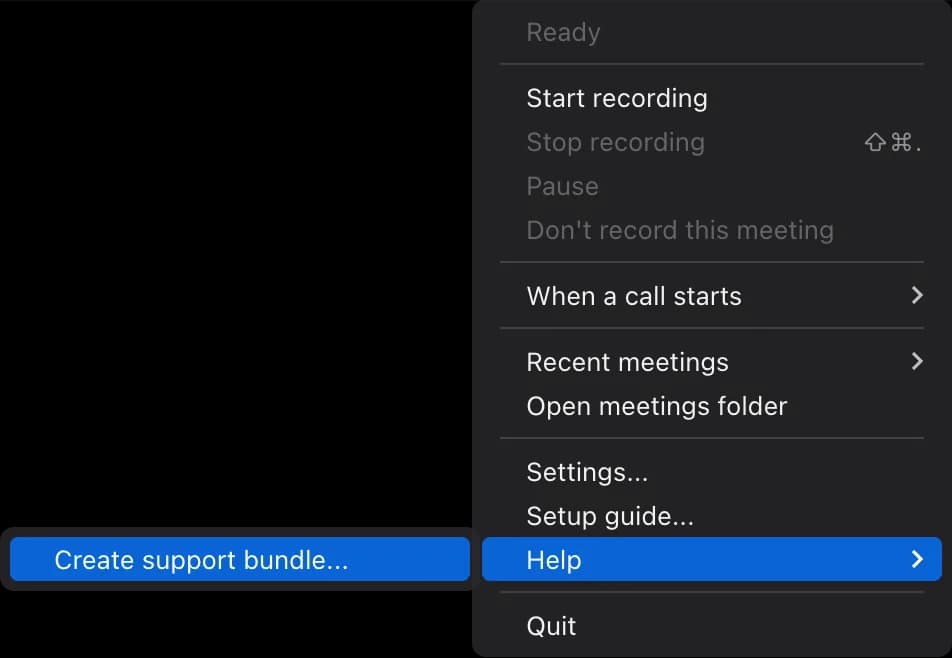
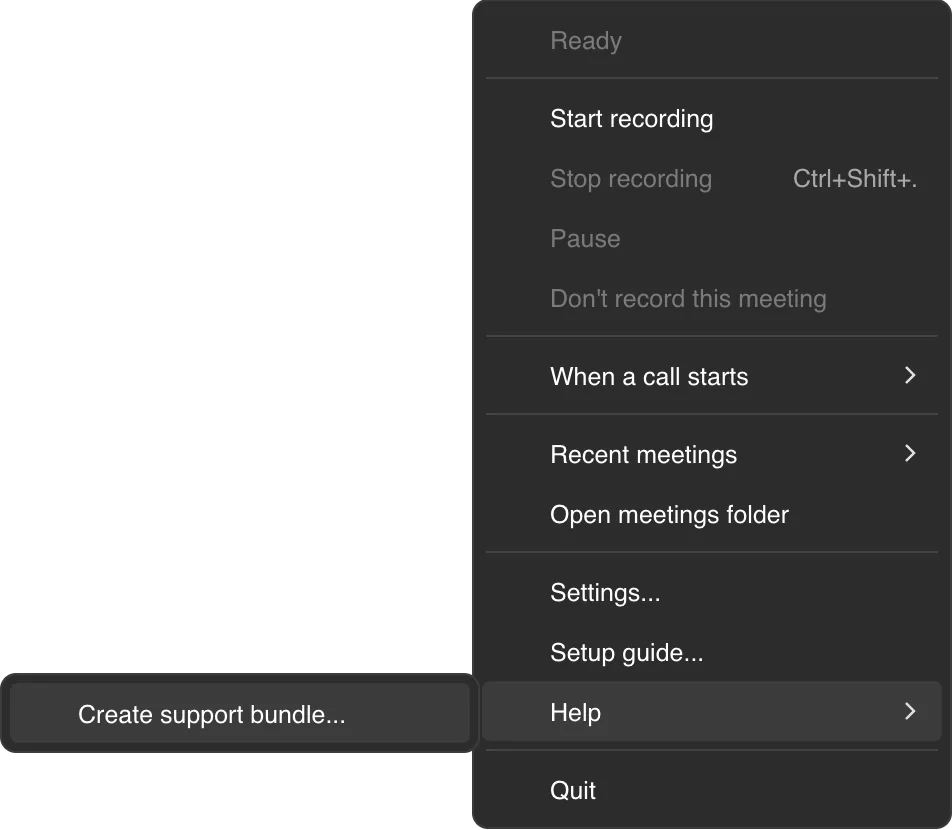
- In the menu bar or tray menu choose Help > Create support bundle... (or Settings > Help > Create support bundle...).
- Optionally tick Include details of my last meeting (no audio, transcript or notes).
- Click Create support bundle. One zip file is saved on your Desktop. Nothing is uploaded.
- Email it to support@transcript.audio with what the first line of the menu says.
Mac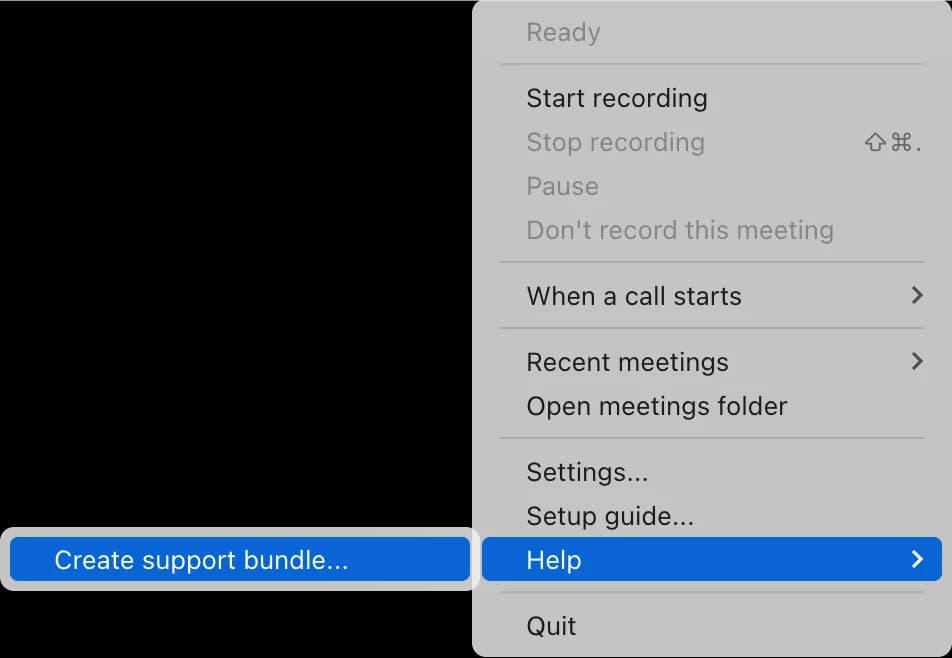
Windows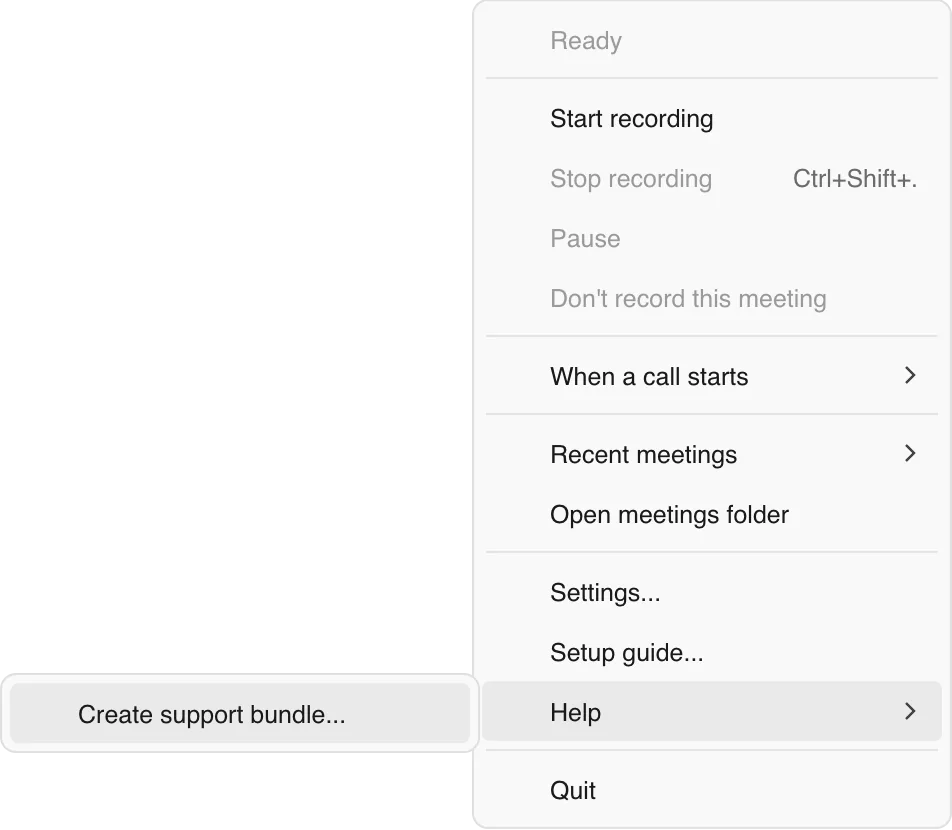
Mac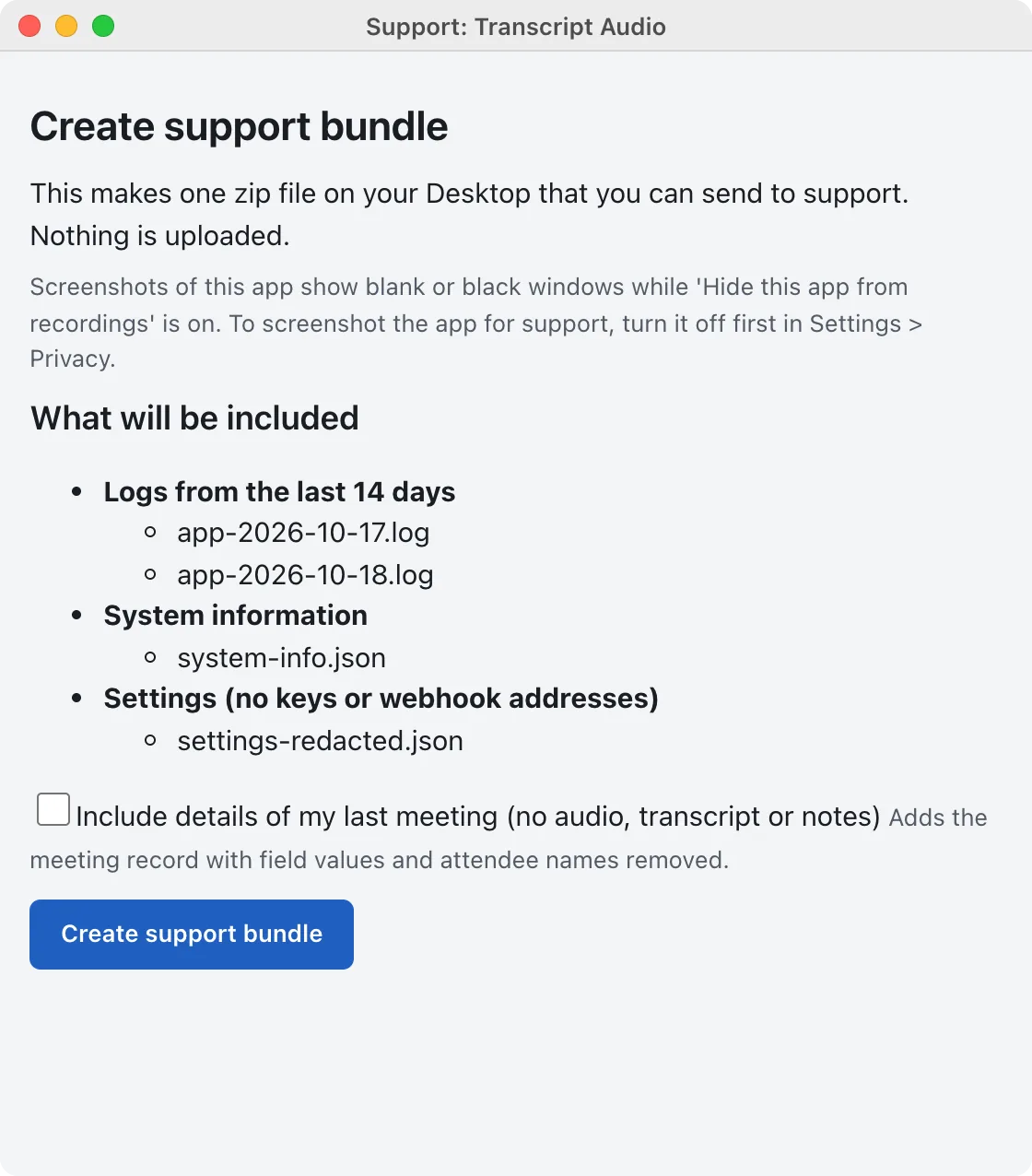
Windows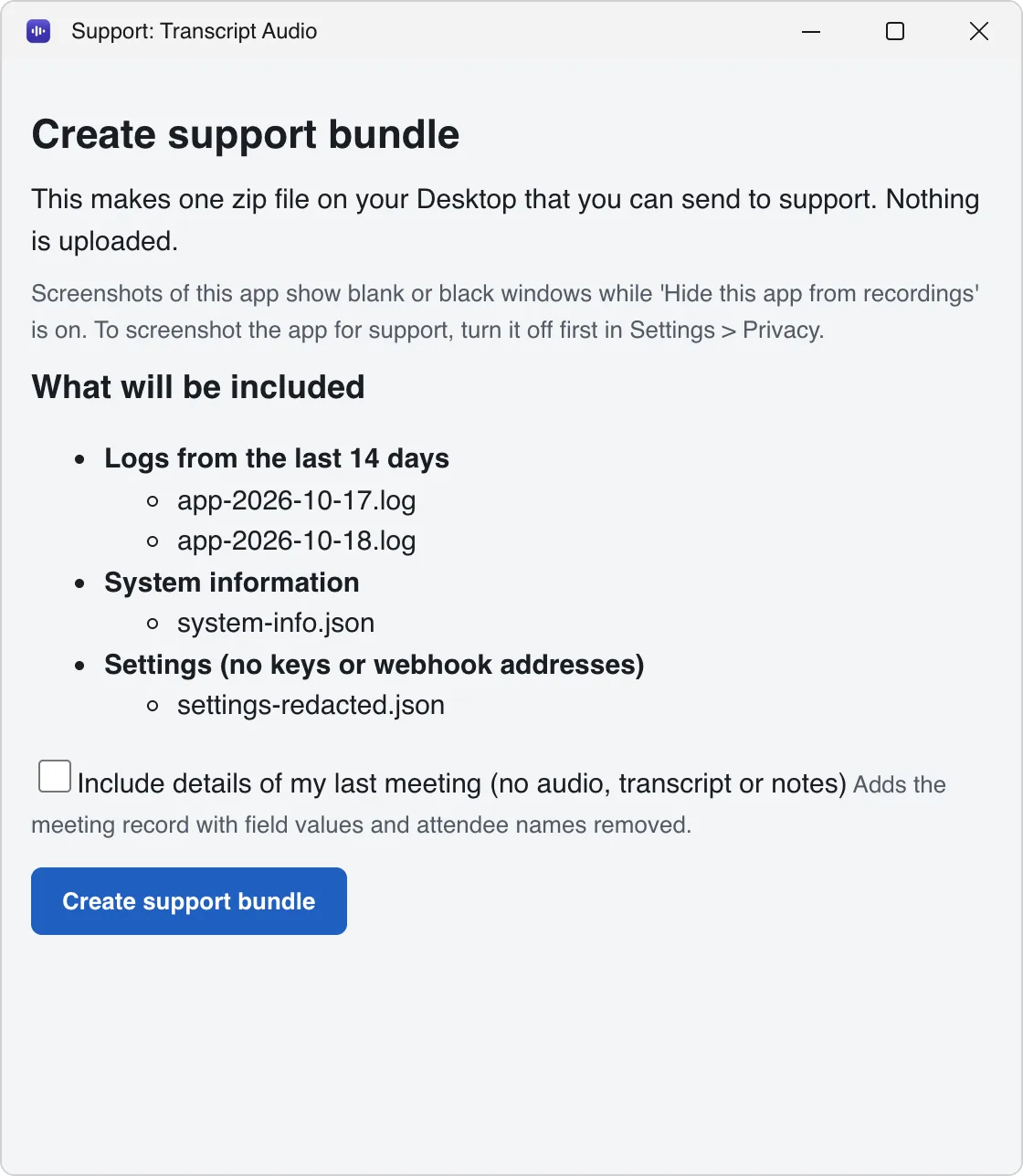
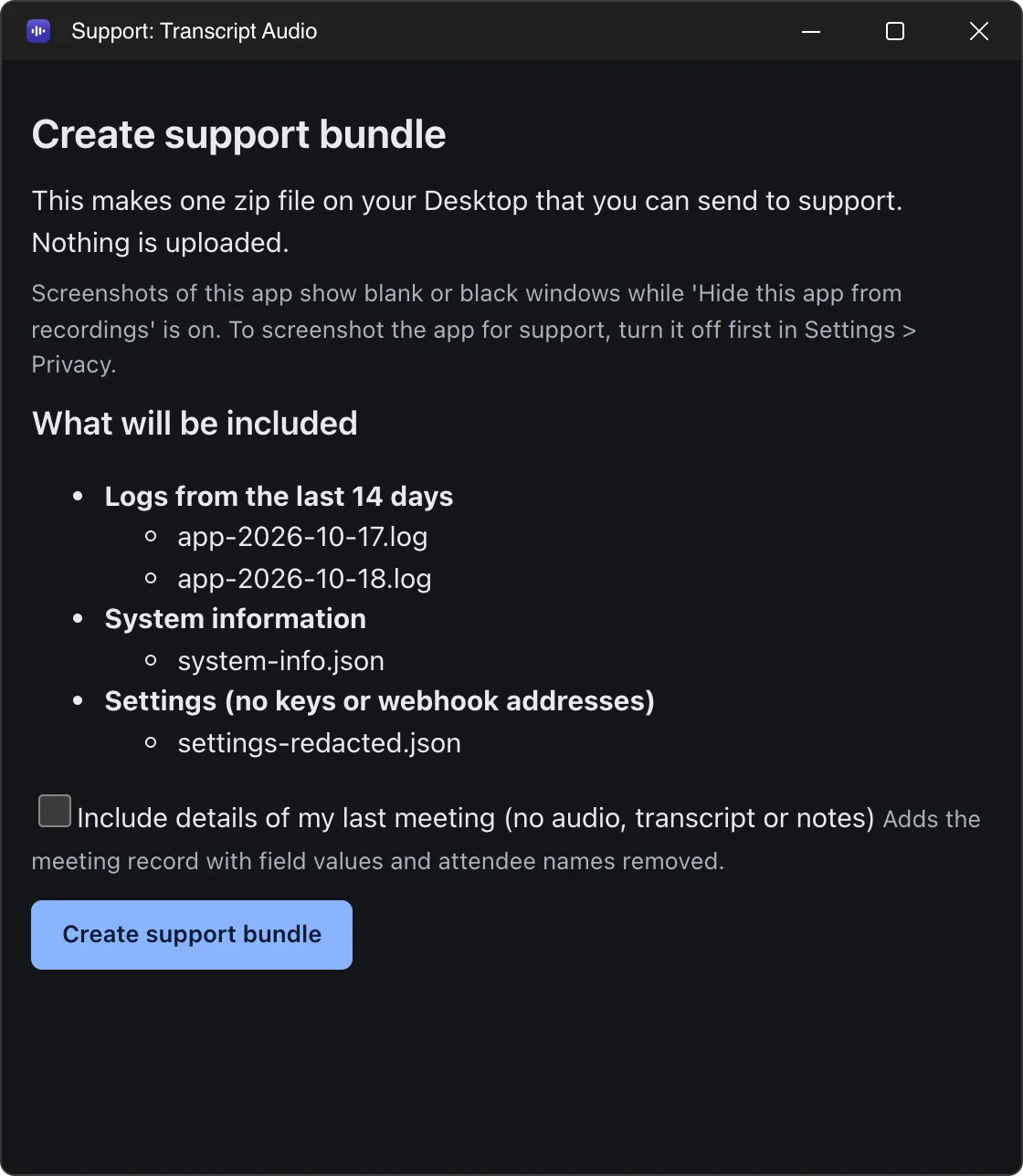
The bundle contains no recordings, transcripts or meeting details. For tricky problems, turn on Detailed logging in Settings > Help first, reproduce the problem, then make the bundle.
Where the logs are
On a Mac
~/Library/Logs/Transcript Audio/In Finder, choose Go > Go to Folder... (Cmd Shift G) and paste the path. Or click Open logs folder in Settings > Help.
On Windows
%LOCALAPPDATA%\Transcript Audio\Logs\Press Win R, paste the path and press Enter. Or click Open logs folder in Settings > Help.
Daily files are named app-YYYY-MM-DD.log and helper-YYYY-MM-DD.log. They never contain names, transcripts or captured details.
Still stuck? Contact us and we’ll help.