The Recent meetings window
The Recent meetings window lists your meetings with status badges. Open notes, try again, name people, re-generate notes, export or delete a meeting.
Last updated
Open it from the menu bar or tray menu: Recent meetings > Show all meetings..., or click a Notes ready notification.
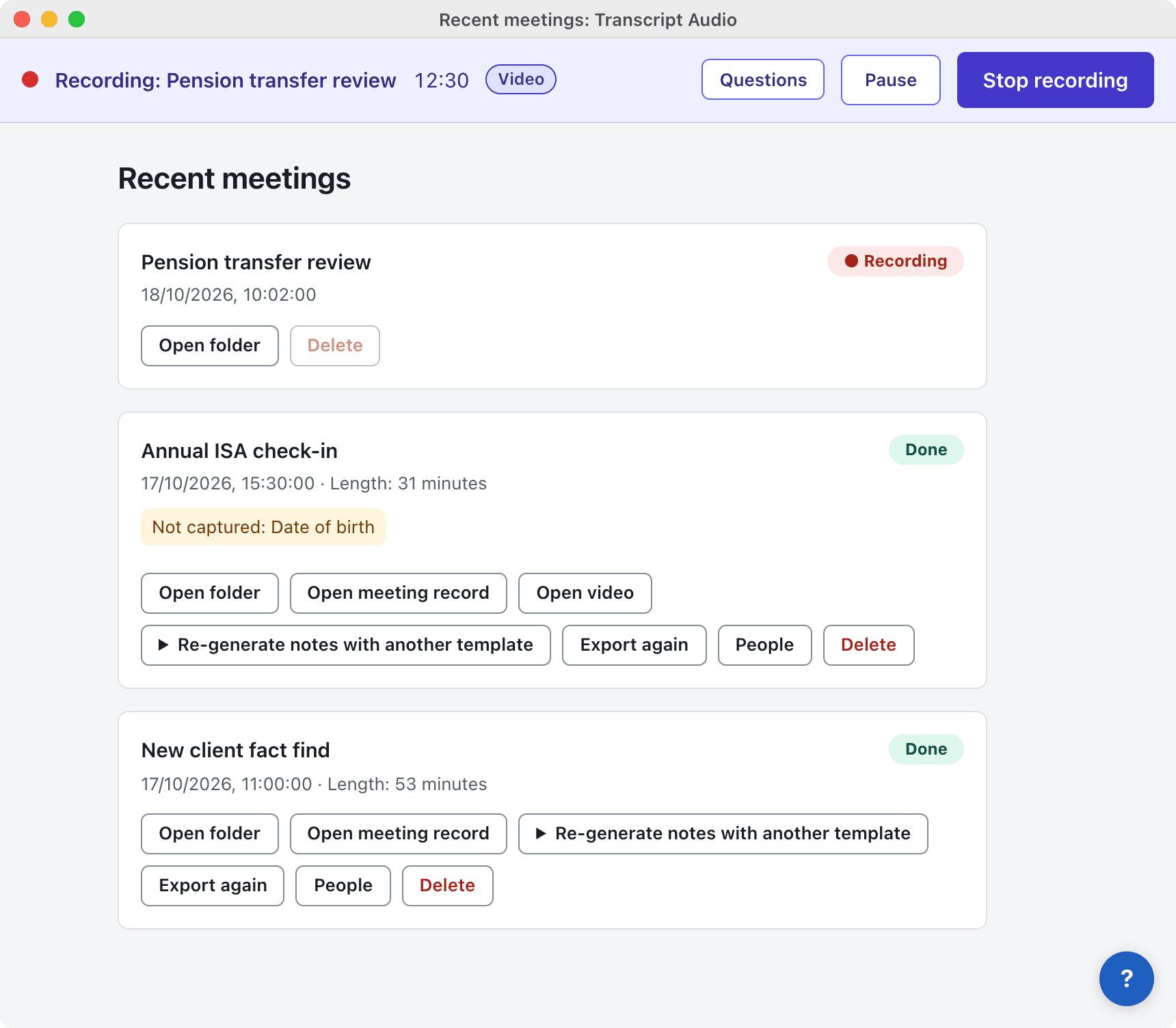
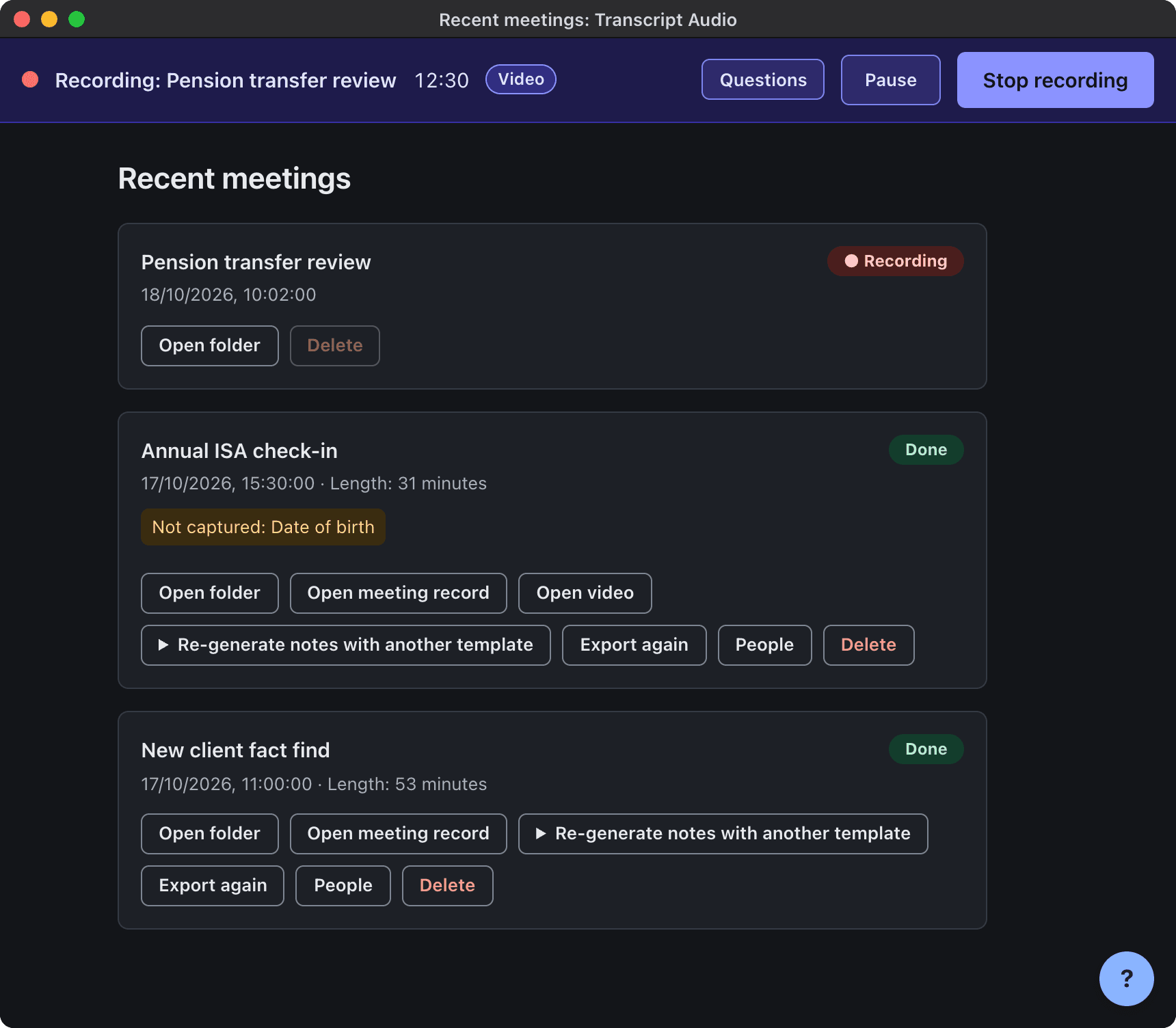
Status badges
| Badge | Meaning |
|---|---|
| Recording / Paused | The meeting is being recorded. |
| Saving video / Saving | The recording is being finished. |
| Waiting | Queued for notes, for example while you are offline. |
| Transcribing | Turning the audio into text. |
| Writing notes | The AI is writing the meeting record. |
| Done | Notes are ready. |
| Failed | Something went wrong. The recording is safe: use Try again. |
What you can do with a meeting
- Open folder and Open meeting record.
- Open video, when the meeting has one.
- Try again for a failed meeting.
- People: name the speakers. See Naming speakers.
- Re-generate notes with another template. See Re-generate notes.
- Export again: make the export formats you have switched on. See Export formats.
- Delete: after a confirmation. A recording in progress must be stopped first.
Not captured: lists details you asked for that were not mentioned, so you know what to follow up.
When an update is ready, a banner at the top says Version X is ready. with Update now and Later.
Still stuck? Contact us and we’ll help.