Record your first meeting
Join a call as usual: Transcript Audio notices, records after a short countdown, and writes your notes when the call ends.
Last updated
There is nothing to start. Join a call in Zoom, Microsoft Teams, Google Meet, Slack or any other app, and Transcript Audio does the rest.
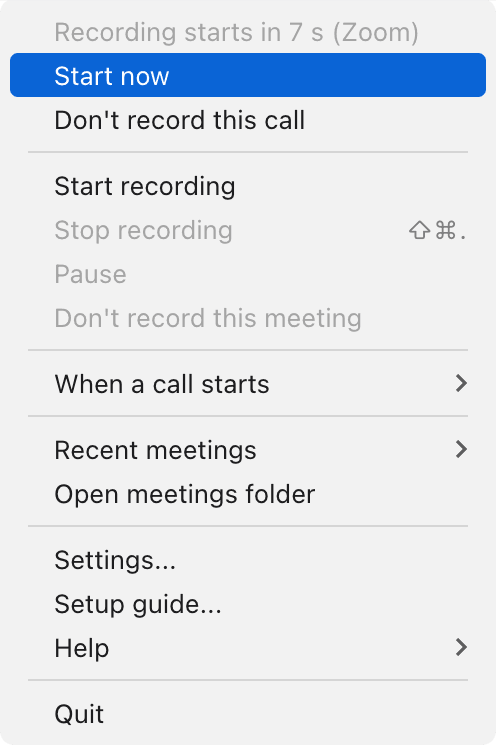
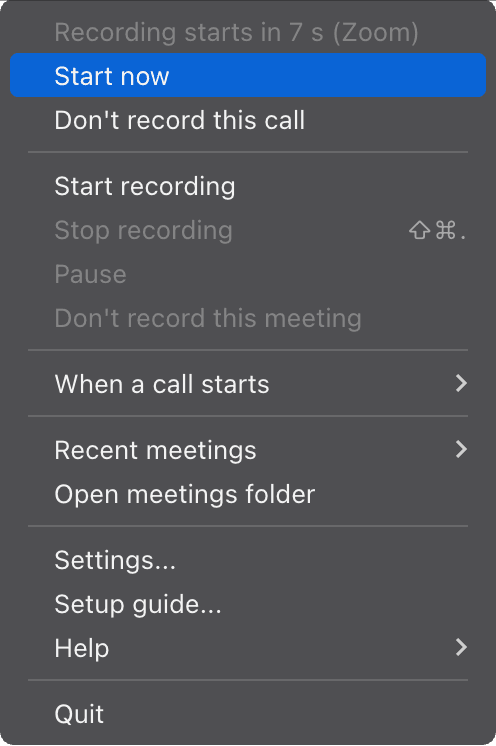
- Join your call. When an app has used your microphone for 10 seconds, a countdown starts in the menu bar or system tray.
- Recording begins when the countdown ends. Click Start now to begin straight away, or Don't record this call to skip it.
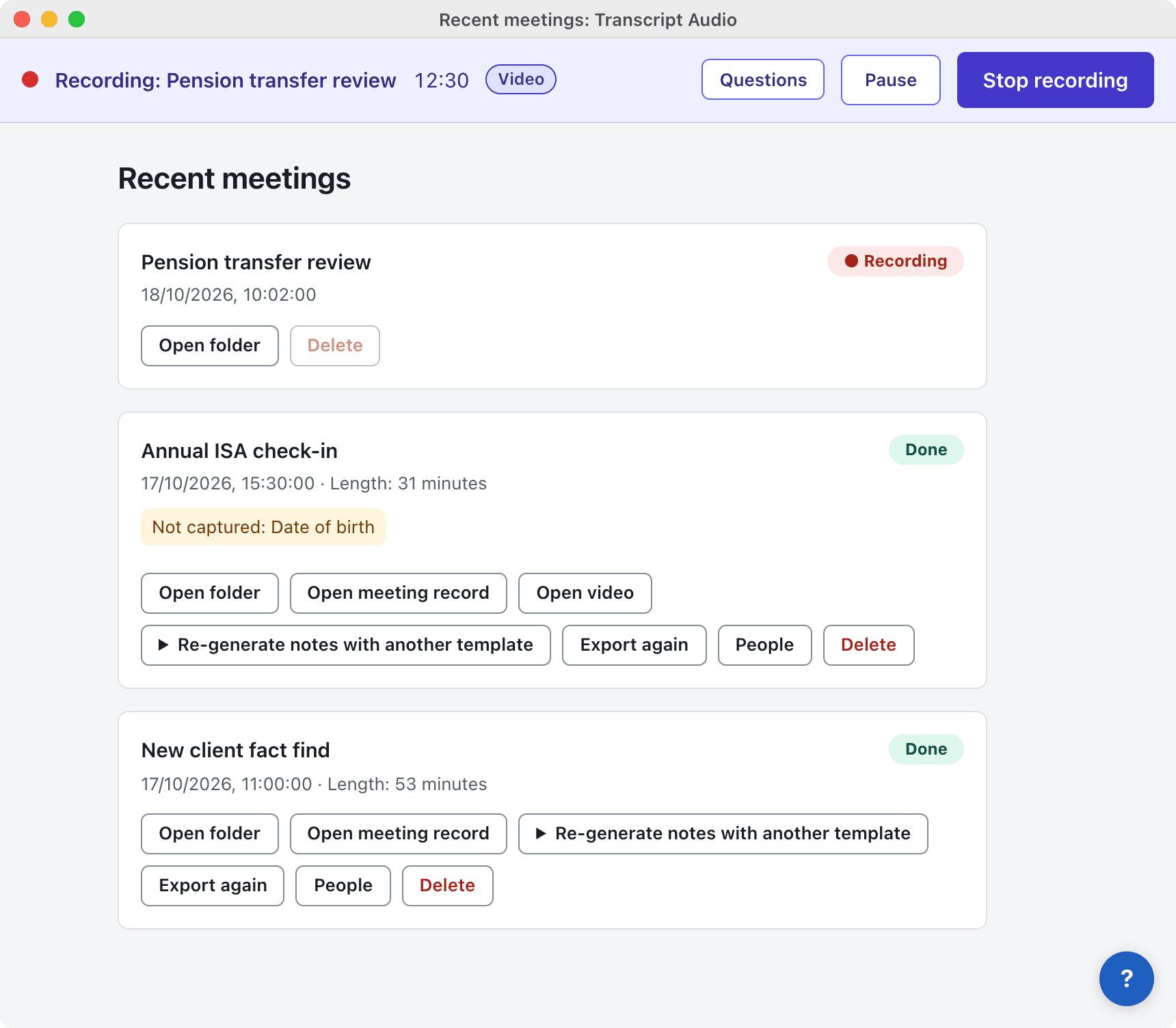
- While it records, a notification says Recording: and the meeting name, and a recording bar with Pause and Stop recording shows at the top of every app window.
- Leave the call. Once the microphone has been free for 30 seconds, recording stops and a notification says Recording saved:.
- A minute or two later a Notes ready: notification appears. Click it to open the meeting in Recent meetings.
In-person meetings
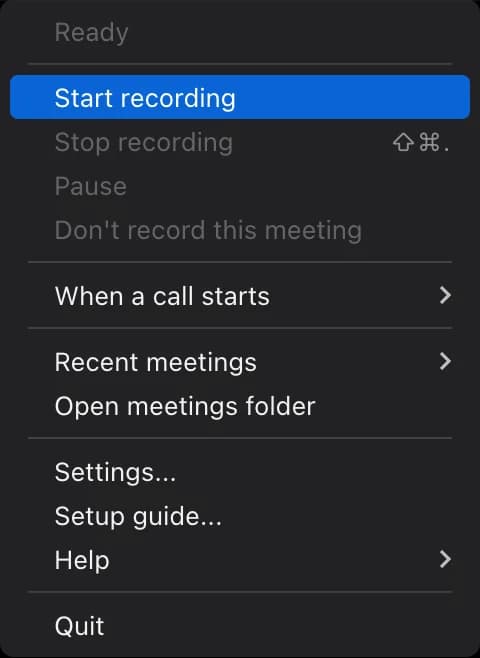
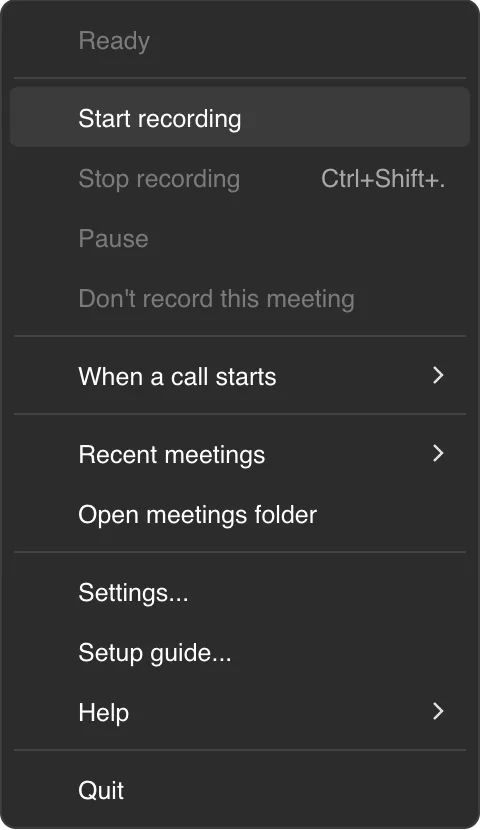
For a meeting in the room, open the menu and choose Start recording. It is named In-person meeting until the notes give it a proper title.
Mac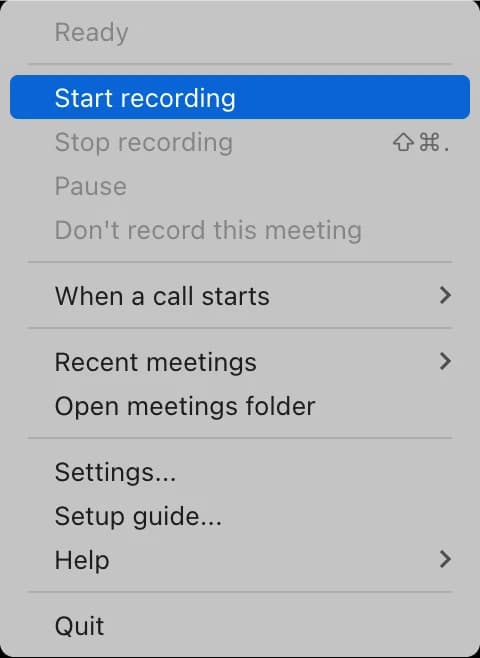
Windows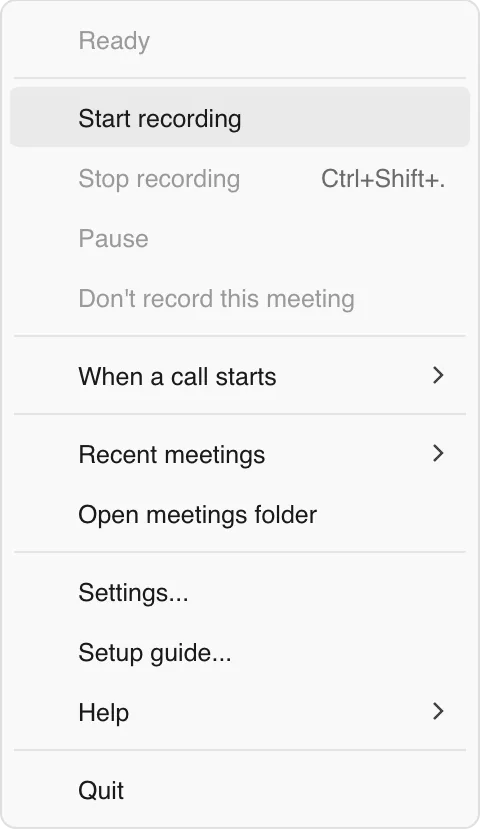
Find and share your notes
- Click the Notes ready: notification, or choose Recent meetings > Show all meetings... in the menu.
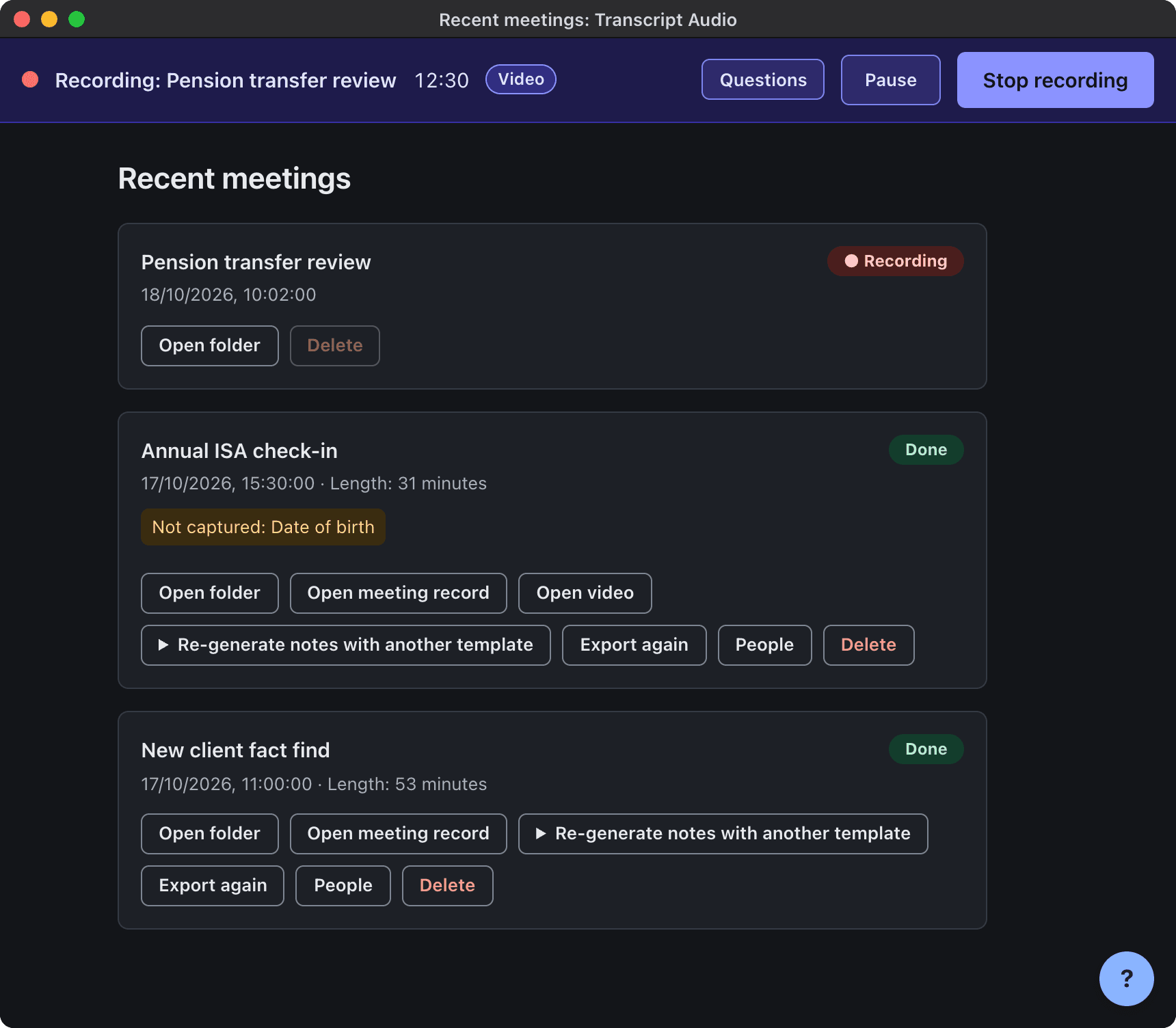
- In Recent meetings, click Open meeting record to read the notes, or Open folder to see every file.
- To share, attach
Meeting record.md(orMeeting record.docxif you chose Word in Settings > Saving > Export formats) to an email or upload it where your team keeps notes.
Want other formats, such as plain text, captions, JSON or a CSV of action items? Turn them on in Export formats. What each file is: What's in a meeting folder.
What next
- Choose what happens when a call starts: Automatic, Ask first or Manual.
- See what is in each meeting folder.
- Pick a template for the kind of meetings you have.
Still stuck? Contact us and we’ll help.