When a call starts: Automatic, Ask first or Manual
Choose what happens when a call starts: Automatic records after a countdown, Ask first asks you, and Manual waits until you press Start recording.
Last updated
Choose in Settings > Recording > When a call starts, or straight from the menu bar or tray menu under When a call starts.
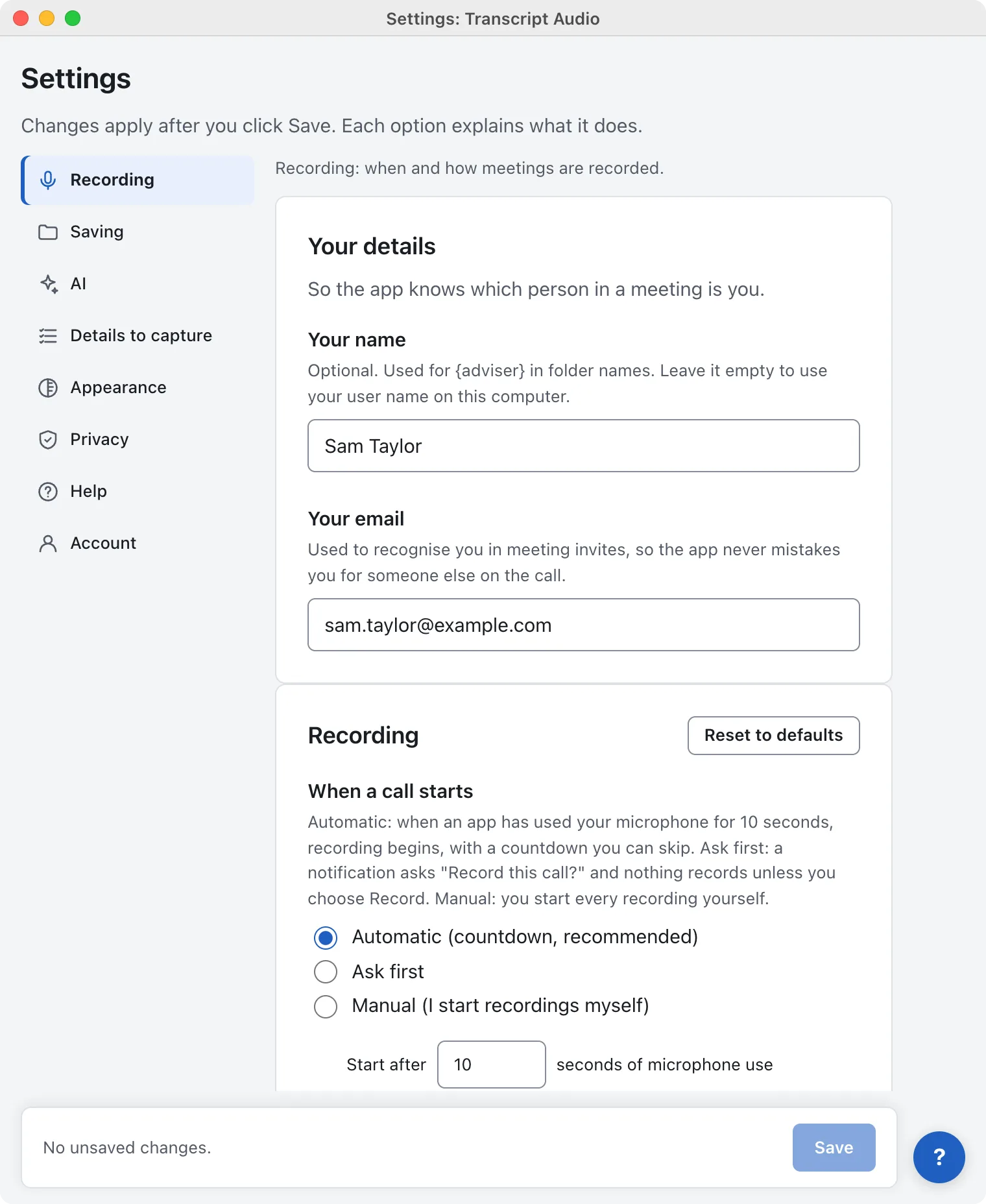
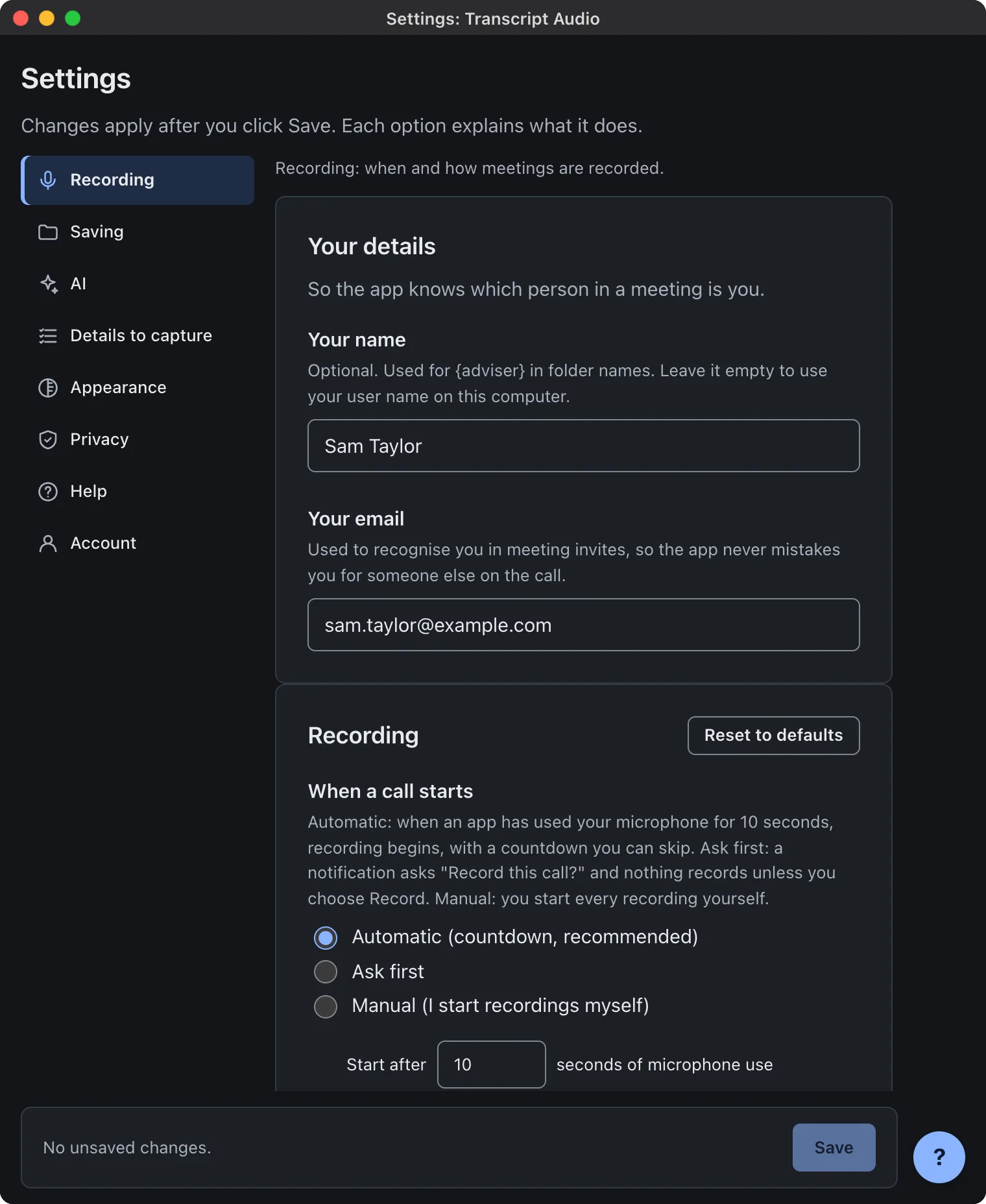
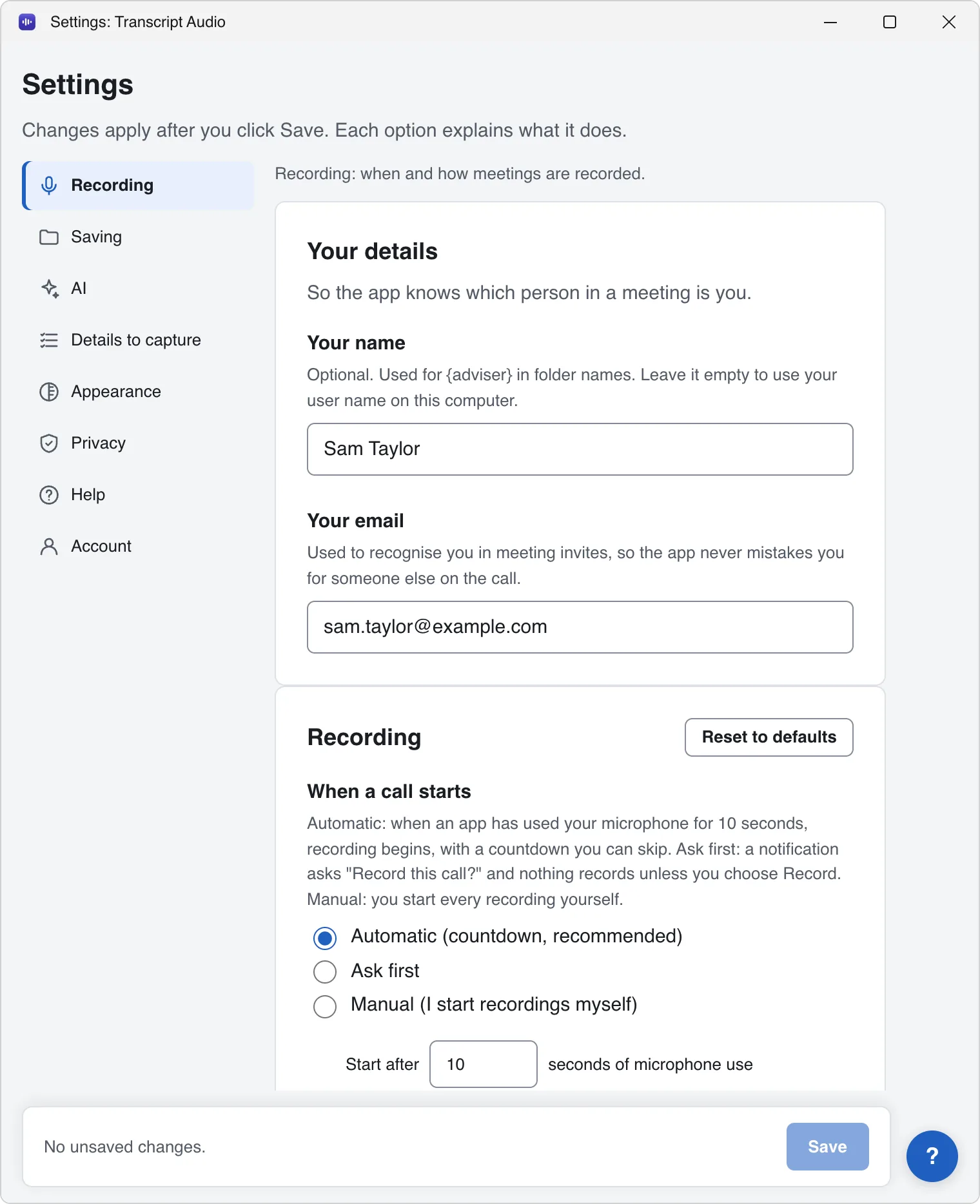
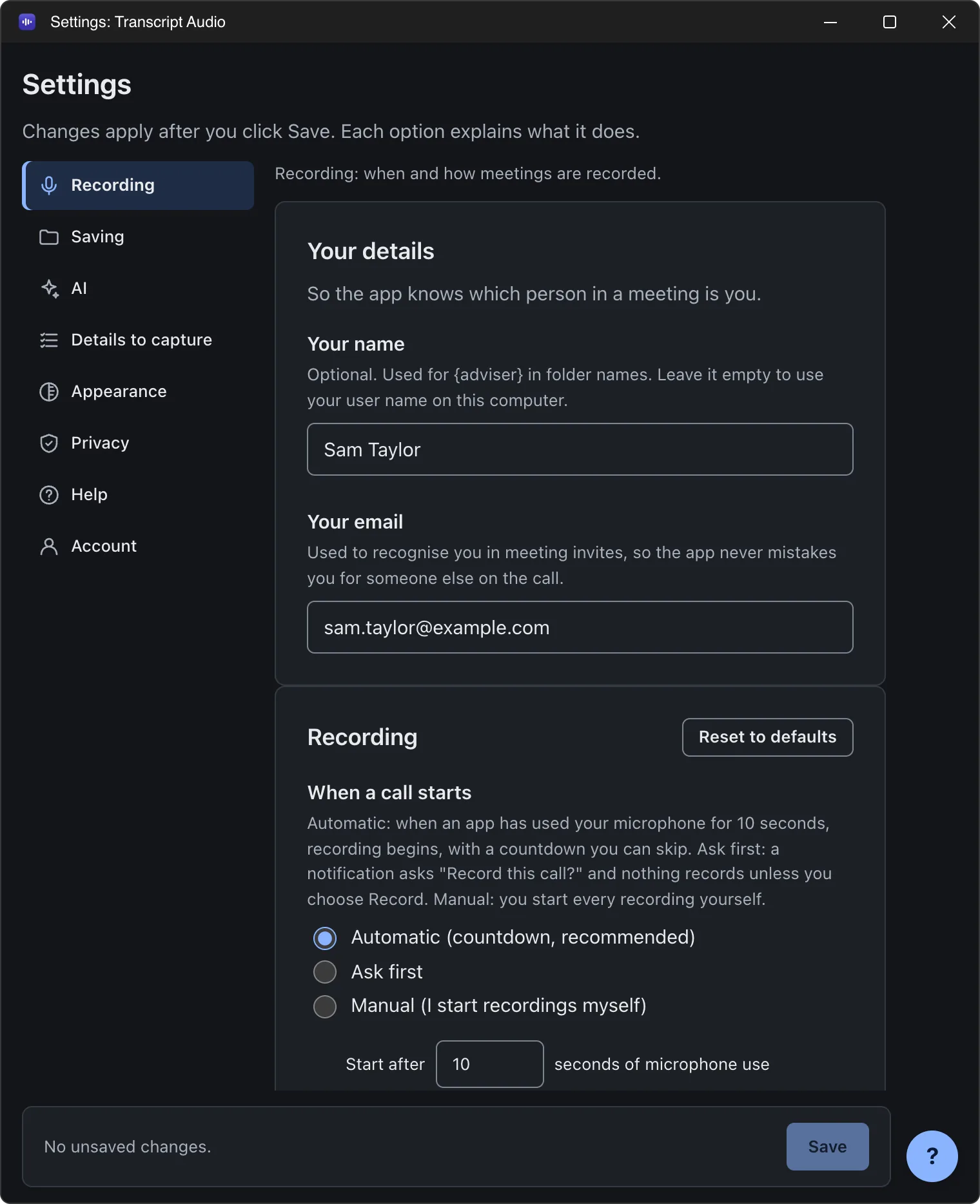
| In Settings | In the menu | What happens |
|---|---|---|
| Automatic (countdown, recommended) | Record automatically (countdown) | The default. Recording begins after 10 seconds of microphone use, with a countdown you can skip. |
| Ask first | Ask first | A notification asks Record this call? with Record and Not now. Nothing records unless you choose Record. |
| Manual (I start recordings myself) | Don't record (start it yourself) | Nothing starts by itself. Use Start recording. |
The countdown (Automatic)
On a Mac
The seconds left show next to the menu bar icon, and the menu reads Recording starts in 7 s (Zoom). Open the menu and choose Start now or Don't record this call.
On Windows
The seconds left show on the tray icon, and the menu reads Recording starts in 7 s (Zoom). Click the tray icon and choose Start now or Don't record this call.
The same countdown, with the same buttons, shows in the bar at the top of the app window when it is open. Turn the countdown display off with Show a countdown before recording starts; the wait still applies.
Skipping a call
Don't record this call skips the rest of that call. The status shows Not recording this call (until it ends). The next call is detected as usual.
Ask first
- When a call is detected, a notification asks Record this call? and names the app, for example "Zoom is using your microphone".
- Answer from the notification, from the menu (Record this call or Not now), or from the bar at the top of the app window.
- No answer within 60 seconds means that call is not recorded.
- Not now skips the rest of that call.
How long before it starts
Start after ... seconds of microphone use sits right under the choice. It is 10 seconds by default and can be any whole number from 1 to 3600. Under 5 seconds can also record voice notes and dictation. It is greyed out in Manual.
Still stuck? Contact us and we’ll help.