Permissions on Mac and Windows
Transcript Audio needs your microphone and your computer's sound output to record a call. What each permission is for, and which ones are optional.
Last updated
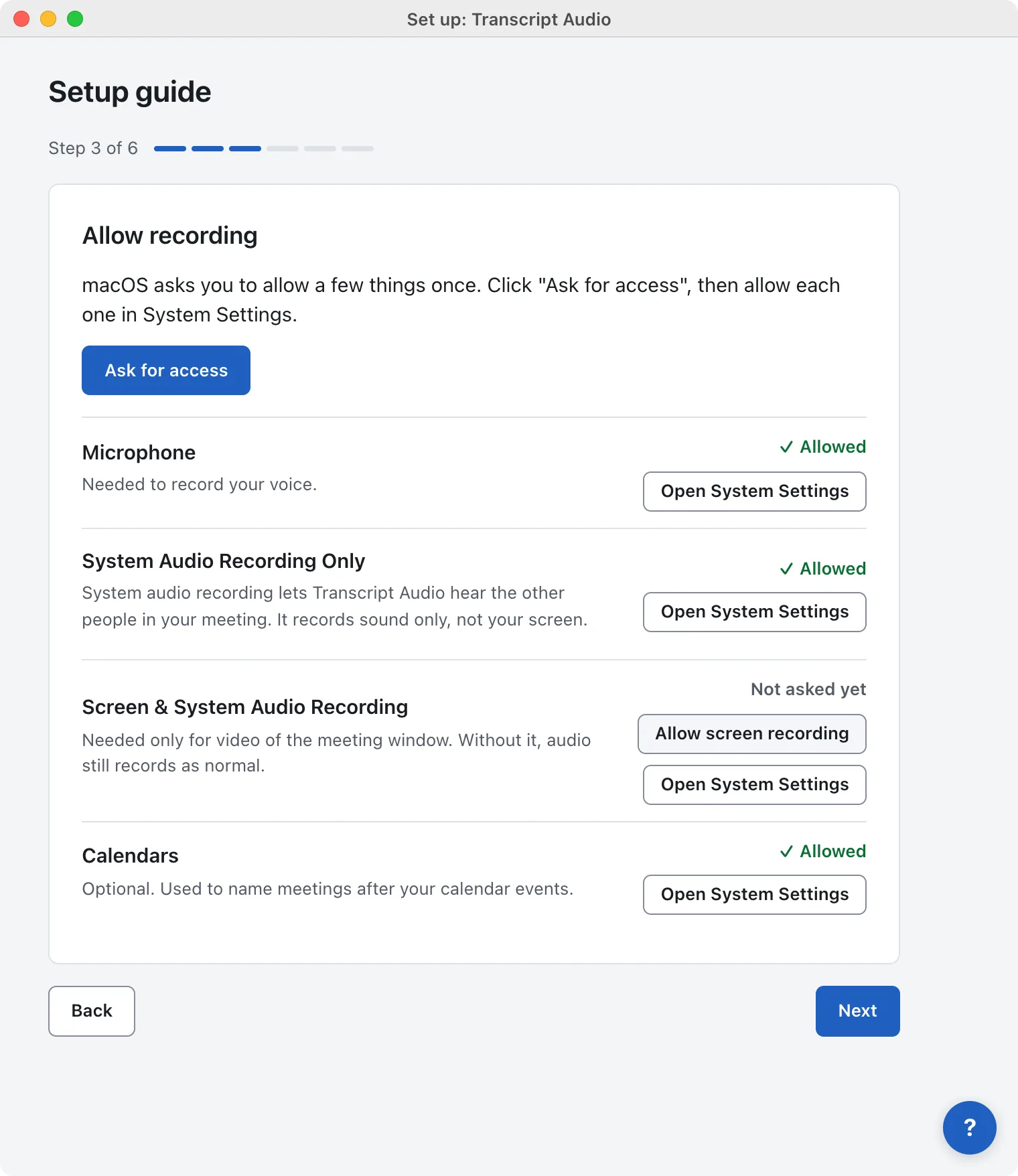
Transcript Audio records two things: your microphone (your voice) and the sound your computer plays (everyone else on the call). Your system has to allow both. Everything else is optional.
On a Mac
| Permission | What it is for | Needed? |
|---|---|---|
| Microphone | Your voice. | Yes |
| System Audio Recording Only (in Screen & System Audio Recording) | The other people on the call (macOS 14.2 and later). | Yes |
| Screen Recording (macOS 13 to 14.1 only) | The other people on the call on older macOS, instead of the above. | Yes, on those versions |
| Calendars | Naming meetings after your calendar events. | Optional |
| Screen & System Audio Recording (full) | Video of the meeting window. | Optional, only for video |
| Notifications | Recording started, notes ready, and the Ask first prompt. | Recommended |
Detecting a call needs no permission: the app can see which apps are using the microphone without one.
On Windows
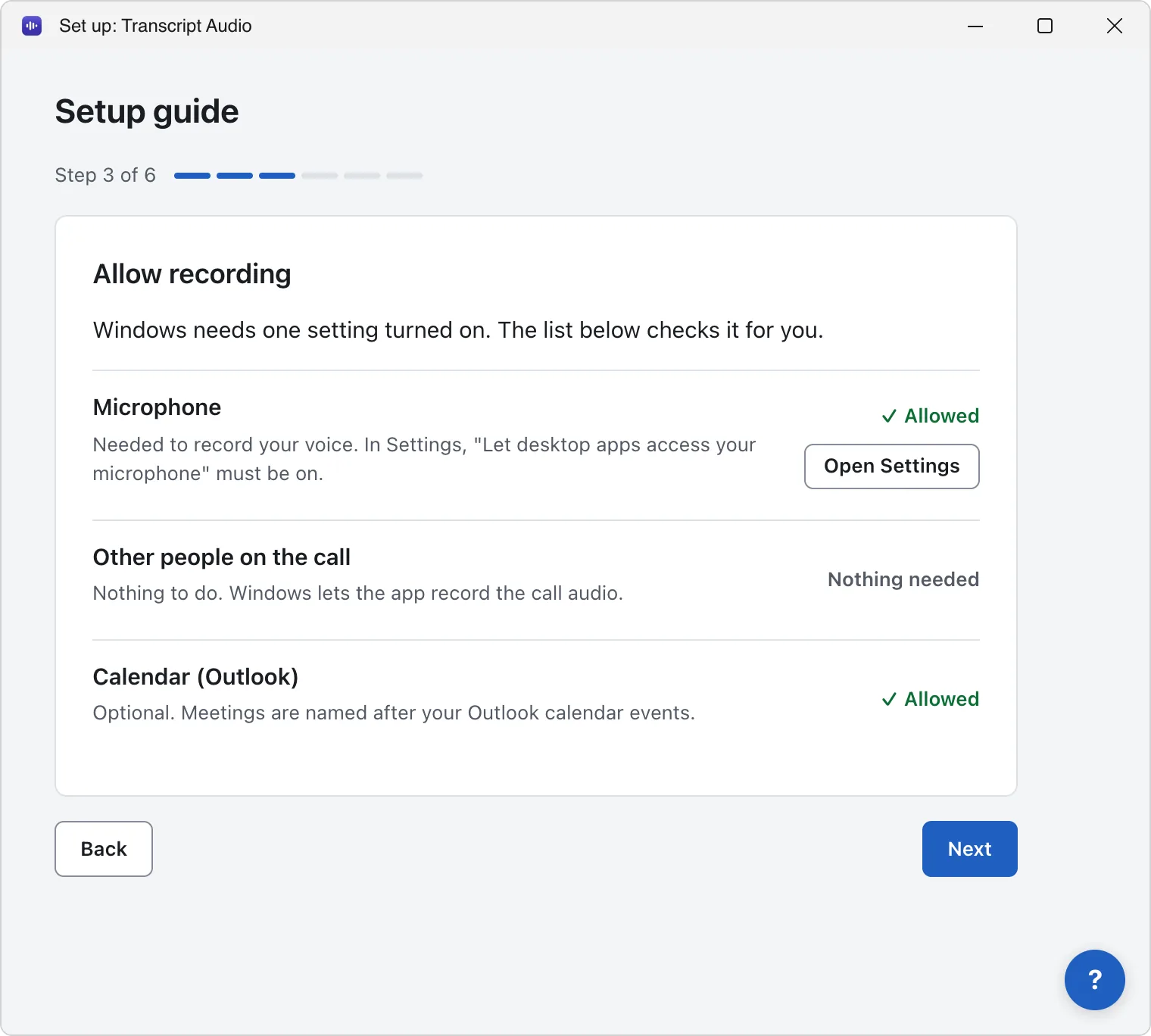
| Permission | What it is for | Needed? |
|---|---|---|
| Microphone access and Let desktop apps access your microphone | Your voice. | Yes |
| Other people on the call | Windows lets the app record the call audio. Nothing to allow. | Nothing needed |
| Classic Outlook | Naming meetings after your Outlook calendar events. | Optional |
| Video | Video of the meeting window. Windows shows no prompt for it. | Nothing needed |
| Notifications | Recording started, notes ready, and the Ask first prompt. | Recommended |
Detecting a call needs no permission.
Check what is allowed
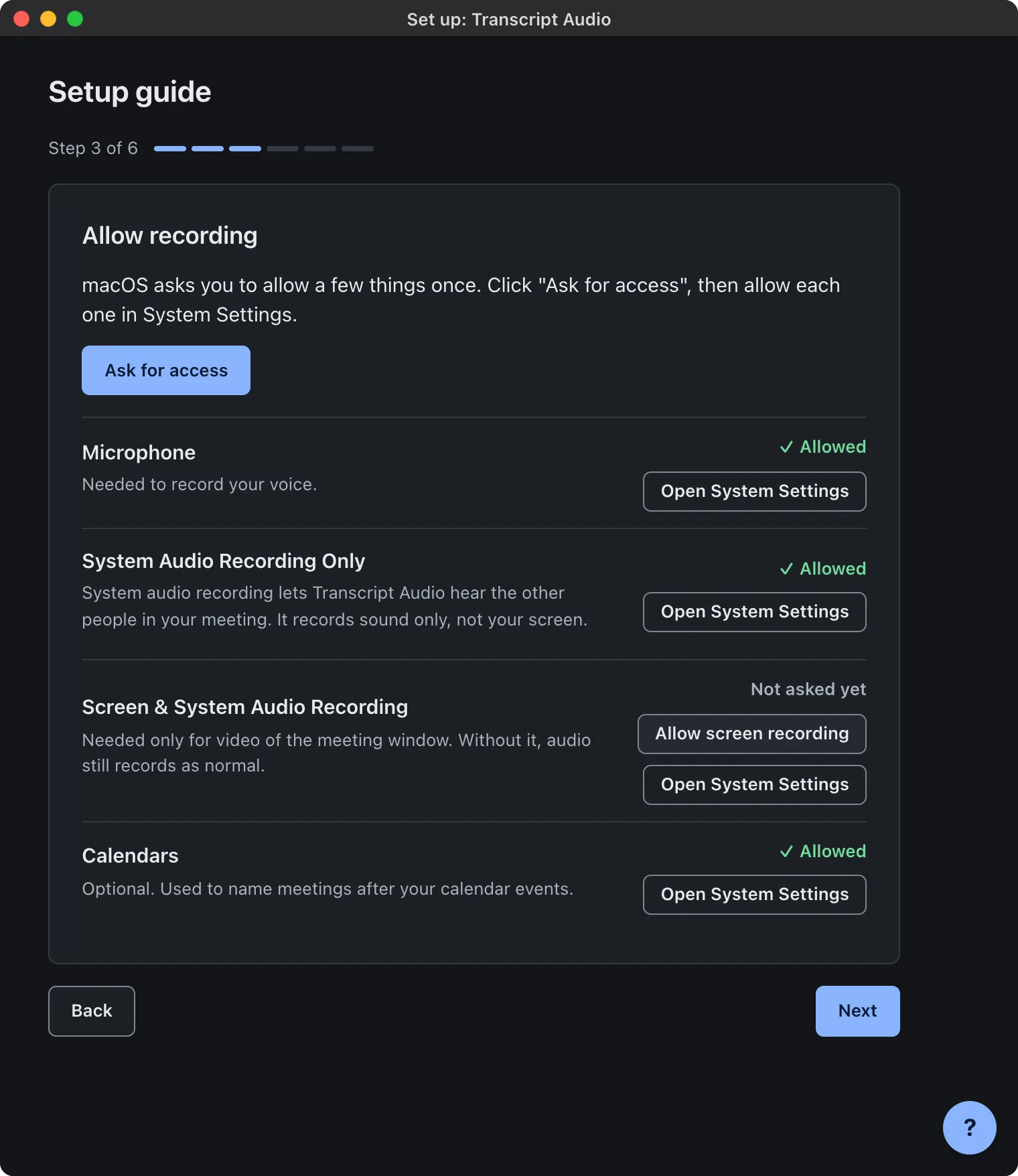
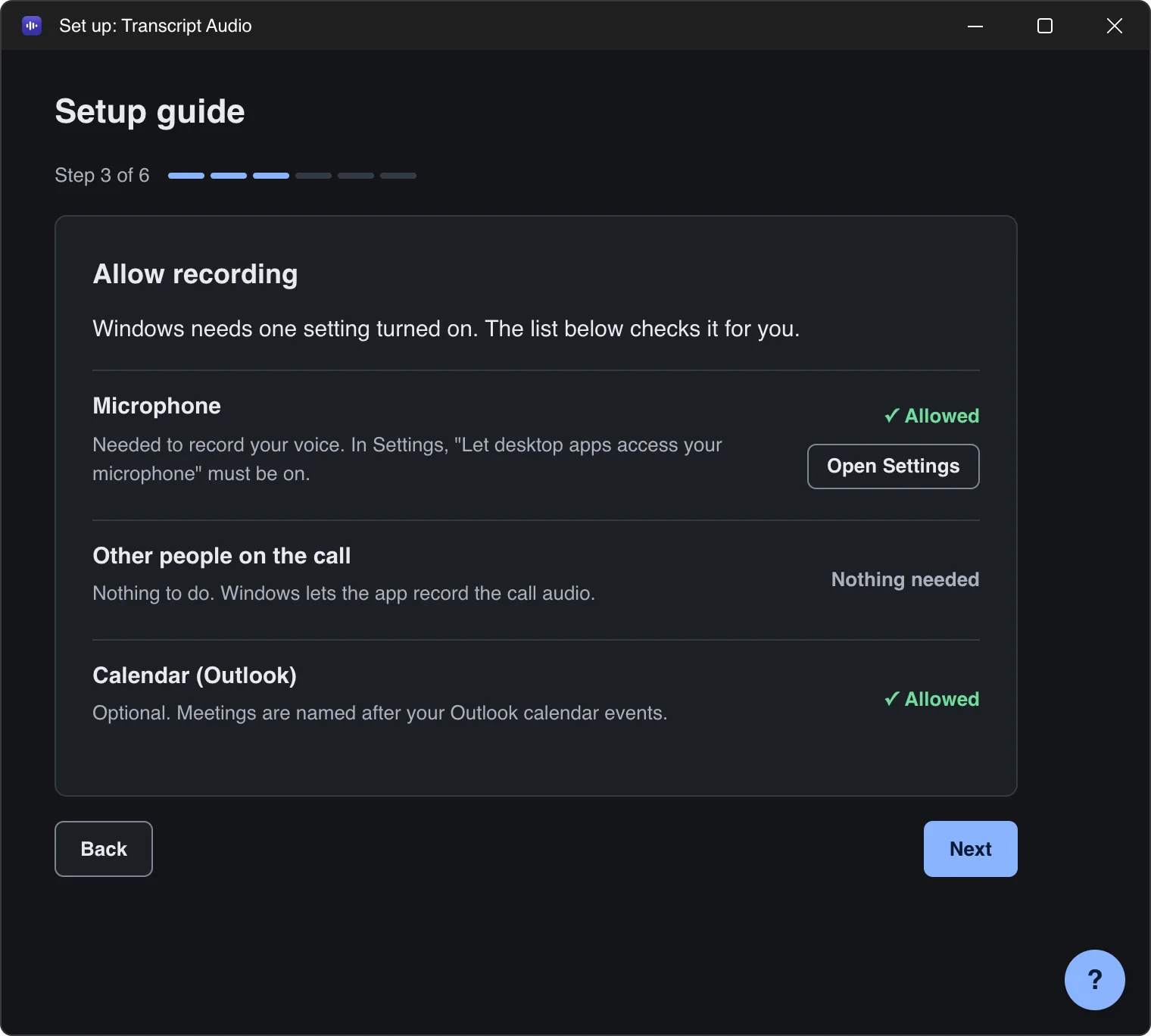
Open the setup guide again (menu bar or tray menu > Setup guide...) and go to Allow recording. Each item shows Allowed, Not allowed, Not asked yet, Nothing needed or Not known, with a button to the right system setting.
Each permission
Still stuck? Contact us and we’ll help.