Settings: Recording
Every option on the Recording tab: your details, when a call starts, what starts a recording, video, shortcuts and the advanced options.
Last updated
Mac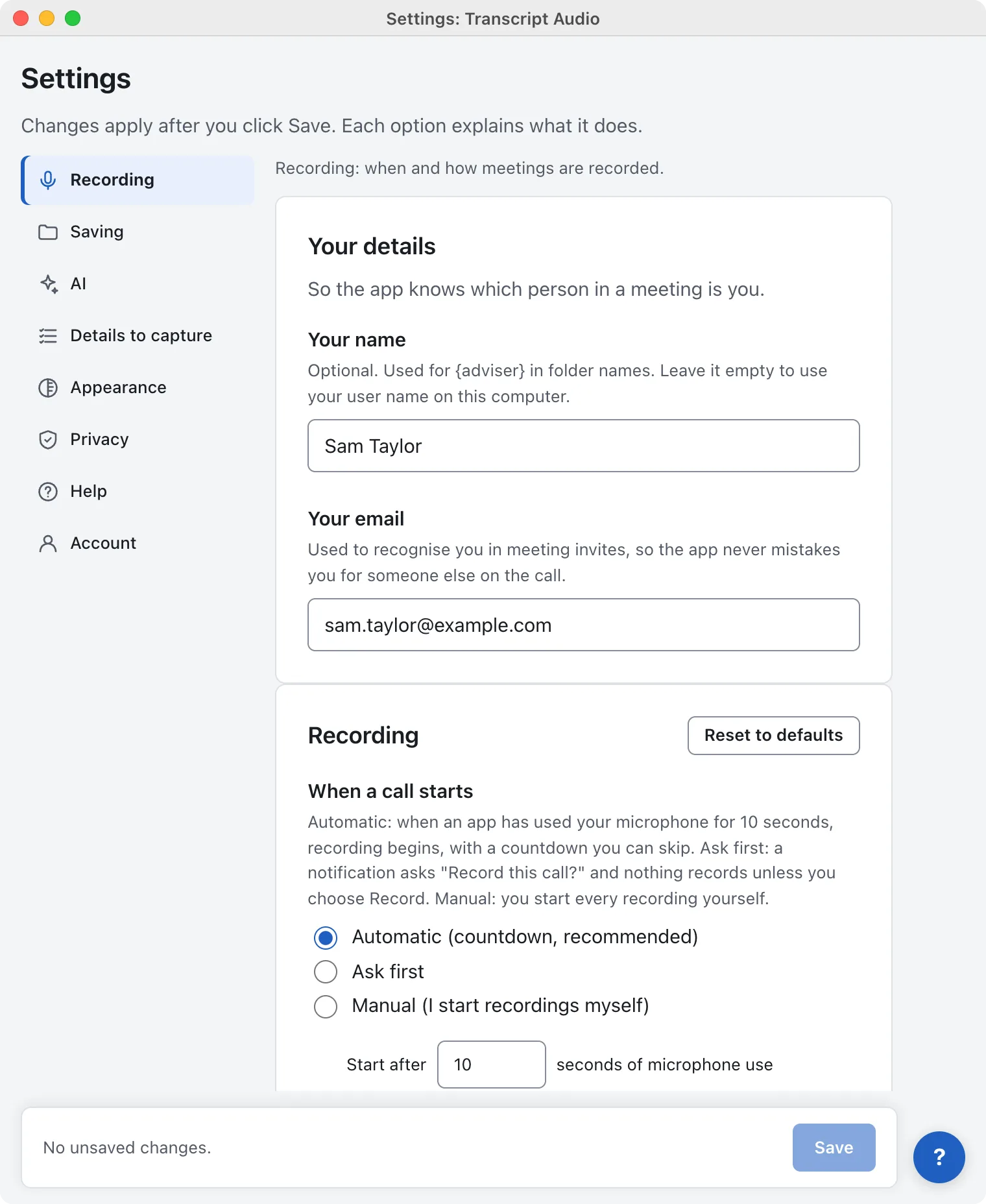
Windows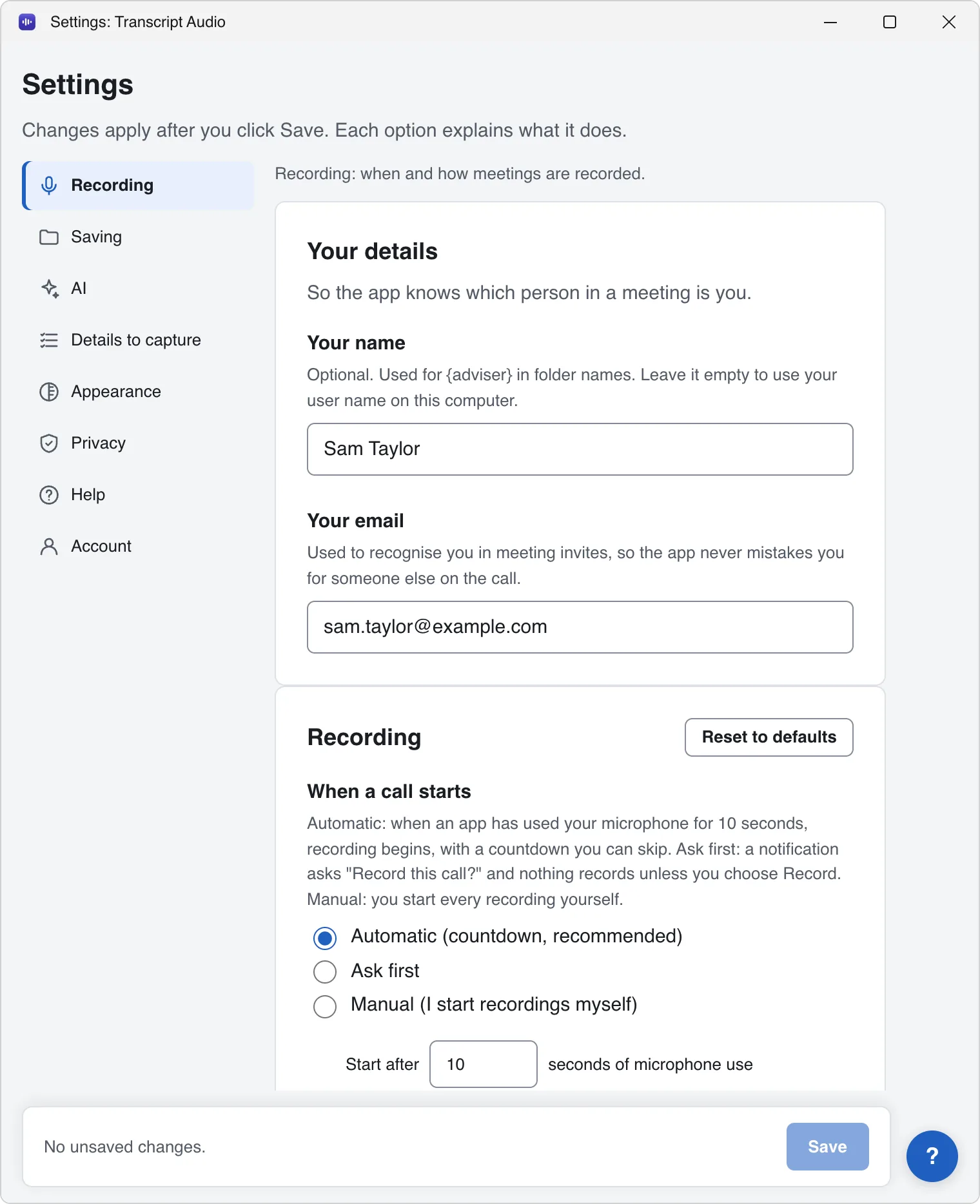
Your details
| Option | What it does | Default |
|---|---|---|
| Your name | Used for {me} in folder names. Empty uses your user name on this computer. | Empty |
| Your email | Recognises you in meeting invites, so the app never mistakes you for someone else on the call. | Asked in setup |
Recording
| Option | What it does | Default |
|---|---|---|
| When a call starts | Automatic (countdown), Ask first or Manual. See When a call starts. | Automatic |
| Start after ... seconds of microphone use | How long an app must use the microphone before recording starts (or before Ask first asks). 1 to 3600. | 10 seconds |
| Show a countdown before recording starts | Shows the seconds left in the menu bar or tray so you can cancel. Automatic only. | On |
| What starts a recording | Any app using the microphone or Meeting apps and meeting pages only. | Any app |
| Also detect these apps | Extra apps to detect, one per line: an app id on a Mac, a program name on Windows. | Empty |
| Only record calls that are in my calendar | Calls with no calendar event at the same time are not recorded. | Off |
| Record video of the meeting | Also saves a video of the meeting window. About 1 GB an hour. | Off |
| Throw away very short recordings | Recordings shorter than this many seconds are deleted. 0 keeps everything. | 60 seconds |
| After I stop a recording, don't start again until the call ends | Stopping yourself means the rest of that call is not recorded. | On |
| Keyboard shortcut to stop recording | Stops the recording from anywhere. Click the box and press new keys, or Clear it. | Cmd Shift . (Mac), Ctrl Shift . (Windows) |
| Open Transcript Audio when a call ends | Brings the app to the front after each call. Off: notification only. | On |
| Reduce echo from speakers | Only if you use speakers instead of headphones, so the other side is not recorded twice. | Off |
Advanced
Most people never need to change these.
| Option | What it does | Default |
|---|---|---|
| Video quality | 1080p (sharper) or 720p (smaller files, about half the size). | 1080p |
| Video frame rate | 15 or 30 frames a second. | 15 |
| Wait before stopping | Stop when the microphone has been free for this many seconds. 1 to 3600. | 30 seconds |
| Stop after this much silence | Stops an automatic recording after this many minutes with no sound at all. 0 to 120; 0 turns it off. | 5 minutes |
| Meeting apps | The apps used by "Meeting apps and meeting pages only", each with its app ids. Add meeting app adds one. | Zoom, Microsoft Teams, Webex and more |
| Apps to ignore | These apps never start a recording, one app id per line. | Krisp, NVIDIA Broadcast, Voicemod, Elgato Wave Link and others |
Still stuck? Contact us and we’ll help.