Start, stop, pause and discard
Start a recording yourself, pause for a private moment, stop with a click or a keyboard shortcut, or discard a recording.
Last updated
Start a recording yourself
On a Mac
Click the Transcript Audio icon in the menu bar and choose Start recording. Use it for in-person meetings, or when a call did not start recording by itself.
On Windows
Click the Transcript Audio icon in the system tray (click the small arrow if it is hidden) and choose Start recording. Use it for in-person meetings, or when a call did not start recording by itself.
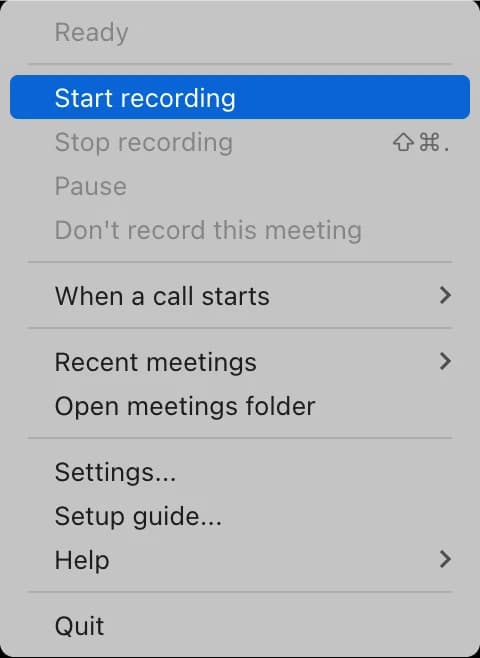
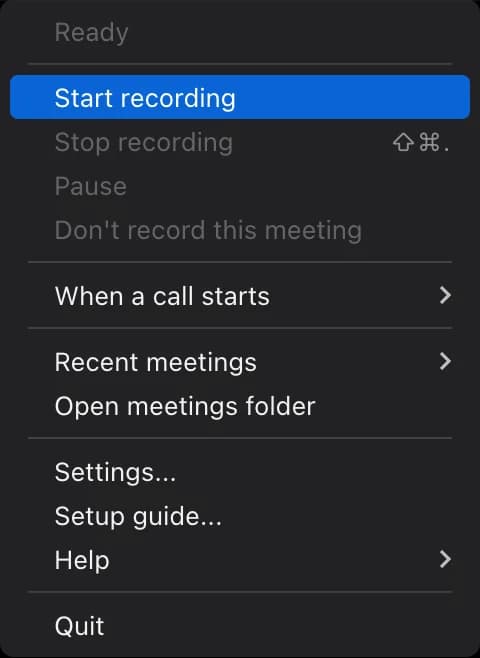
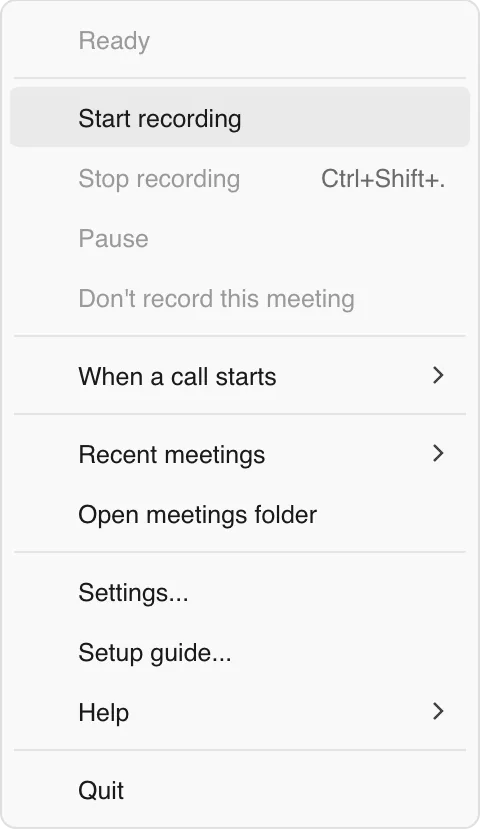
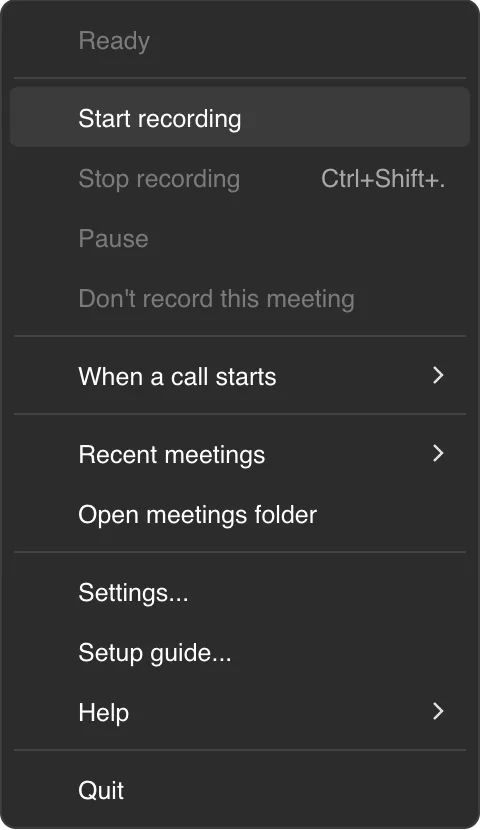
While it records
- A notification says Recording: and the meeting name, with a way to stop it.
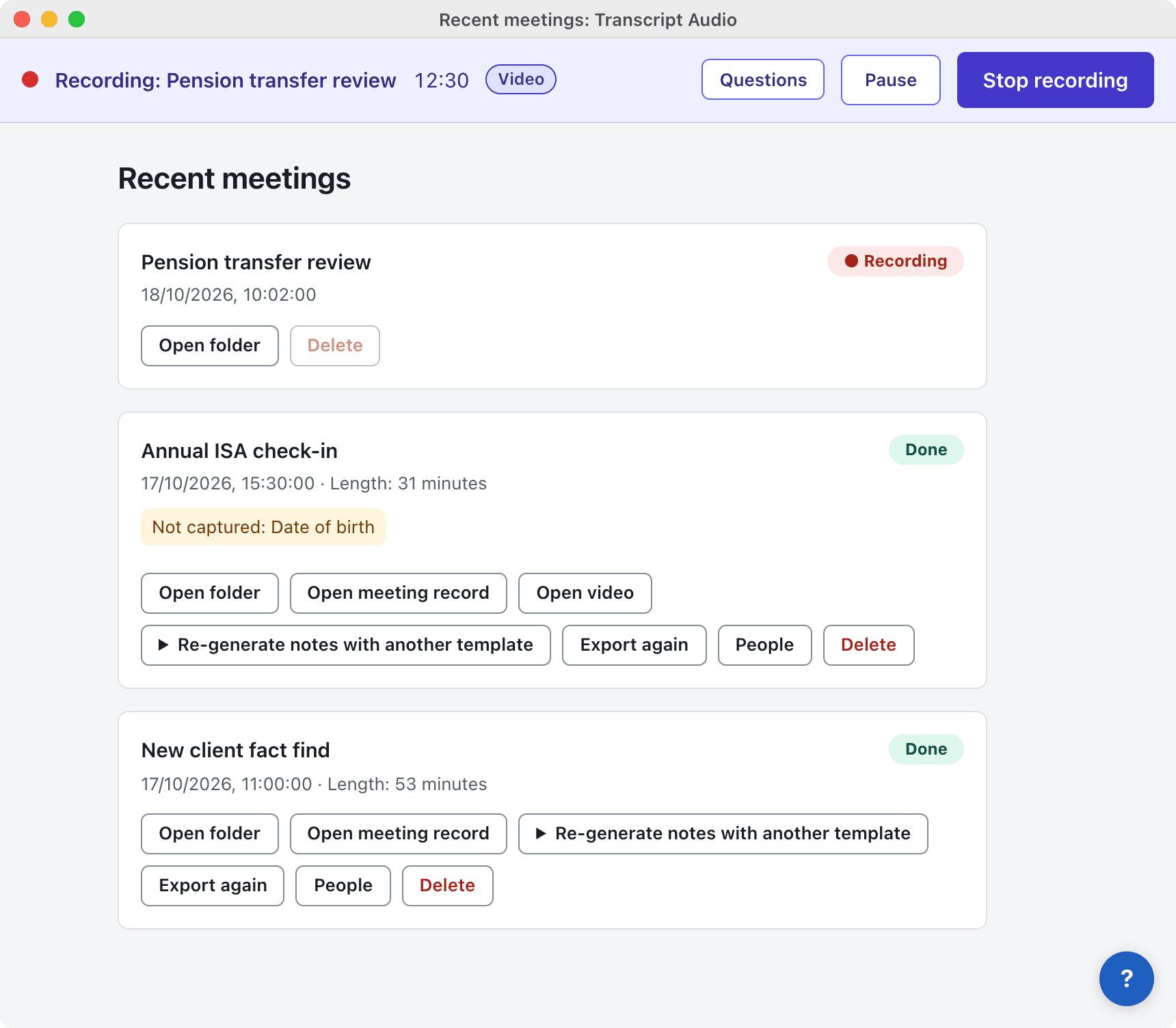
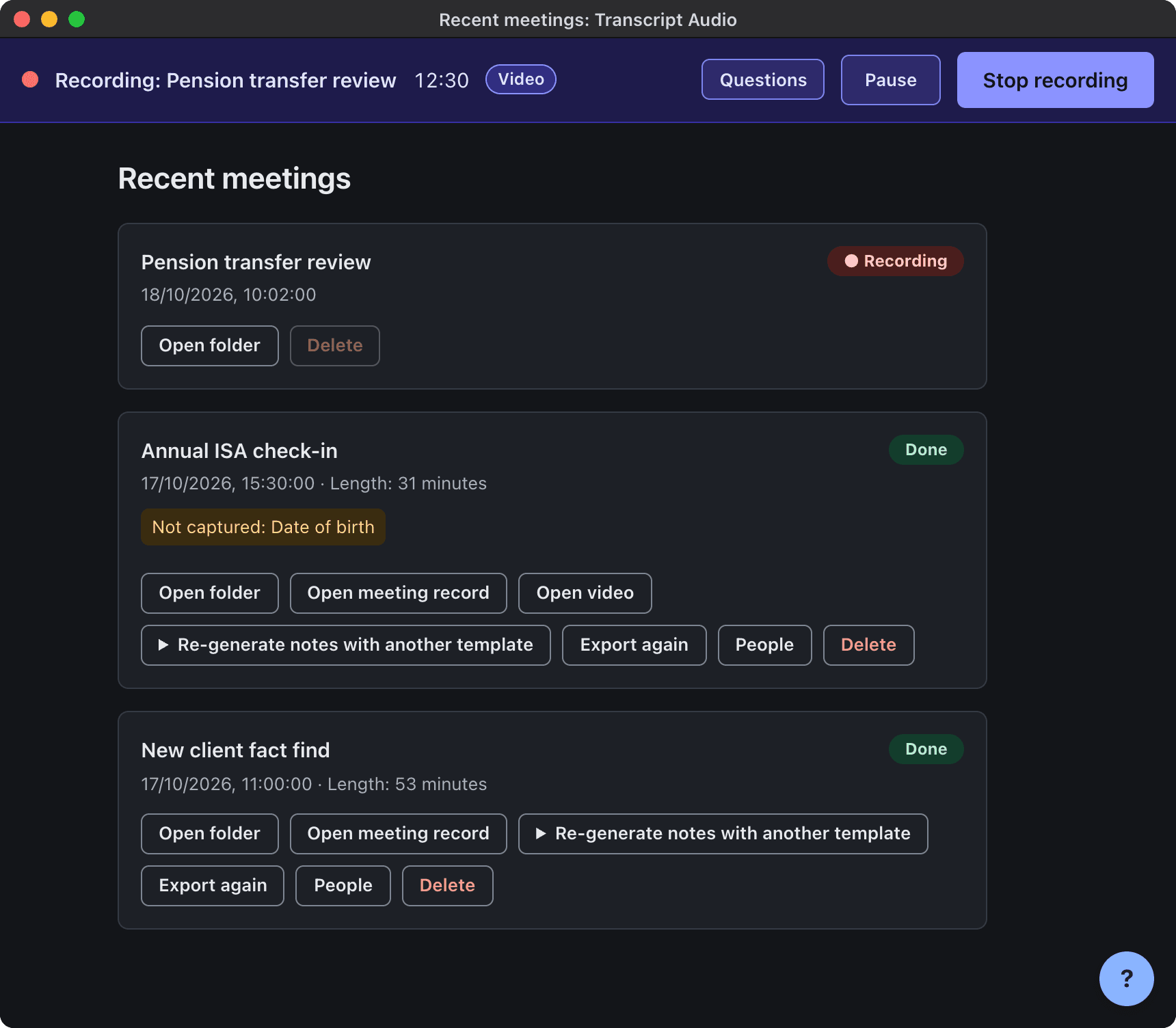
- A recording bar shows at the top of every app window with the meeting name, the elapsed time, Pause (or Resume) and Stop recording.
- The menu bar or tray icon changes to show it is recording.
Stop
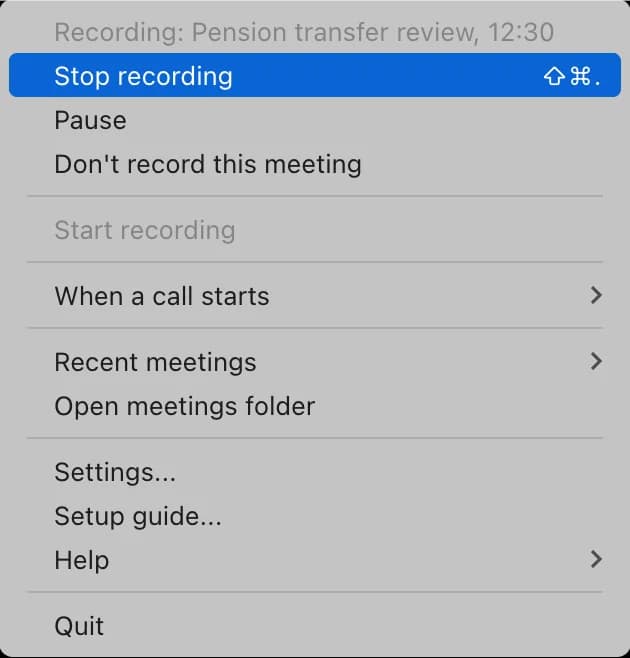
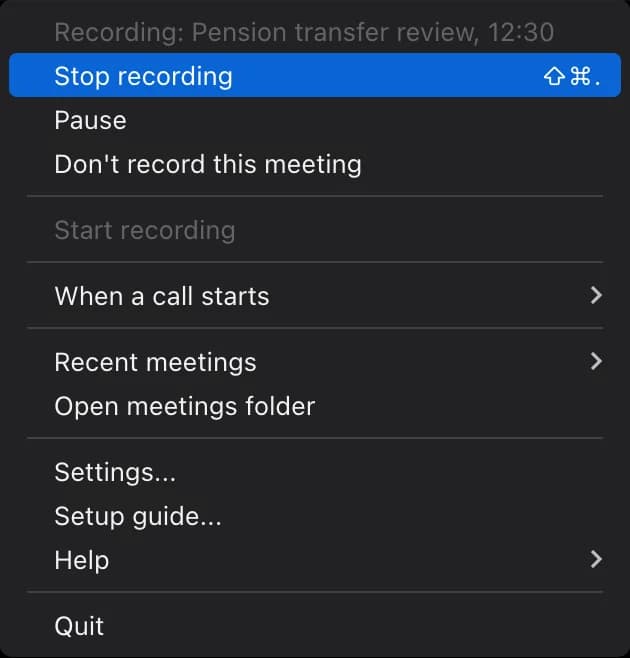
Choose Stop recording in the menu, the recording bar or the notification, or press the shortcut:
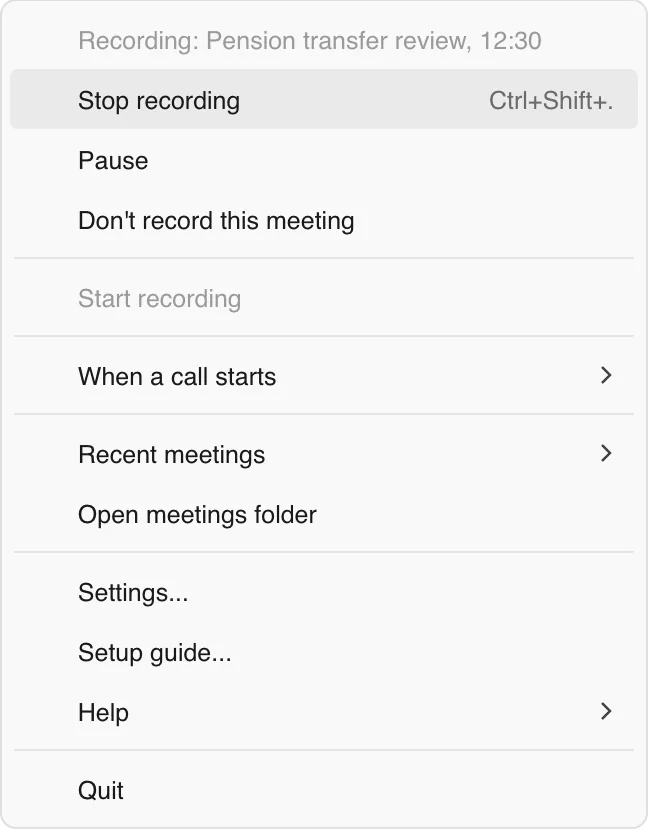
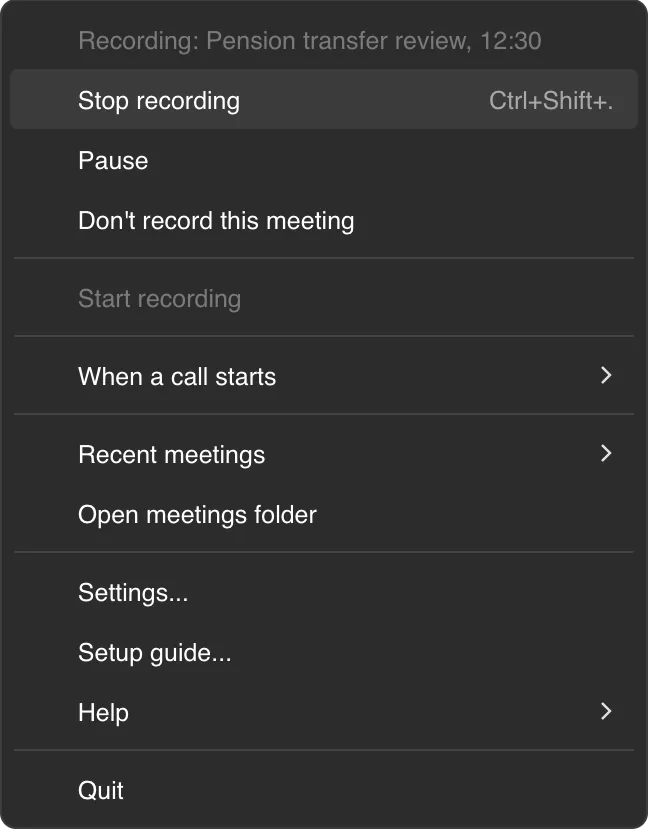
On a Mac
Press Cmd Shift . anywhere.
On Windows
Press Ctrl Shift . anywhere.
Change or clear the shortcut in Settings > Recording > Keyboard shortcut to stop recording. After you stop a call yourself, the app does not start again on the same call (unless you turn off After I stop a recording, don't start again until the call ends).
Pause and resume
Pause is for a private moment in a call. The paused part is not recorded. Choose Resume to carry on.
Don't record this meeting
Don't record this meeting in the menu deletes the recording so far from this computer. A confirmation asks first (Don't record or Keep recording). There is no undo.
Very short recordings
Recordings shorter than 60 seconds are deleted, and a Short recording discarded notification says so. Change it in Settings > Recording > Throw away very short recordings (0 keeps everything).
Long meetings
- On unlimited plans, every 4 hours the app asks Still recording? Choose Keep recording, or Stop now. With no answer in 5 minutes, it stops and processes what was recorded.
- If your plan limits how long one recording can be, a Recording stops in 5 minutes notification warns you first. What was recorded is kept and processed.
- One recording at a time per account: if your account is already recording on another computer, a new recording does not start.
- Time paused does not count.
Still stuck? Contact us and we’ll help.