Quick start: set up in five steps
New here? Install Transcript Audio, sign in, allow access, record your first meeting and open your notes. About five minutes, with pictures.
Last updated
New to Transcript Audio? Follow these five steps in order. Each one links to a page with every detail. Pick your system with the switch at the top of this page.
- InstallDownload for Mac or Windows and open it.
- Sign inA free account, no card needed.
- Allow accessMicrophone, and system audio on a Mac.
- Join a callIt records by itself.
- Open your notesReady a minute or two after the call.
1. Install the app
On a Mac
Download the Mac disk image from the download page, drag Transcript Audio onto Applications and open it from there. The first time, macOS says it cannot verify the app: click Done, then Open Anyway in System Settings > Privacy & Security. Step by step, with pictures.
On Windows
Download the Windows installer from the download page and open it. If SmartScreen says Windows protected your PC, click More info, then Run anyway. No administrator rights are needed. Step by step, with pictures.
Full steps: Download and install. Not sure your computer is supported? See System requirements.
2. Sign in
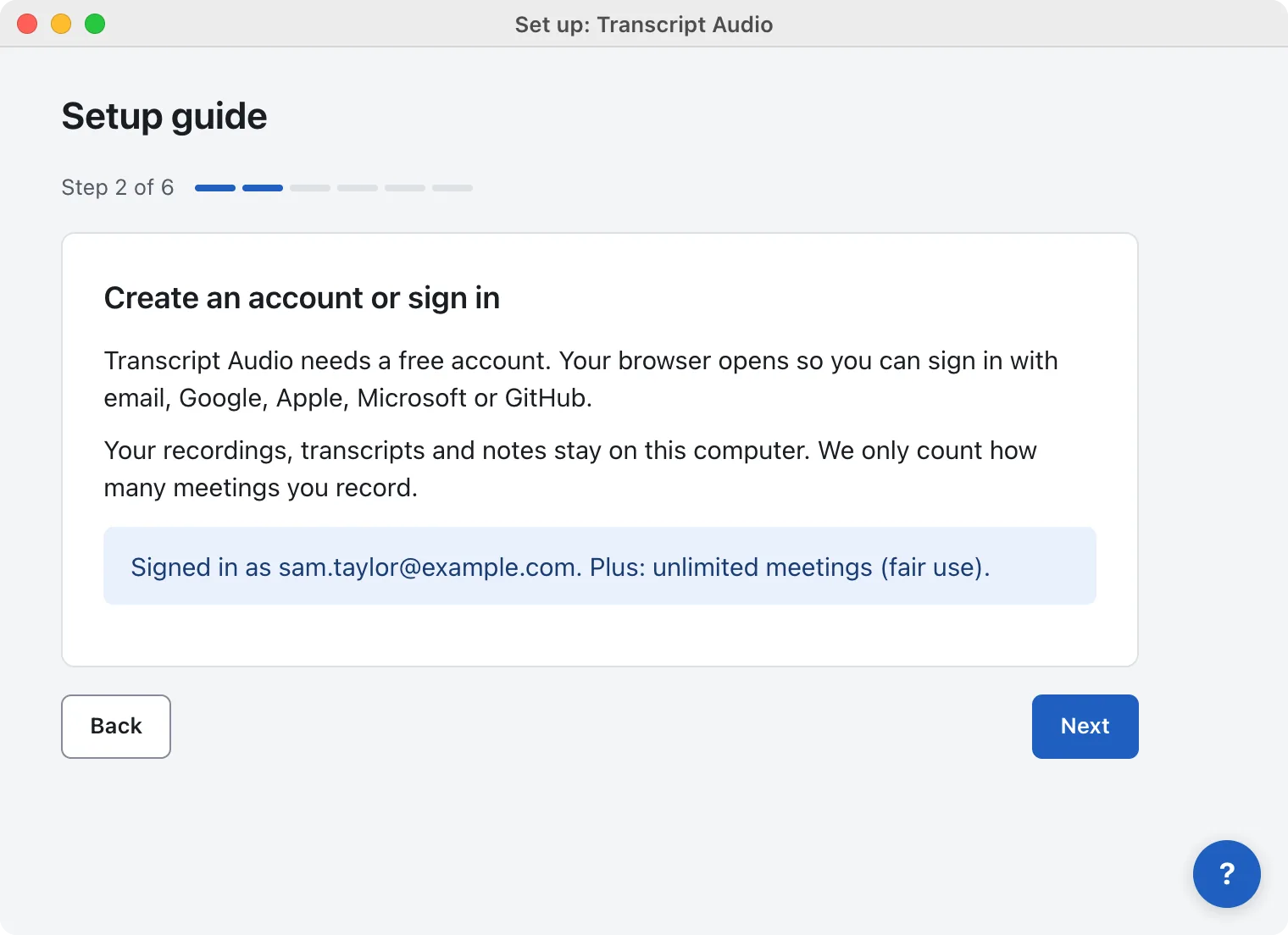
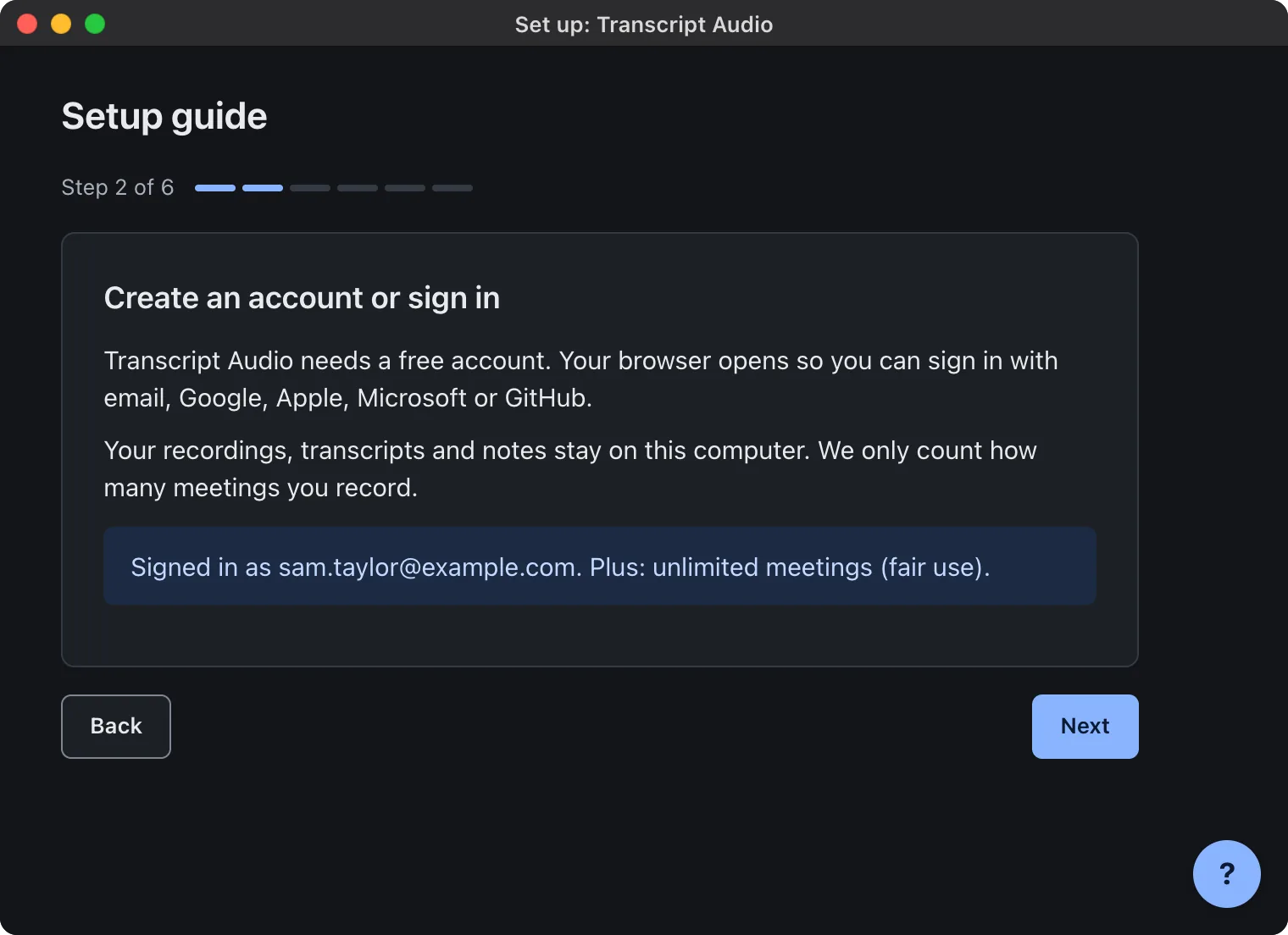
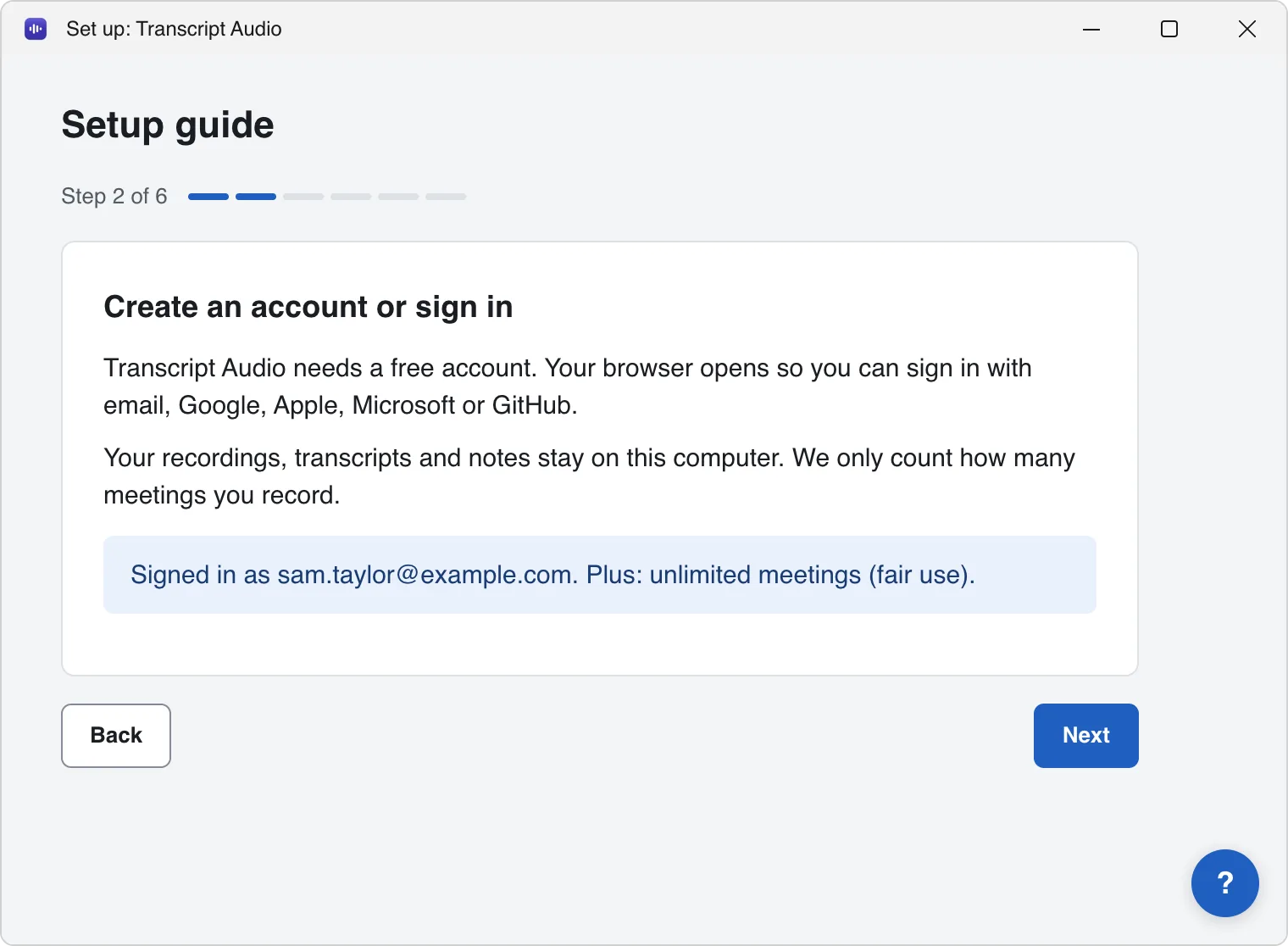
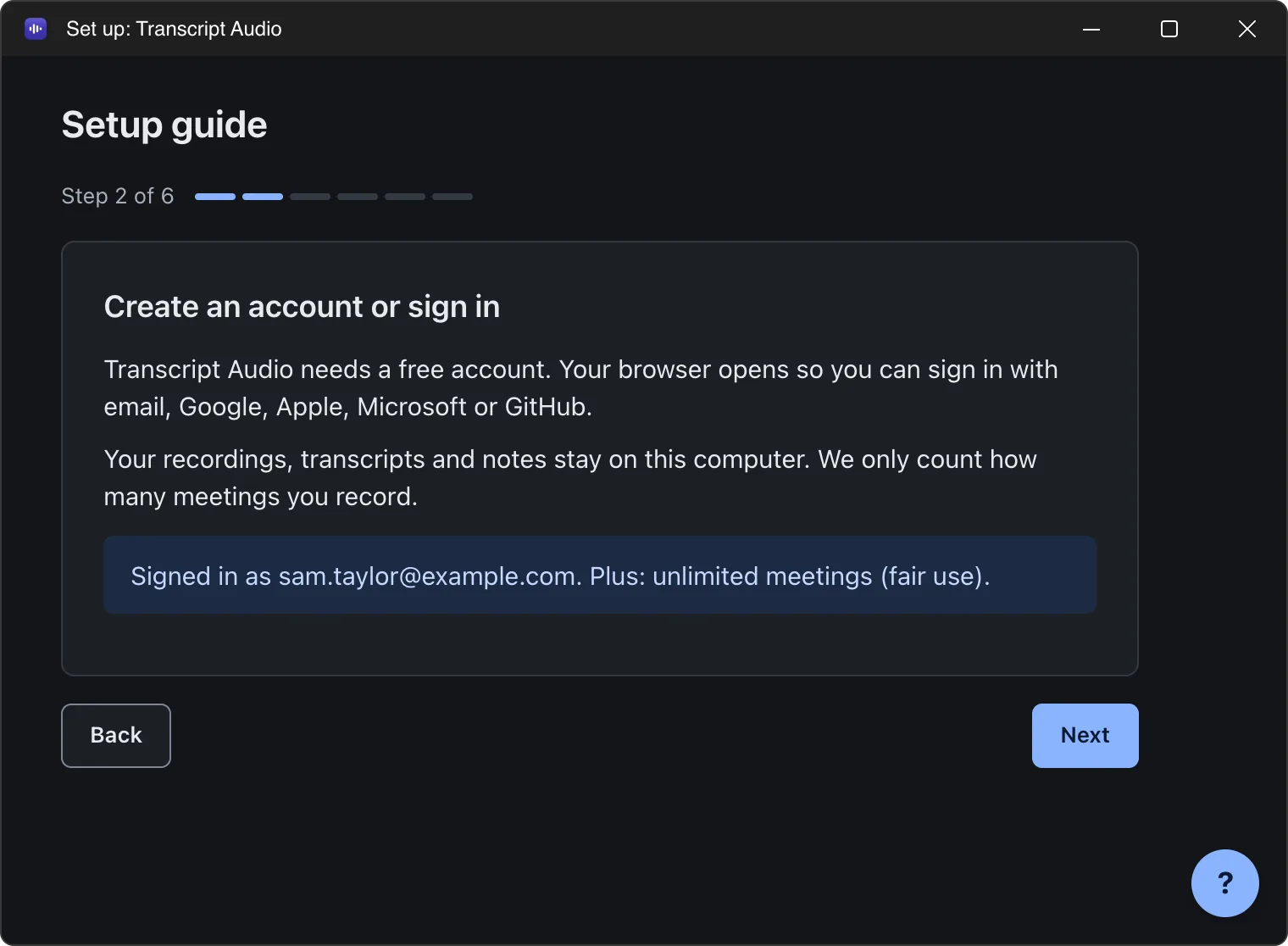
The setup guide opens by itself. Enter your email, click Next, then Create account or sign in. Your browser opens so you can sign in with email, Google, Apple, Microsoft or GitHub, and the app updates by itself. The Free plan needs no card.
3. Allow access
On a Mac
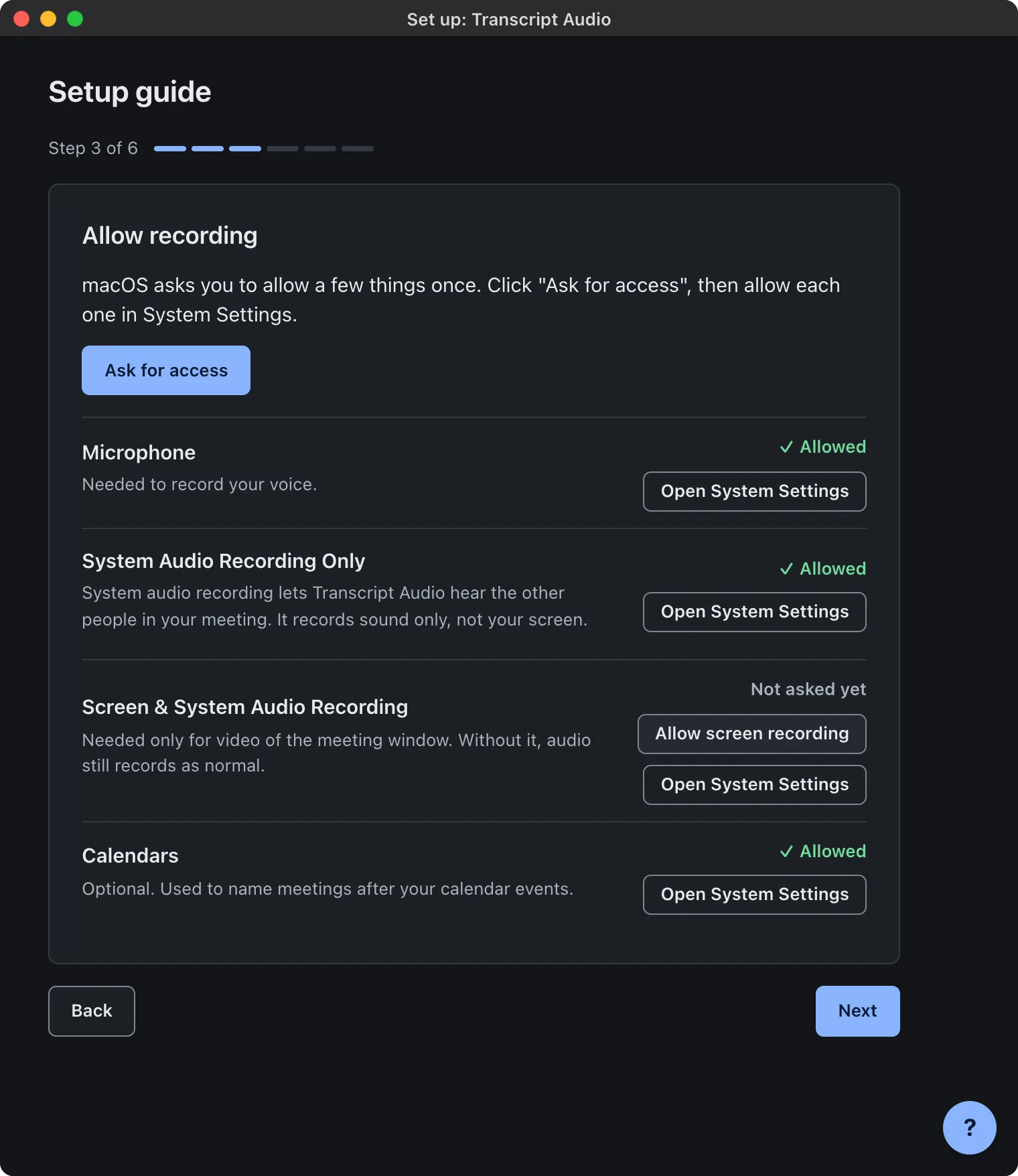
Click Ask for access and allow the Microphone. Then, in System Settings > Privacy & Security > Screen & System Audio Recording, switch on Transcript Audio under System Audio Recording Only and quit and reopen the app. Without it, the other people on the call are not recorded.
On Windows
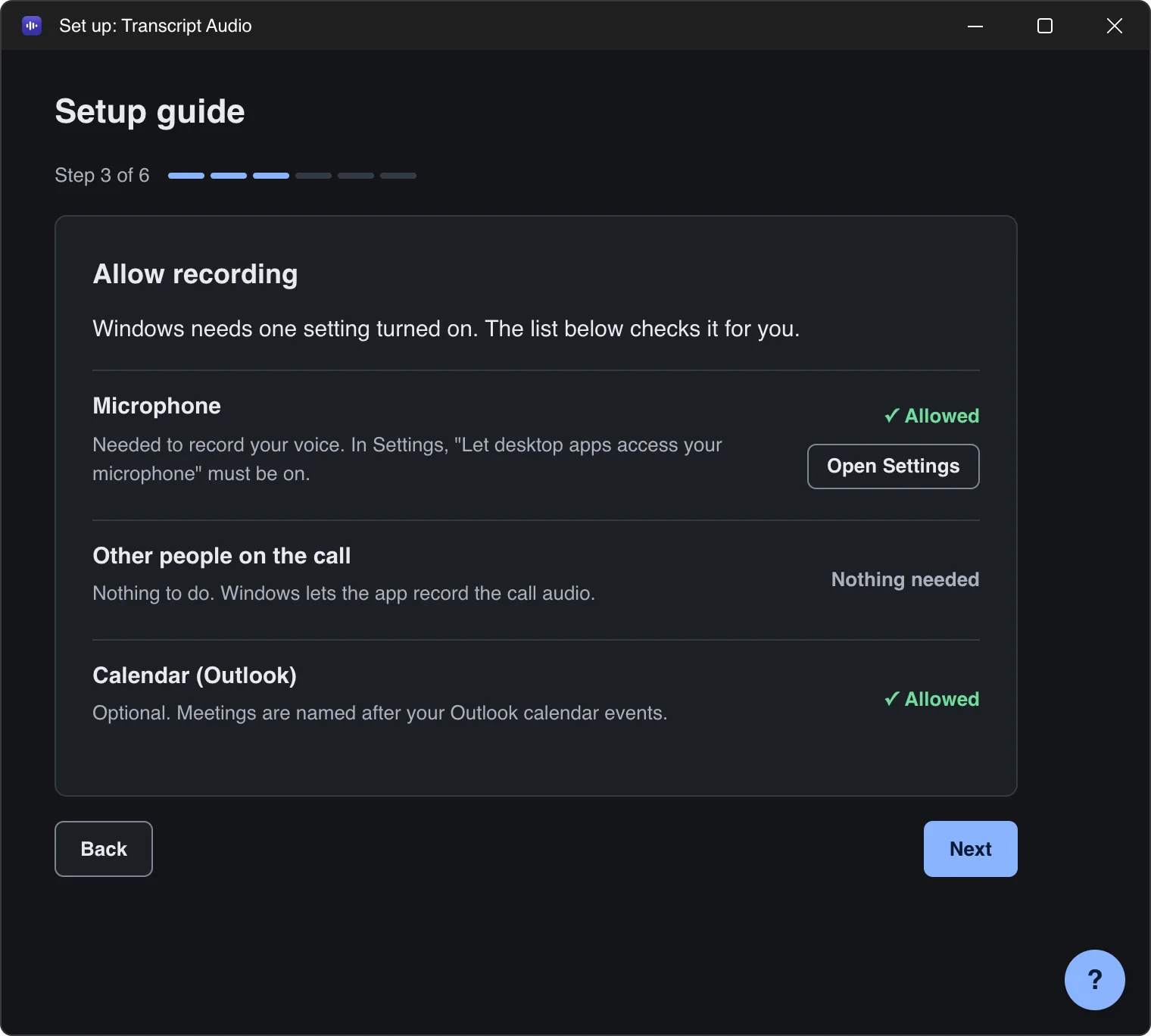
Microphone should show Allowed. If it does not, click Open Settings and switch on Let desktop apps access your microphone. Nothing else is needed: Windows lets the app record the call audio.
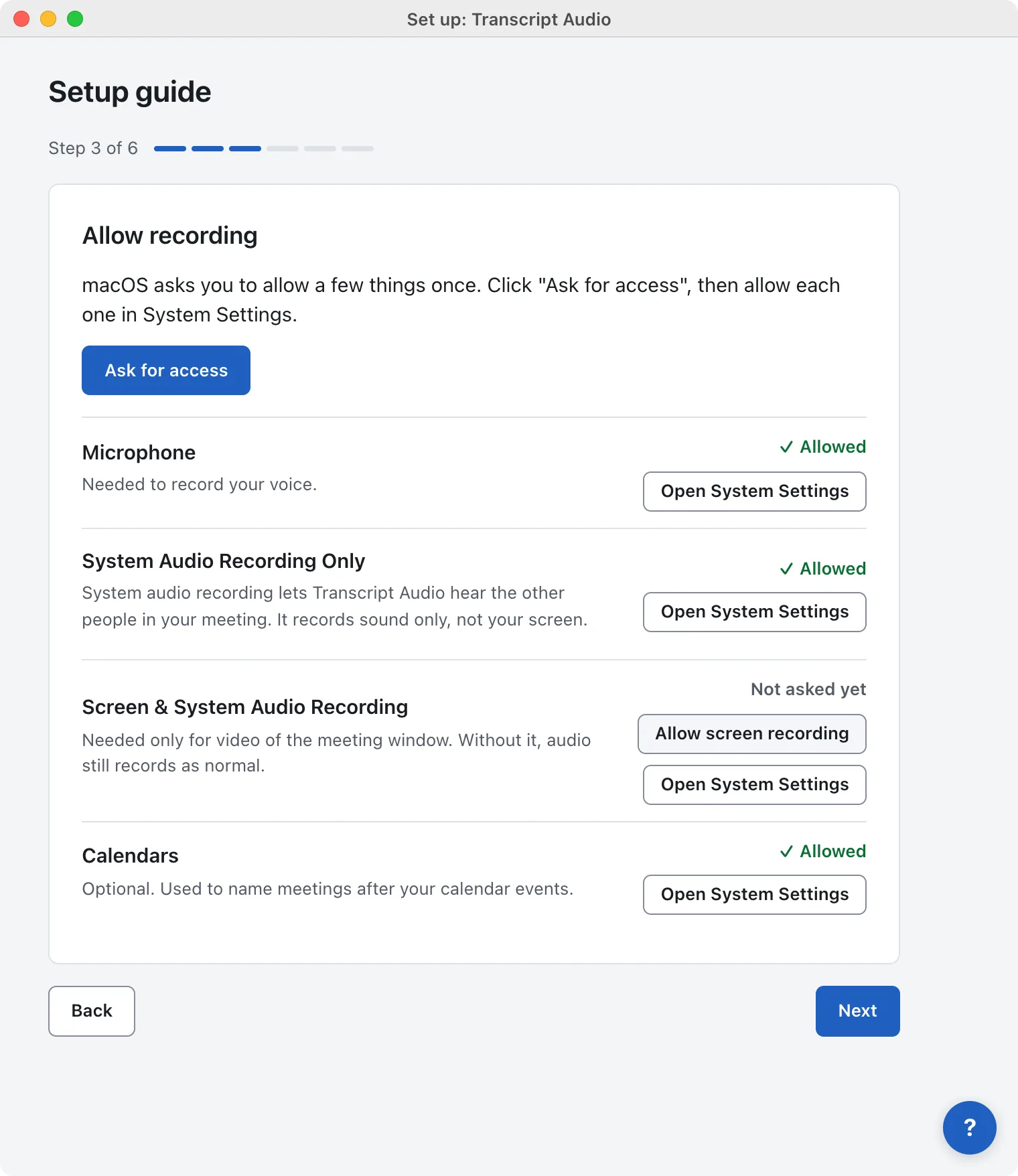
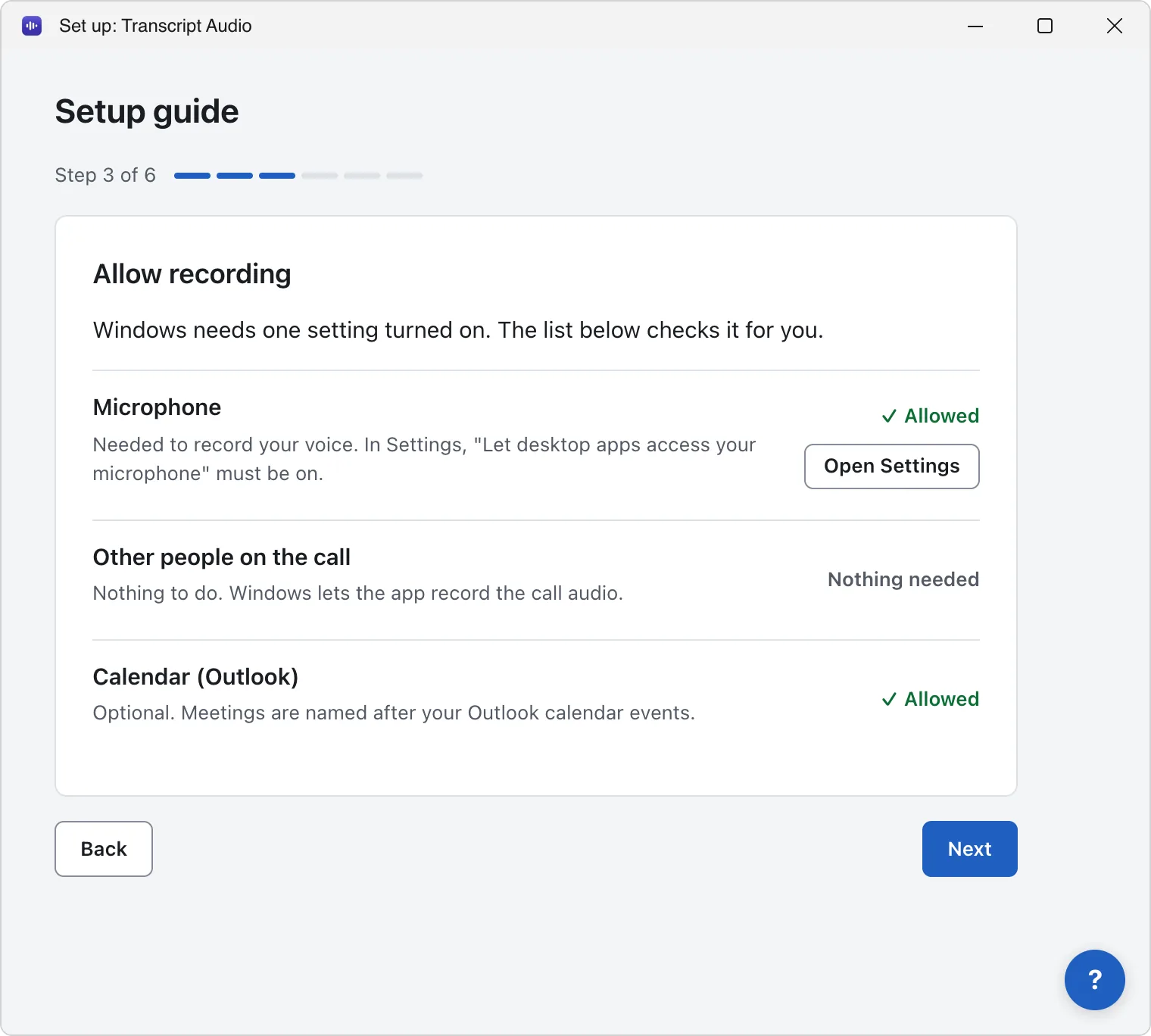
Then choose how the AI works (Use Transcript Audio cloud is the simplest: nothing to set up), keep the suggested meetings folder, and click Finish. Every step: The setup guide. Each permission: Permissions.
4. Record your first meeting
Join a call in Zoom, Microsoft Teams, Google Meet, Slack or any other app. After 10 seconds of microphone use a short countdown runs, then recording starts by itself. For a meeting in the room, open the menu and choose Start recording.
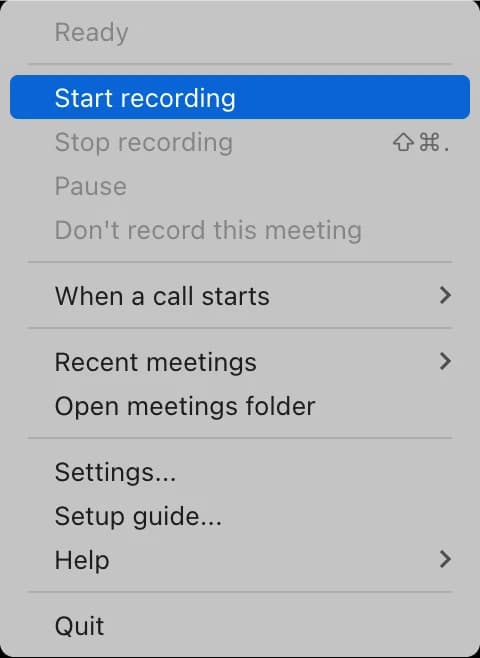
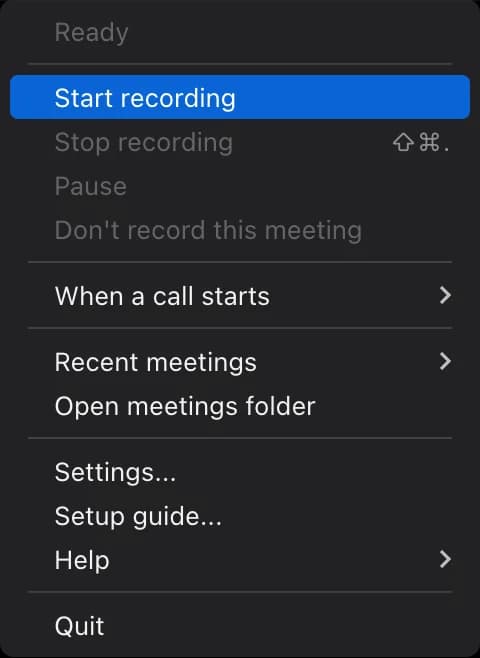
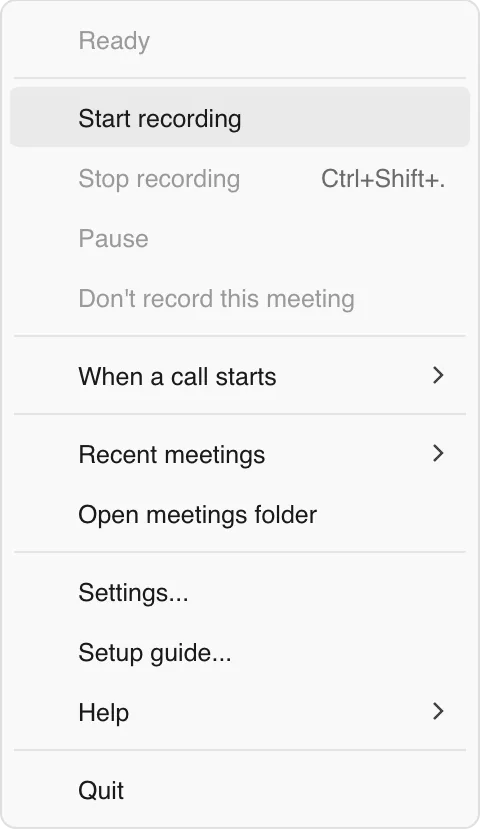
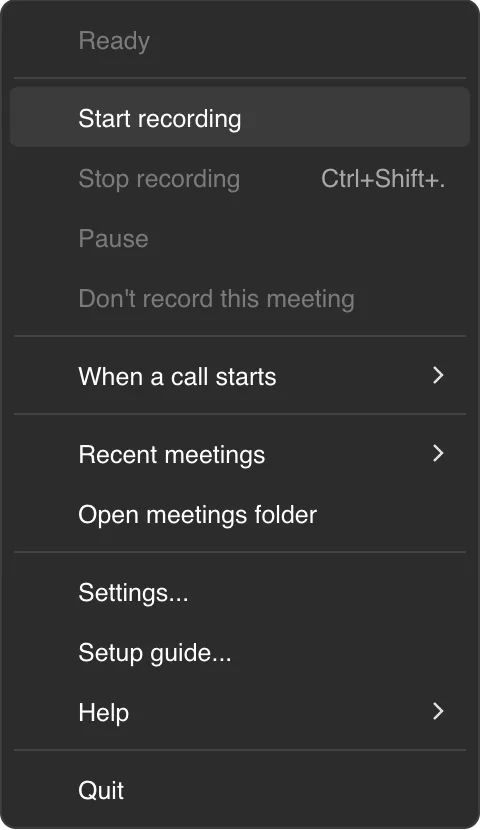
More: Record your first meeting.
5. Find and share your notes
Leave the call and recording stops by itself. A minute or two later a Notes ready: notification appears: click it to open the meeting in Recent meetings. Open meeting record shows the notes; Open folder shows the files.
Every meeting is a folder of ordinary files in Documents/Transcript Audio, so sharing is attaching a file: send Meeting record.md, or choose Word in Settings > Saving > Export formats. See Find and share your notes.
What next
- Choose what happens when a call starts: Automatic, Ask first or Manual.
- Pick a template for the kind of meetings you have.
- Ask about the meeting while it happens: Questions as you go.
- Compare Free, Plus and Pro: Plans and the free trial.
- Something not working? Start with No audio, or only one side or A meeting was not detected.
Still stuck? Contact us and we’ll help.