The menu bar and tray menu
Transcript Audio runs from an icon in the Mac menu bar or the Windows system tray. Every item in its menu, from the top.
Last updated
On a Mac
Transcript Audio runs from an icon in the menu bar at the top right of the screen. Click it to open the menu.
On Windows
Transcript Audio runs from an icon in the system tray at the bottom right of the taskbar. If you cannot see it, click the small arrow (^) to show hidden icons. Click the icon to open the menu.
The menu, from the top
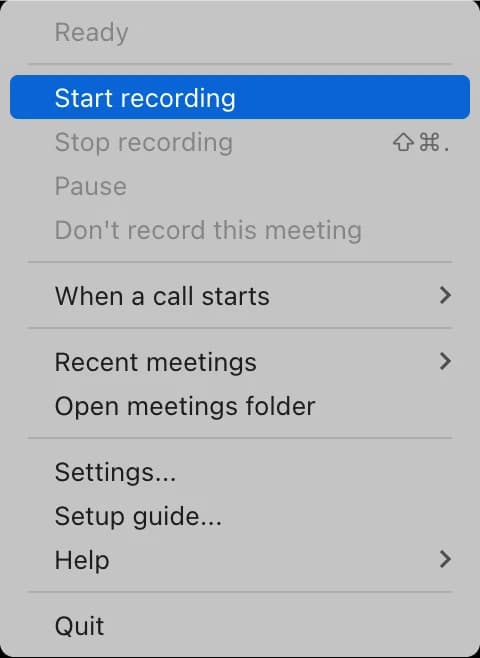
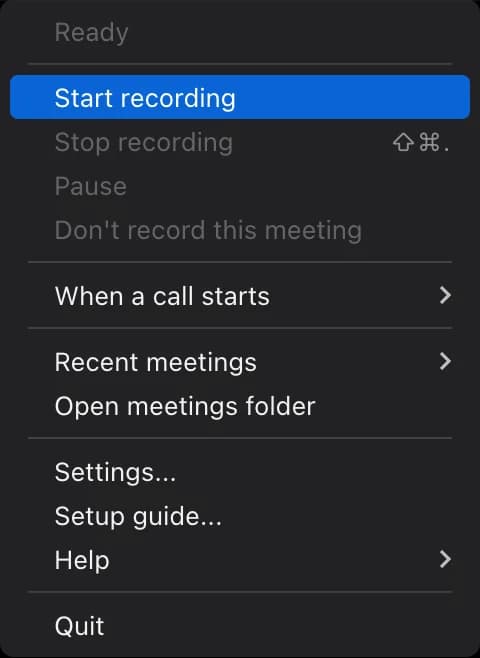
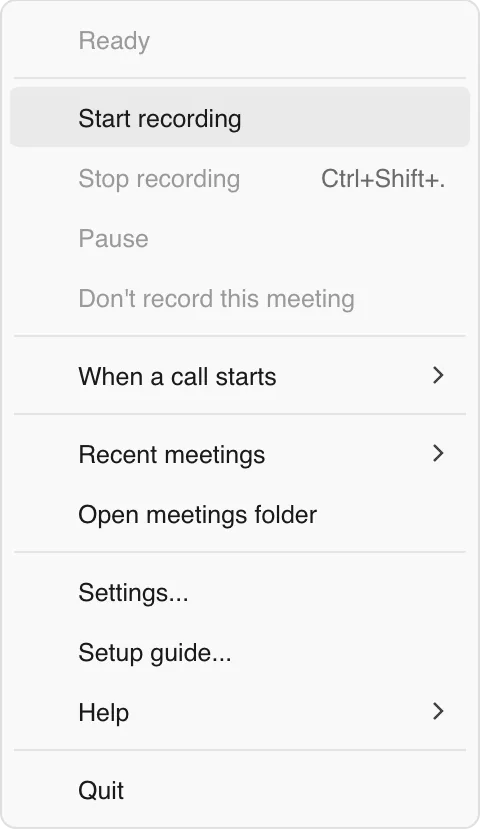
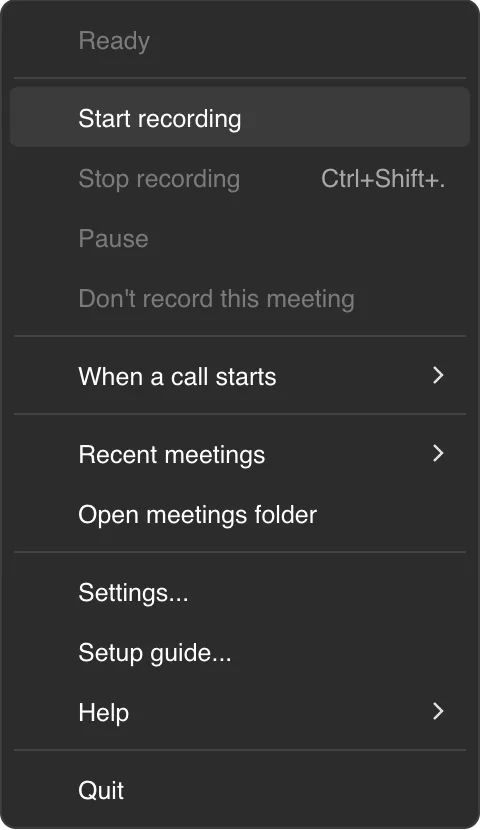
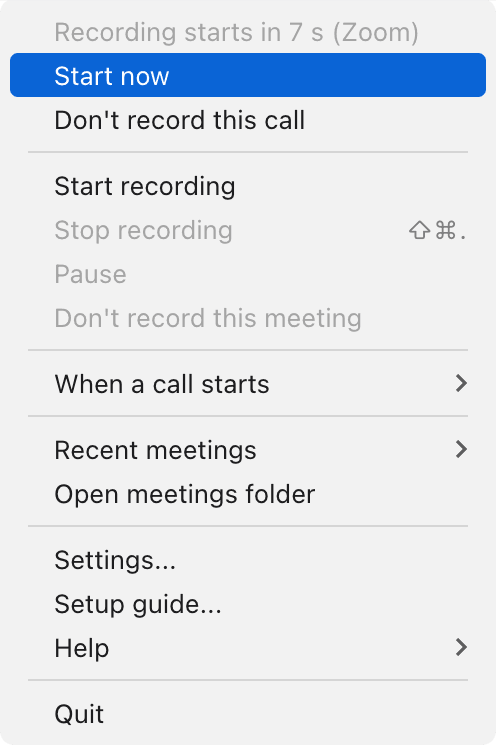
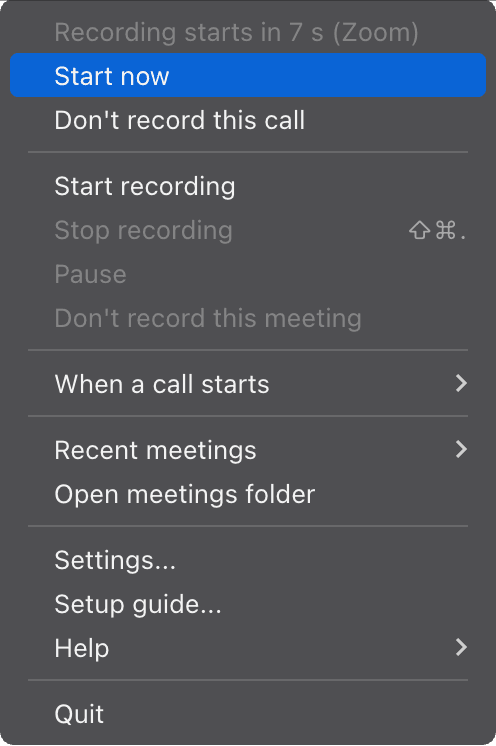
- Status line: what is happening, for example Ready, Recording starts in 7 s (Zoom), Recording: Project kickoff, 12:30, Paused: ..., Transcribing "..."... or Writing notes for "..."....
- Start now and Don't record this call: during the countdown.
- Record this call and Not now: in Ask first mode, while it is asking.
- Start recording, Stop recording, Pause or Resume.
- Don't record this meeting: deletes the recording so far, after a confirmation.
- Questions as you go...: opens the live panel while a meeting records.
- When a call starts: Record automatically (countdown), Ask first or Don't record (start it yourself).
- Try again for N failed meetings: only when some meetings failed.
- Recent meetings: each recent meeting with Open folder, Open meeting record and Try again, plus Show all meetings....
- Open meetings folder.
- Settings... and Setup guide....
- Help > Create support bundle....
- Your plan line, with Sign in... or Upgrade... when they apply.
- Update ready (version) when an update is waiting.
- Quit.
What the icon shows
The icon changes for Ready, About to record, Recording, Paused, Writing notes and Needs attention. Pick its style, and whether it uses colour and shape, shape only or does not change, in Settings > Appearance.
Cannot find the icon? See The menu bar or tray icon is missing.
Still stuck? Contact us and we’ll help.