The setup guide (first run)
The setup guide opens the first time you run the app: six steps for your details, signing in, permissions, how the AI works and where meetings are saved.
Last updated
The setup guide opens by itself the first time you open the app. It has six steps with Back and Next buttons. You can open it again any time from the menu bar or tray menu (Setup guide...) or from Settings > Help > Run setup guide again.
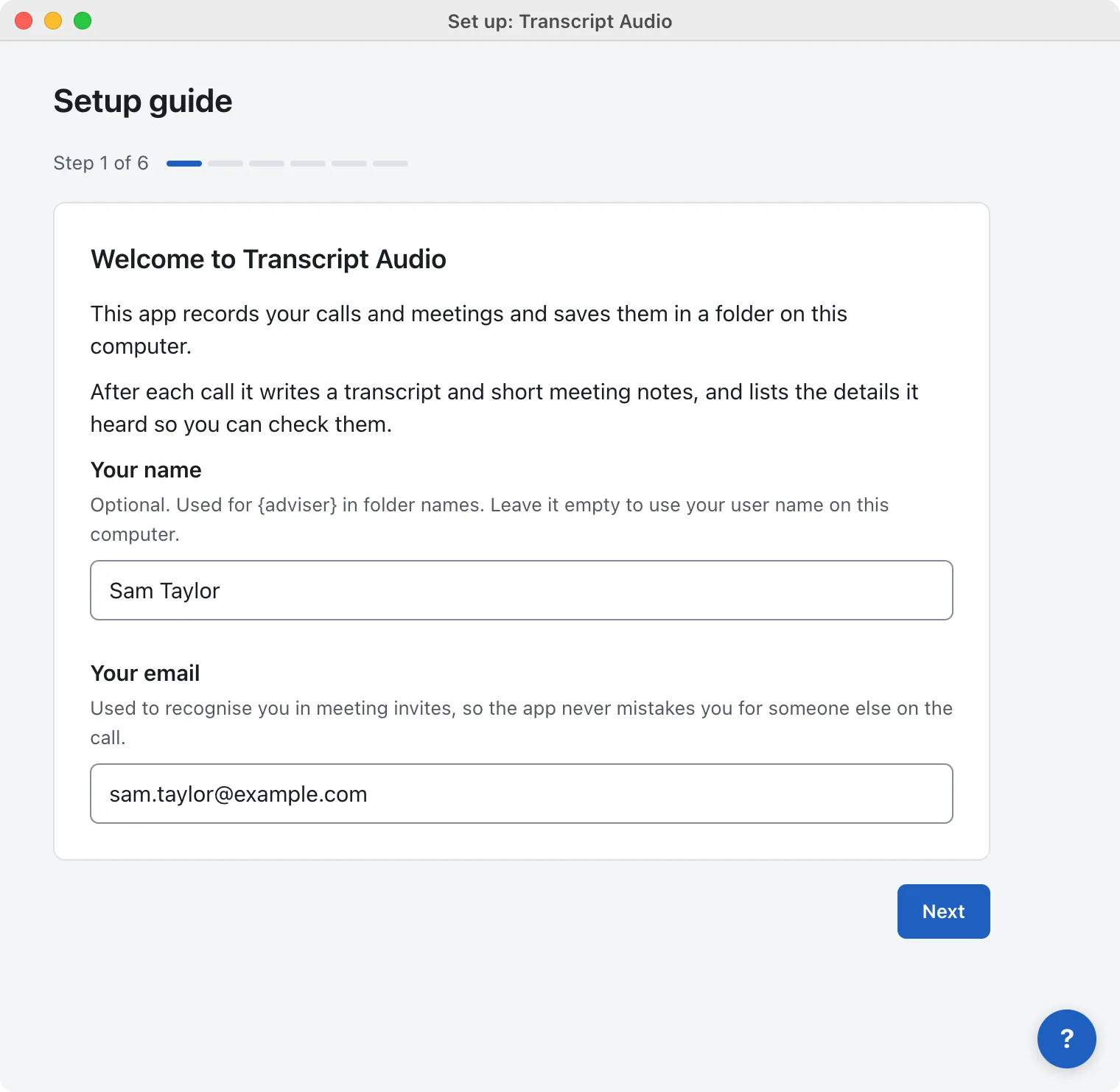
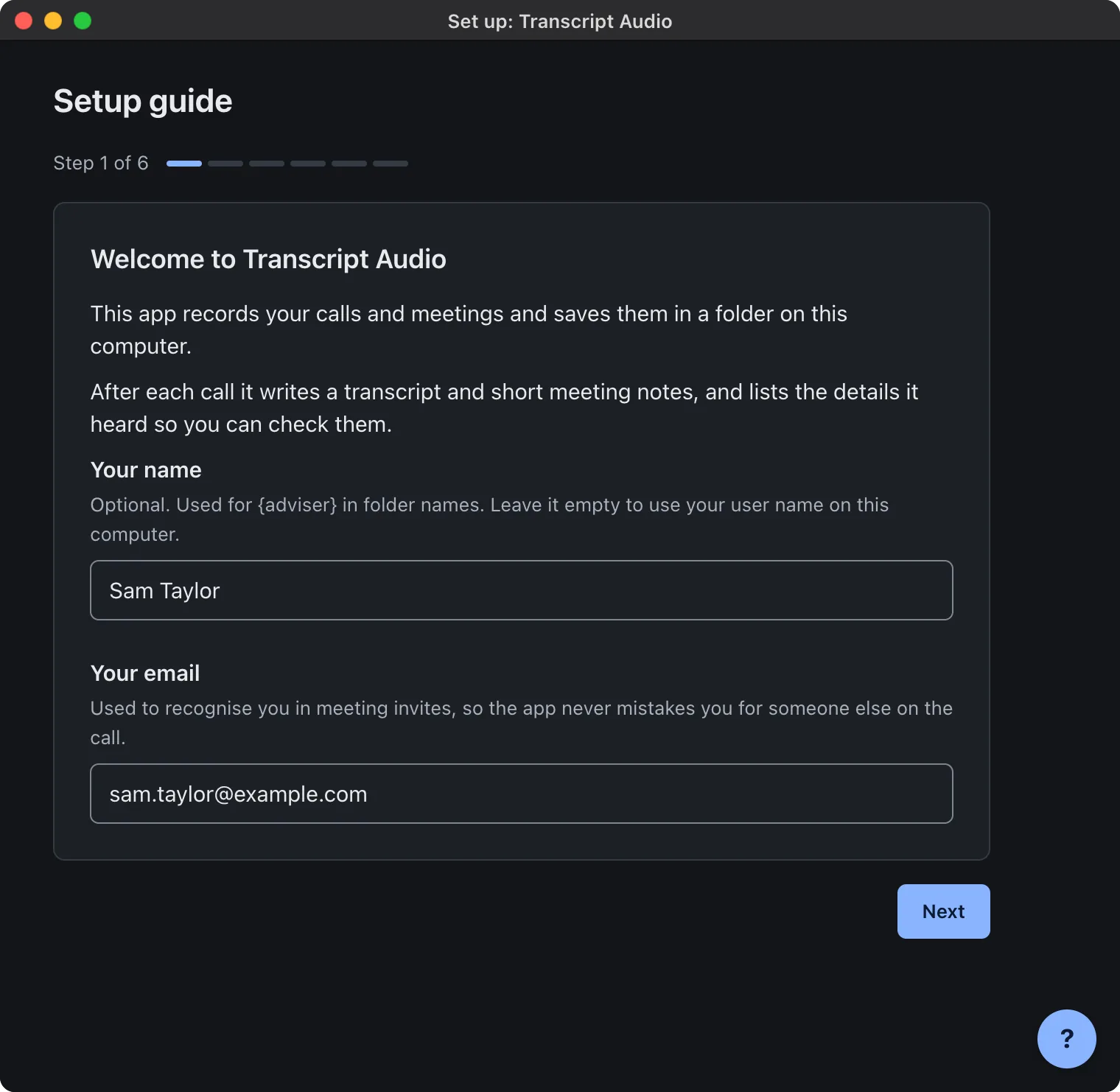
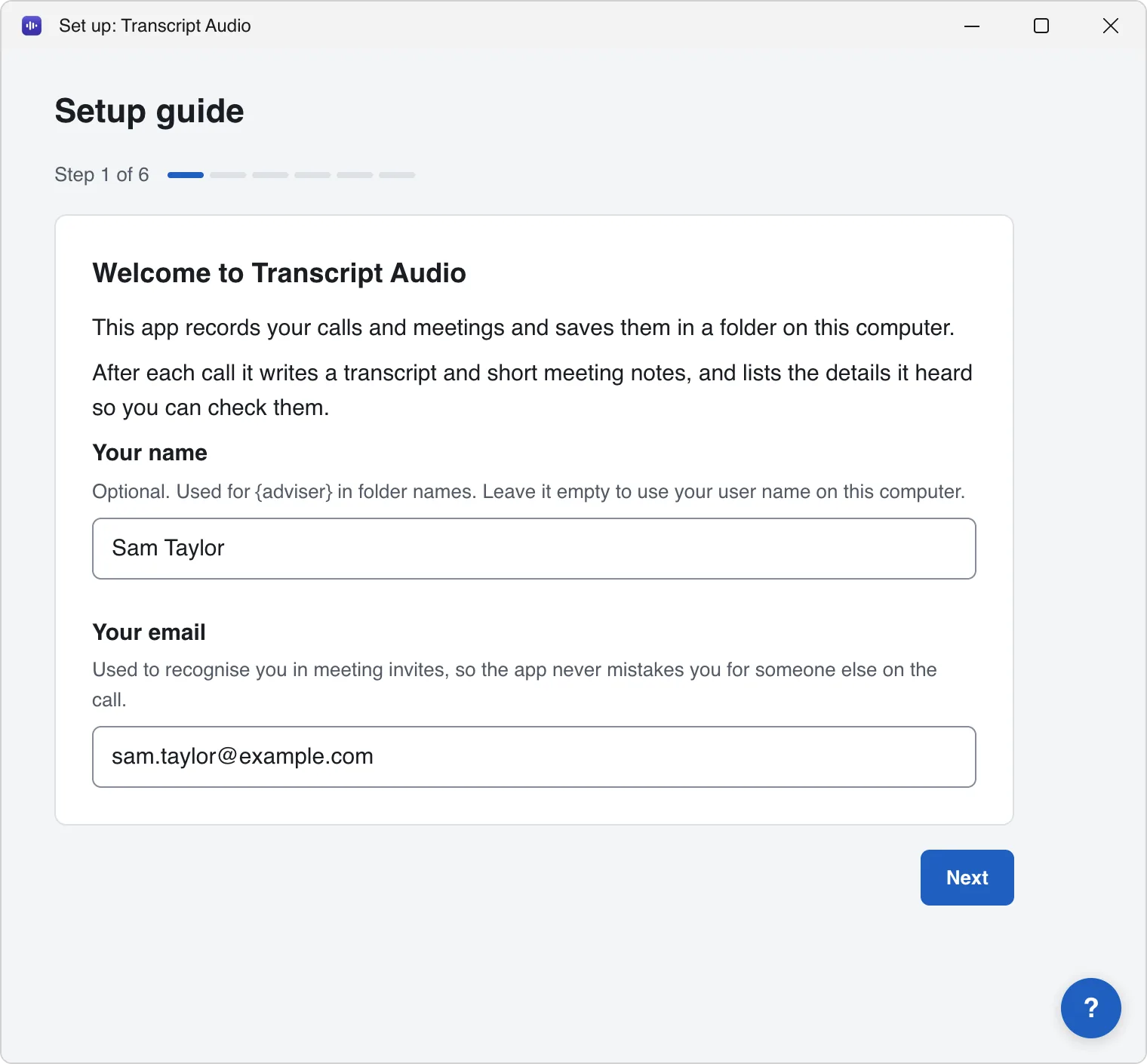
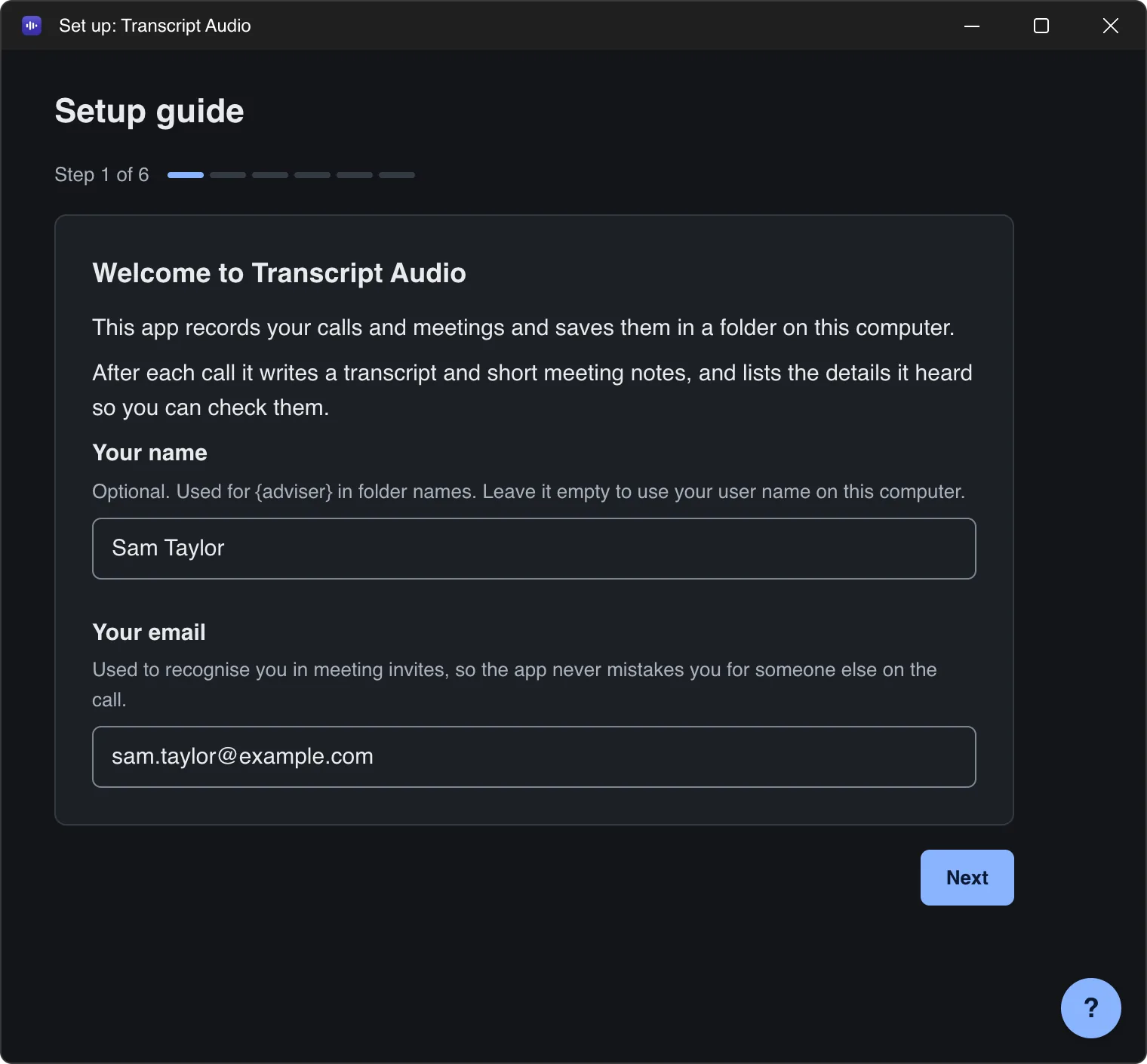
1. Welcome to Transcript Audio
Enter Your name (optional) and Your email (required). The email lets the app recognise you in meeting invites, so it never mistakes you for someone else on the call. Next stays greyed out until the email looks right.
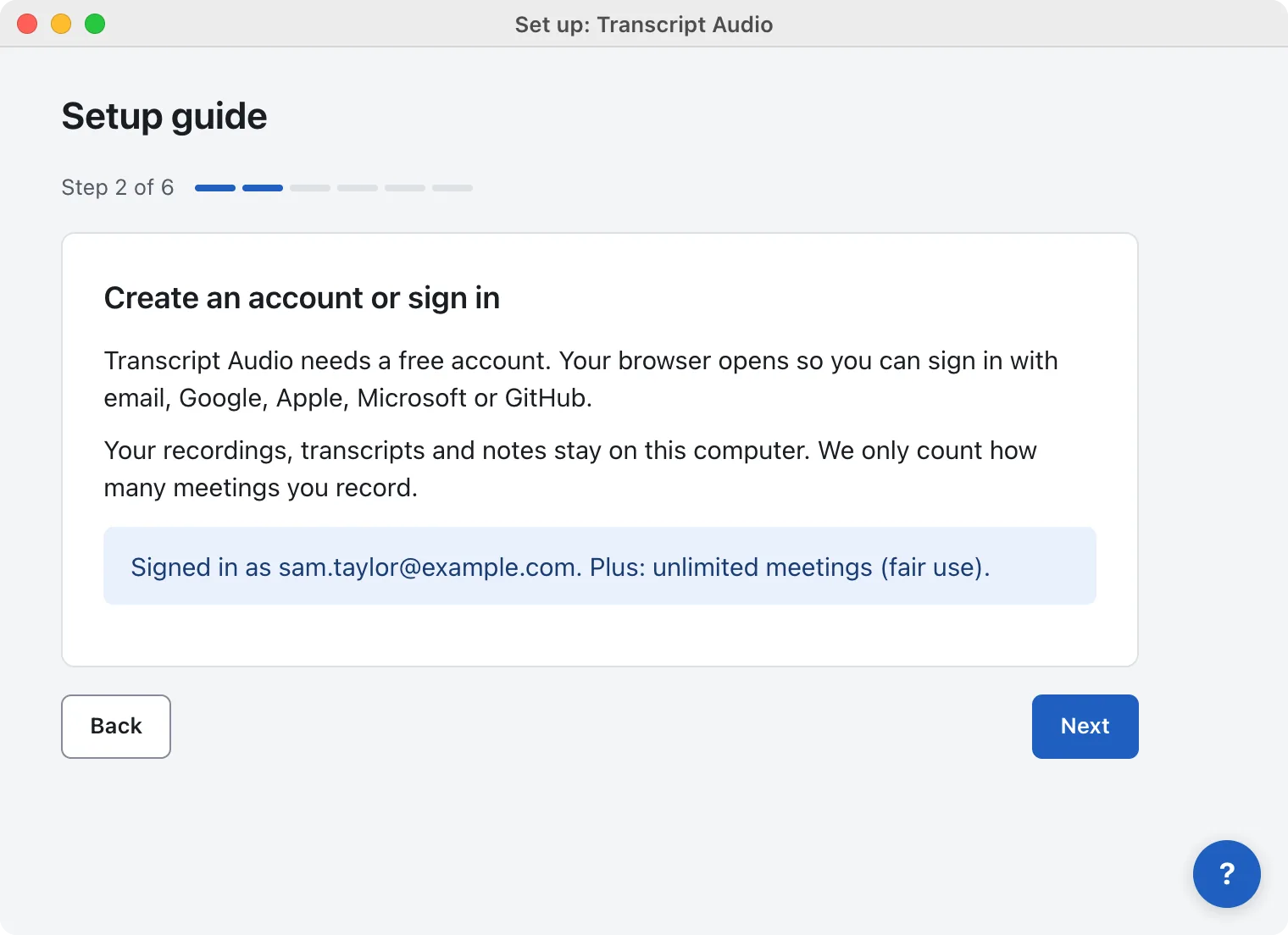
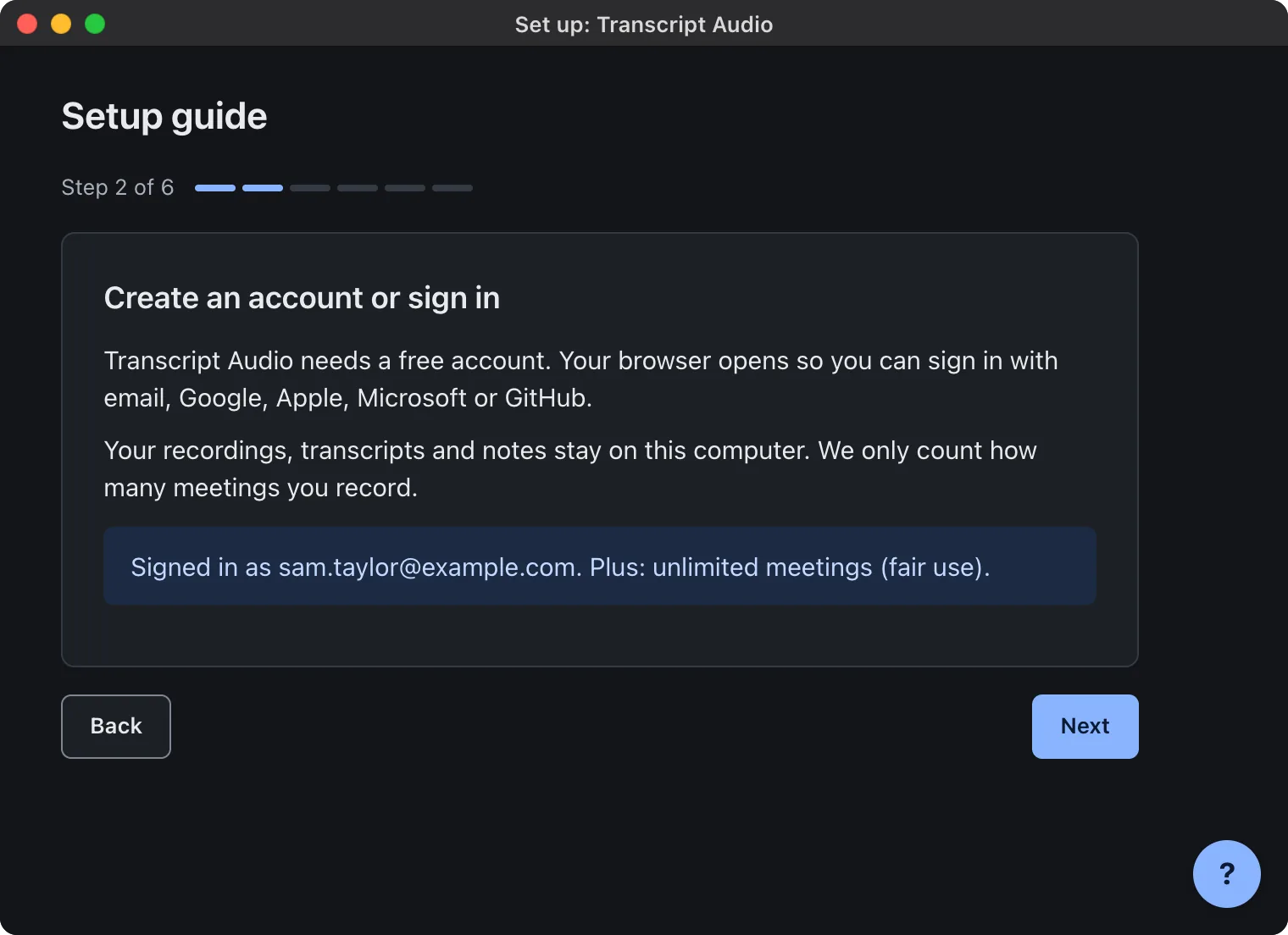
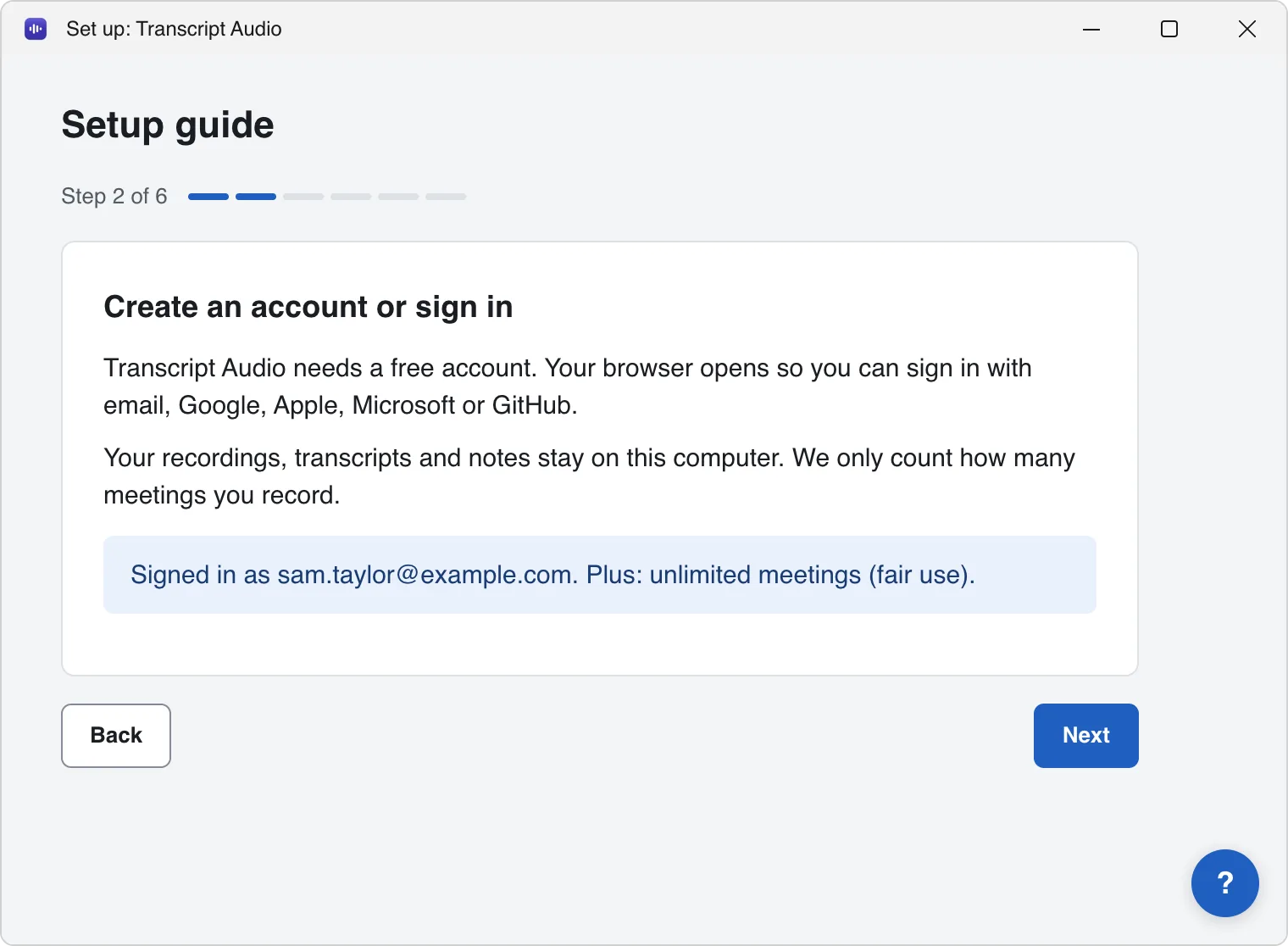
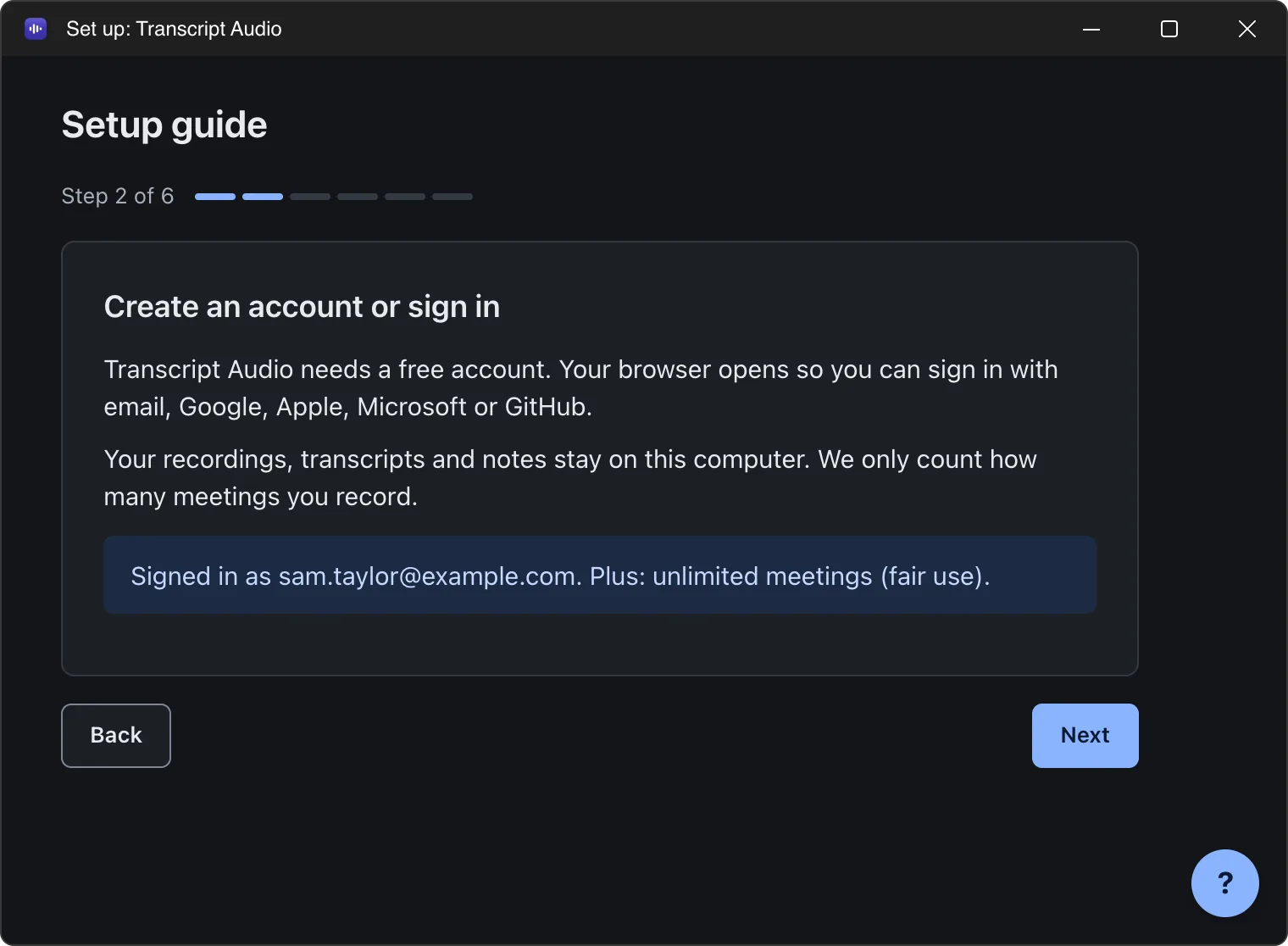
2. Create an account or sign in
Click Create account or sign in. Your browser opens so you can sign in with email, Google, Apple, Microsoft or GitHub. The app updates by itself when you are done. See Create an account and sign in.
3. Allow recording
On a Mac
macOS asks you to allow a few things once. Click Ask for access, then allow each one. Open System Settings opens the right page.
- Microphone: needed to record your voice.
- System Audio Recording Only: needed to record the other people on the call. In System Settings > Privacy & Security > Screen & System Audio Recording, switch Transcript Audio on under System Audio Recording Only, then quit and reopen the app.
- Calendars (optional): used to name meetings after your calendar events.
- Screen & System Audio Recording (optional, Allow screen recording): needed only for video of the meeting window. Without it, audio still records as normal.
On Windows
Windows needs one setting turned on, and the list checks it for you.
- Microphone: in Settings > Privacy & security > Microphone, Microphone access and Let desktop apps access your microphone must be on. Open Settings takes you there.
- Other people on the call: nothing to do. Windows lets the app record the call audio.
- Calendar (Outlook) (optional): meetings are named after your classic Outlook calendar events.
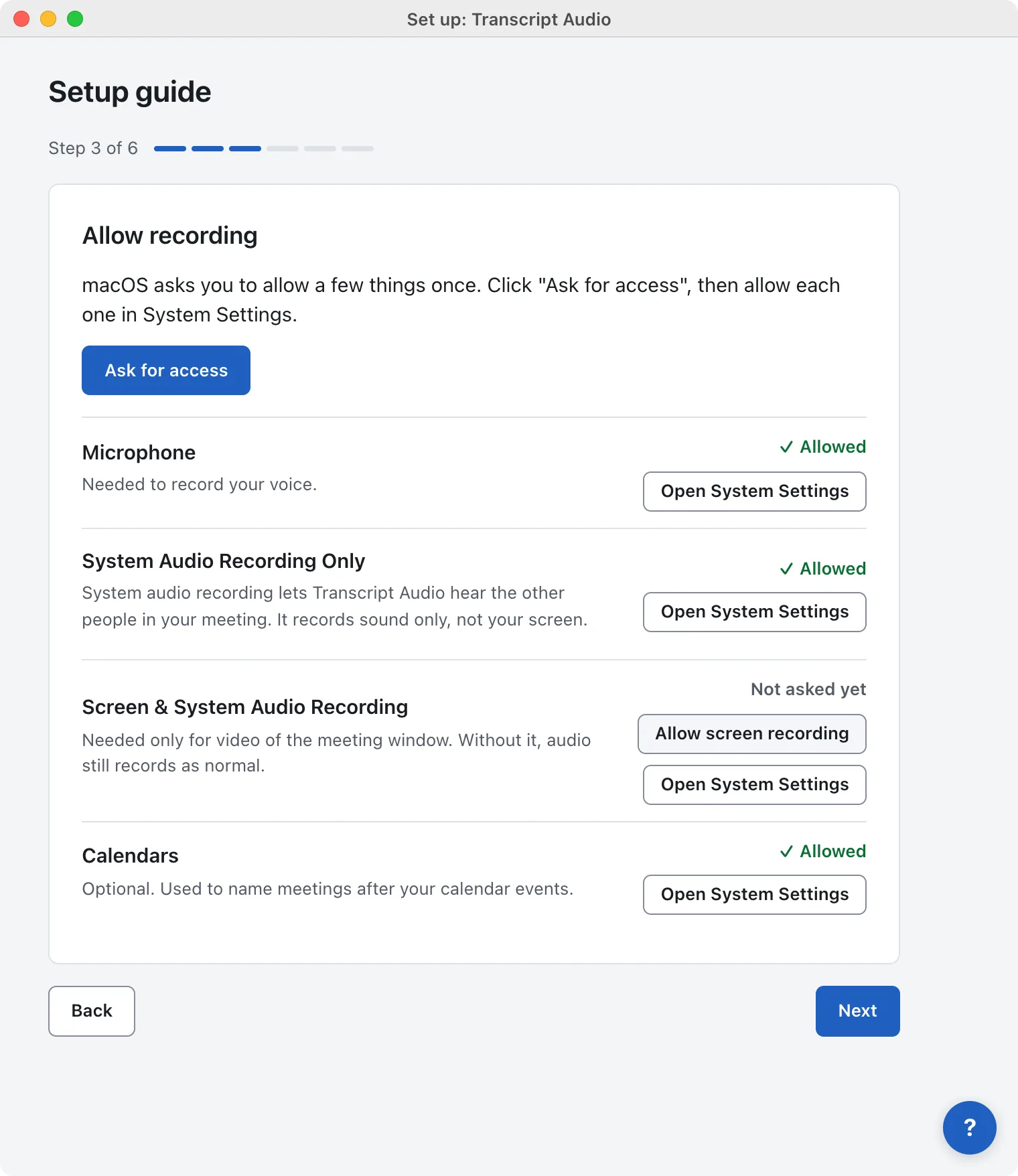
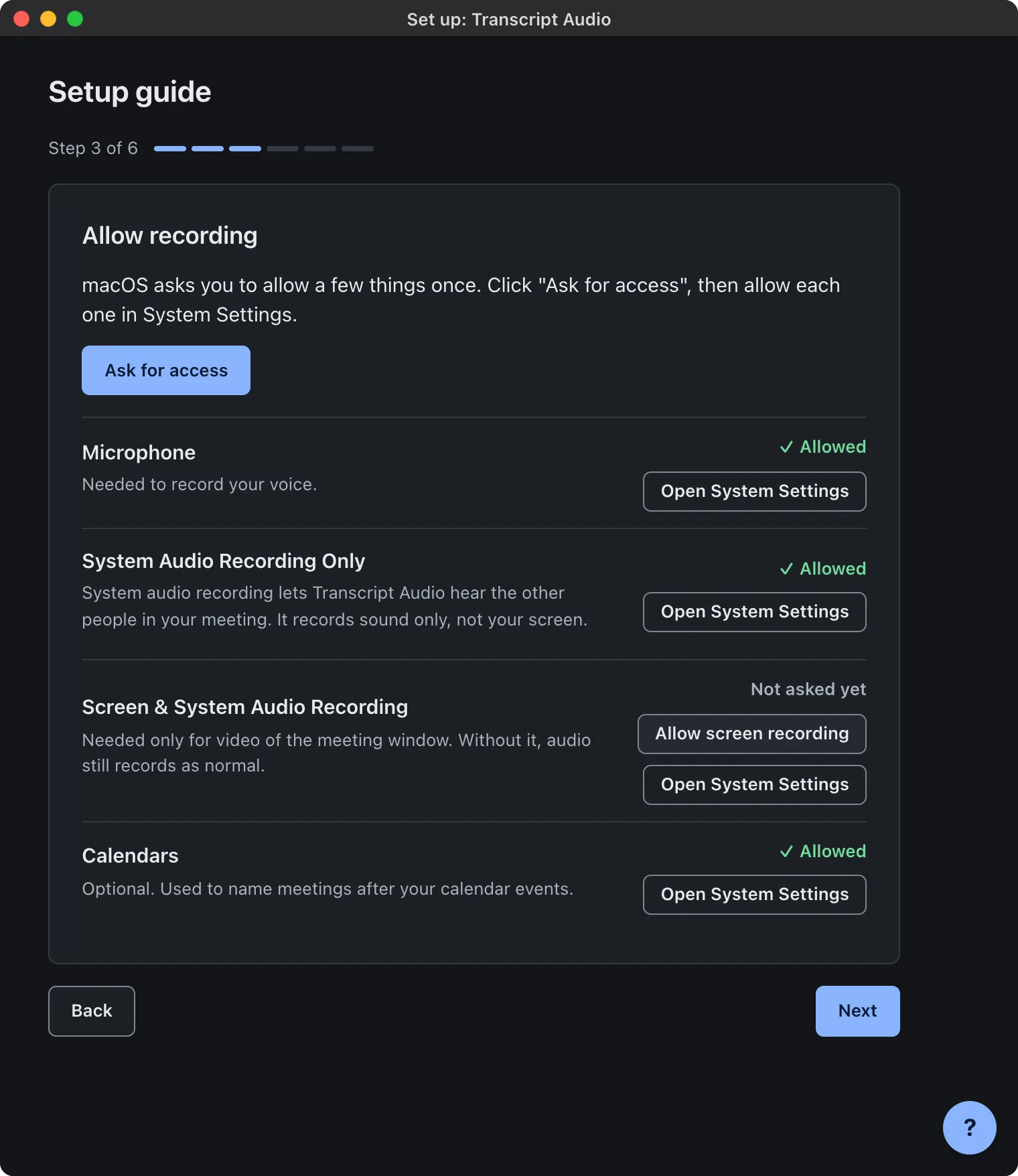
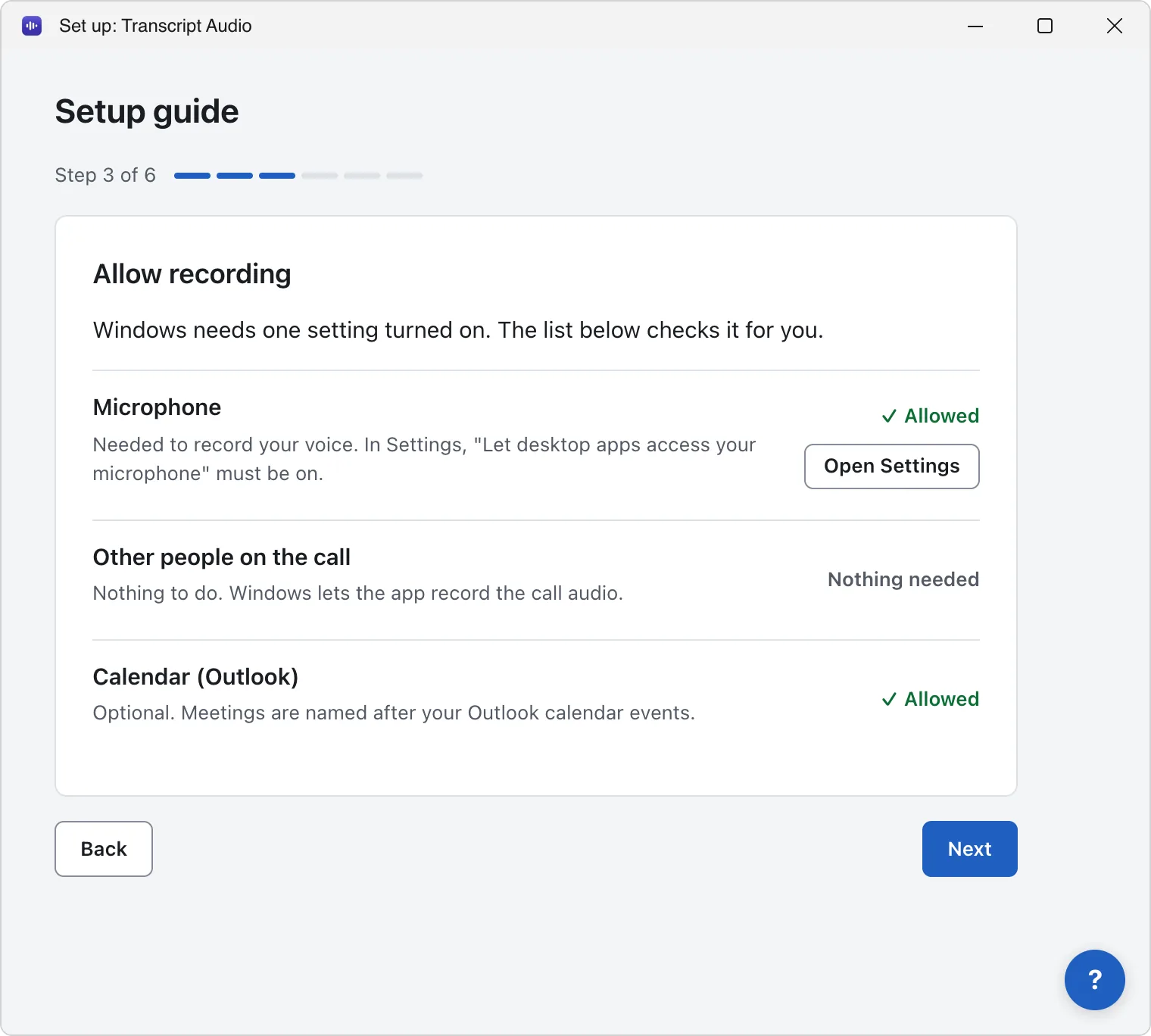
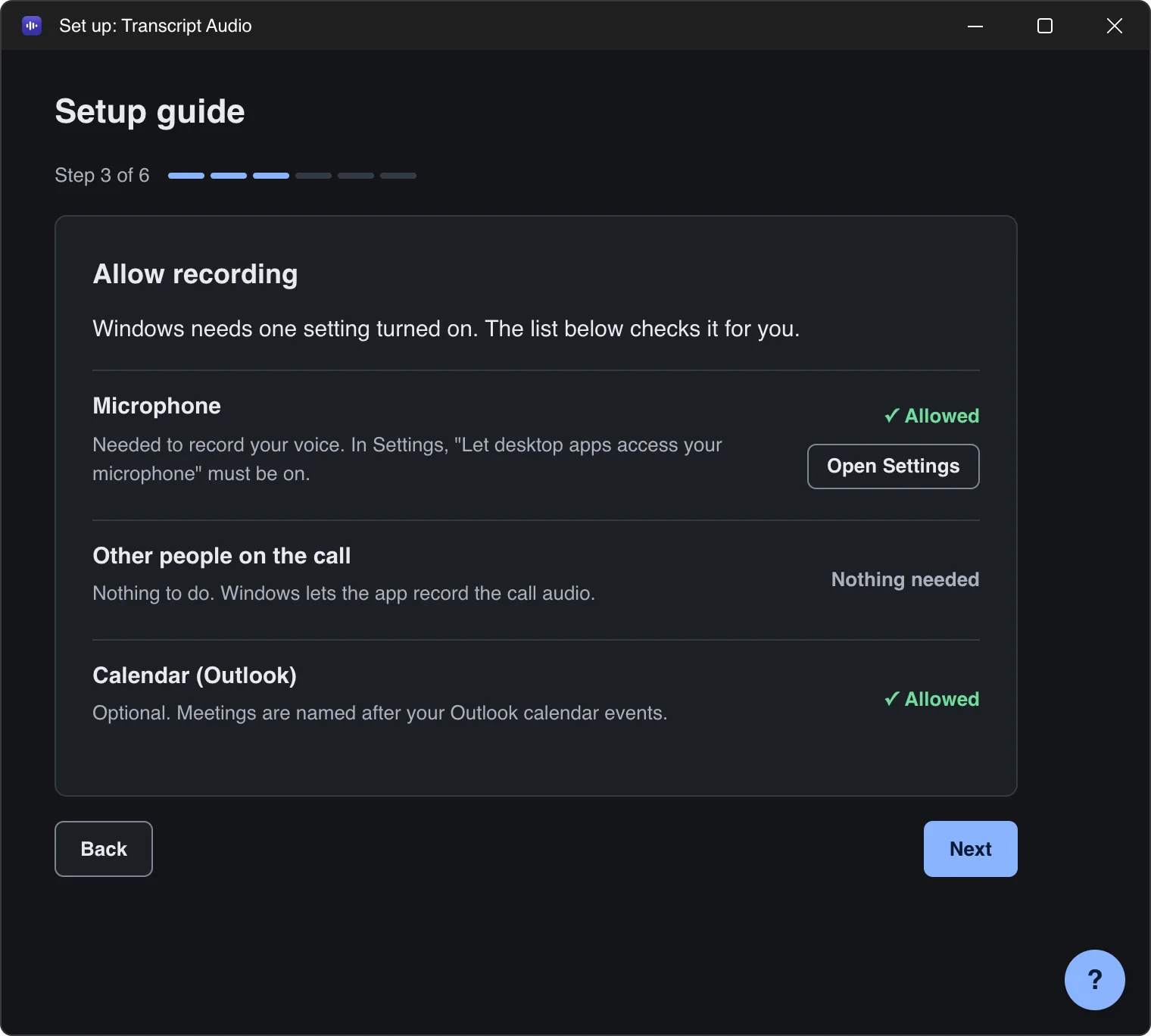
Each item shows Allowed, Not allowed, Not asked yet, Nothing needed or Not known. More detail is in Permissions.
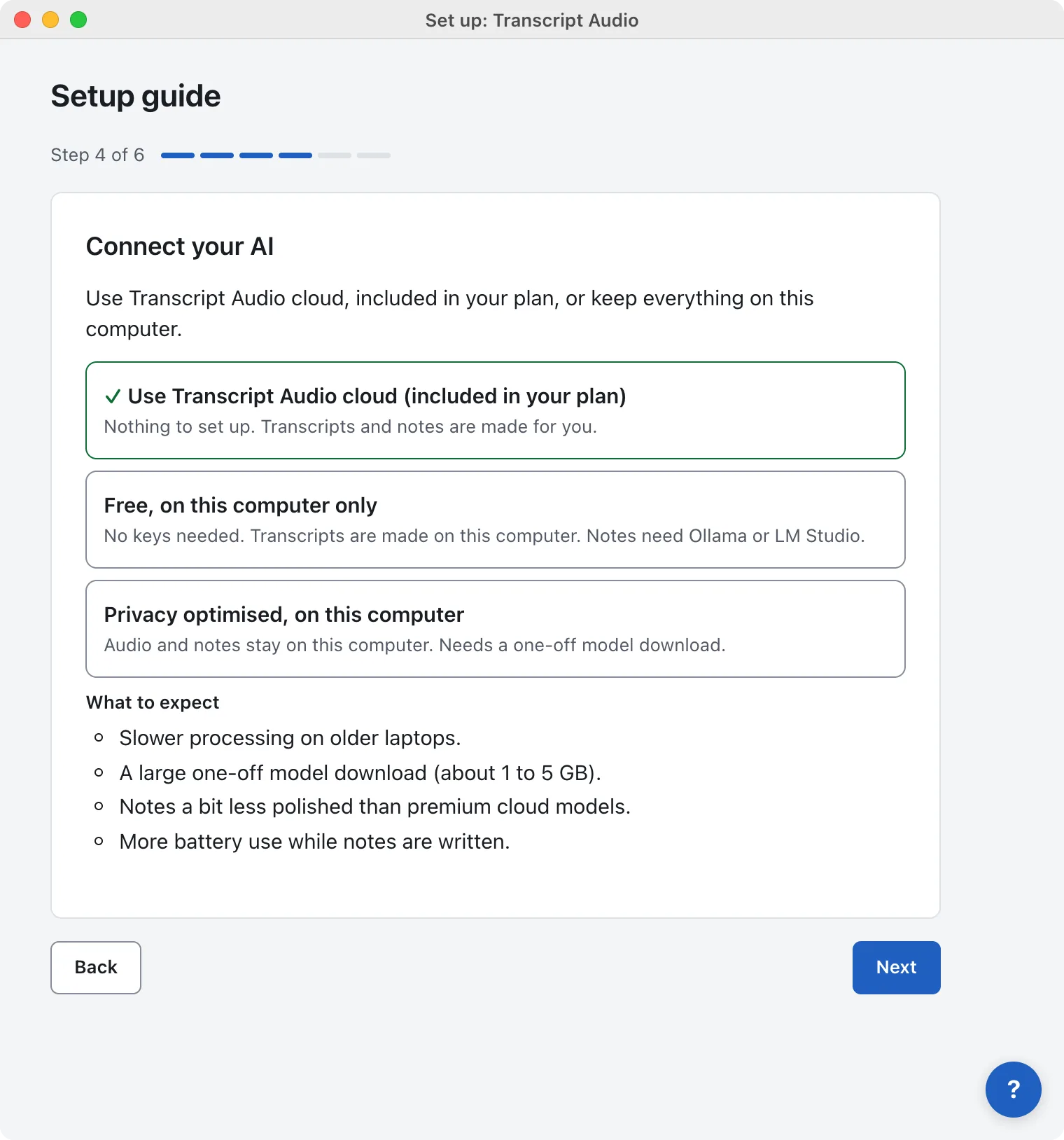
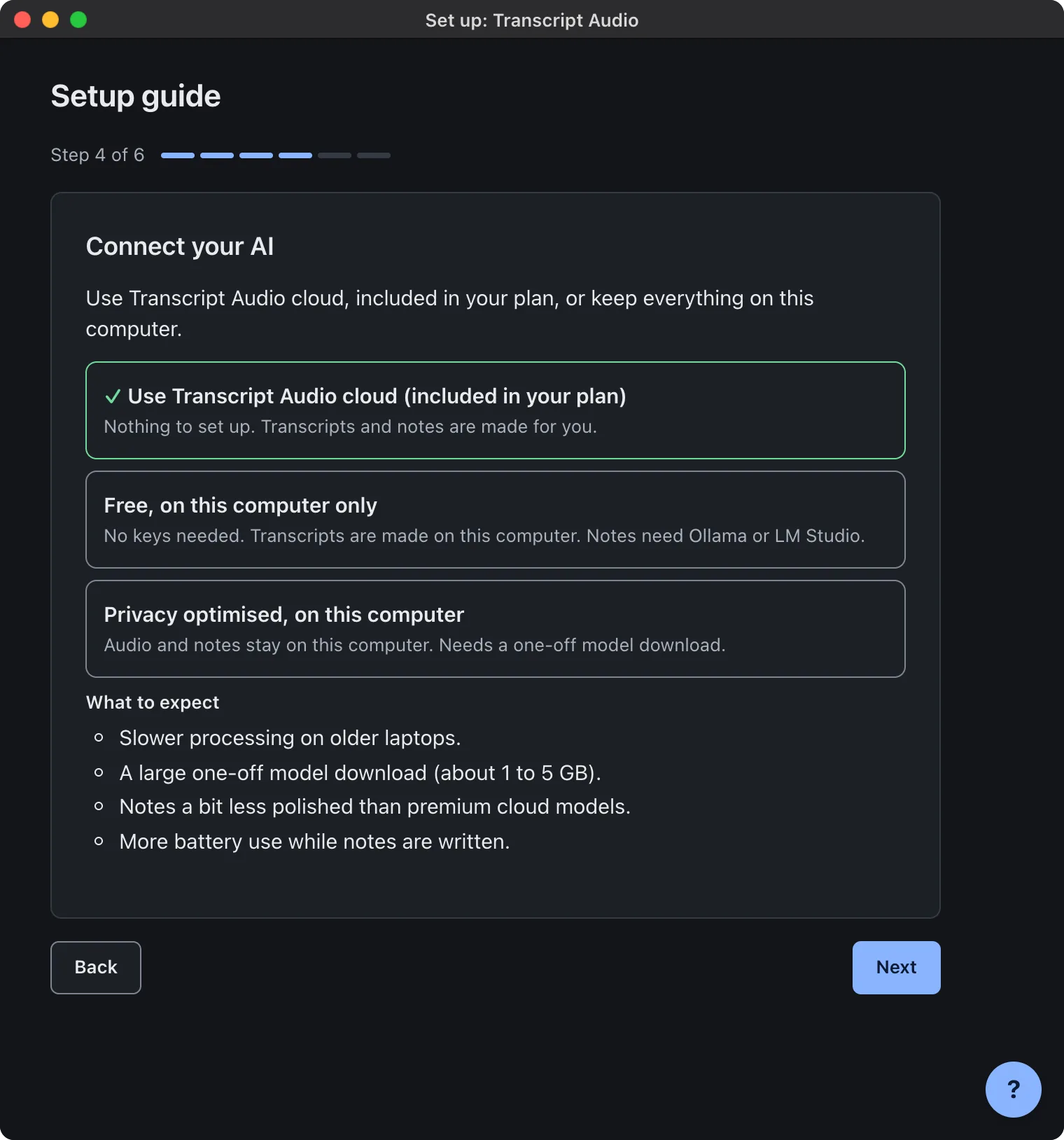
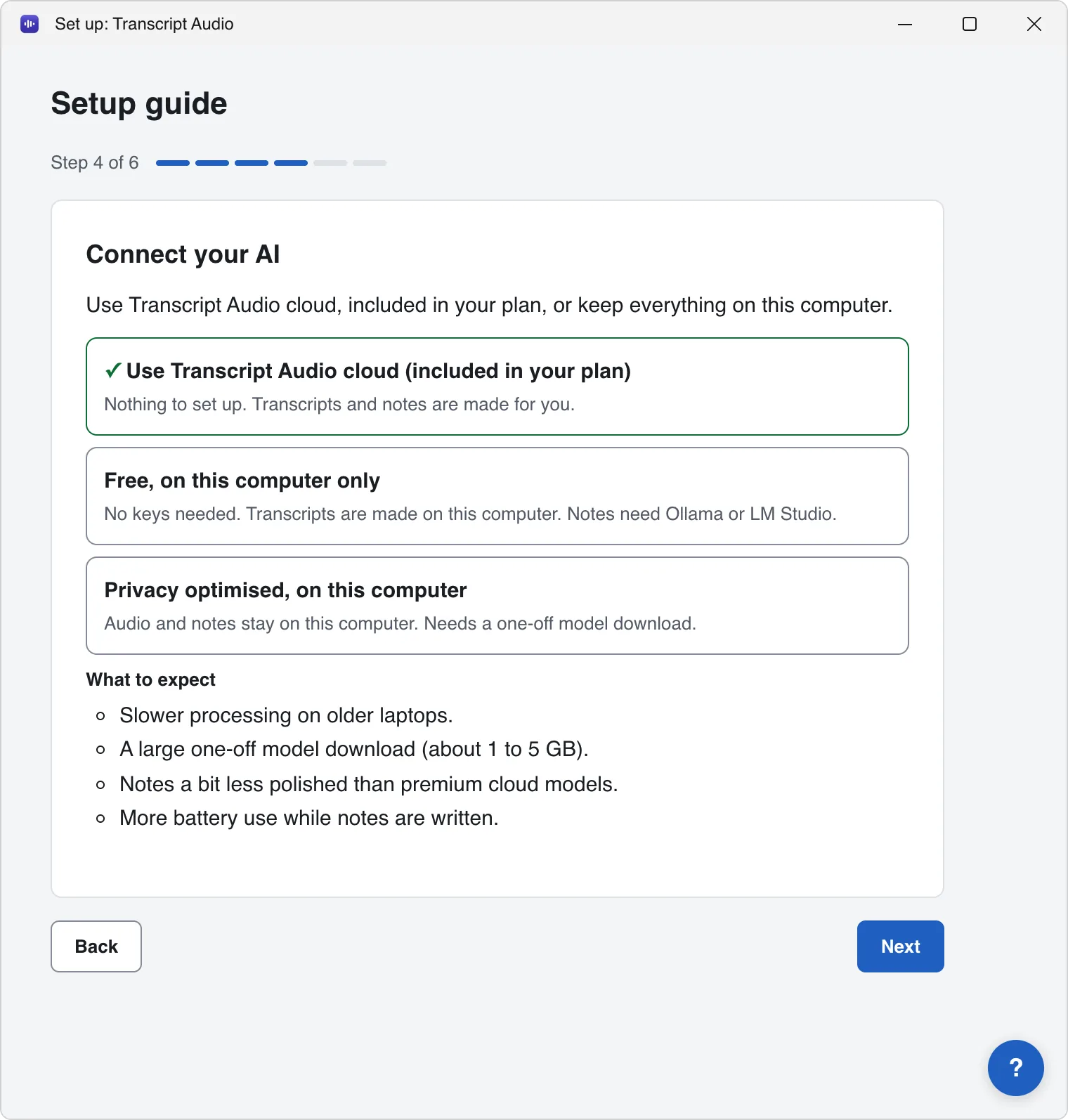
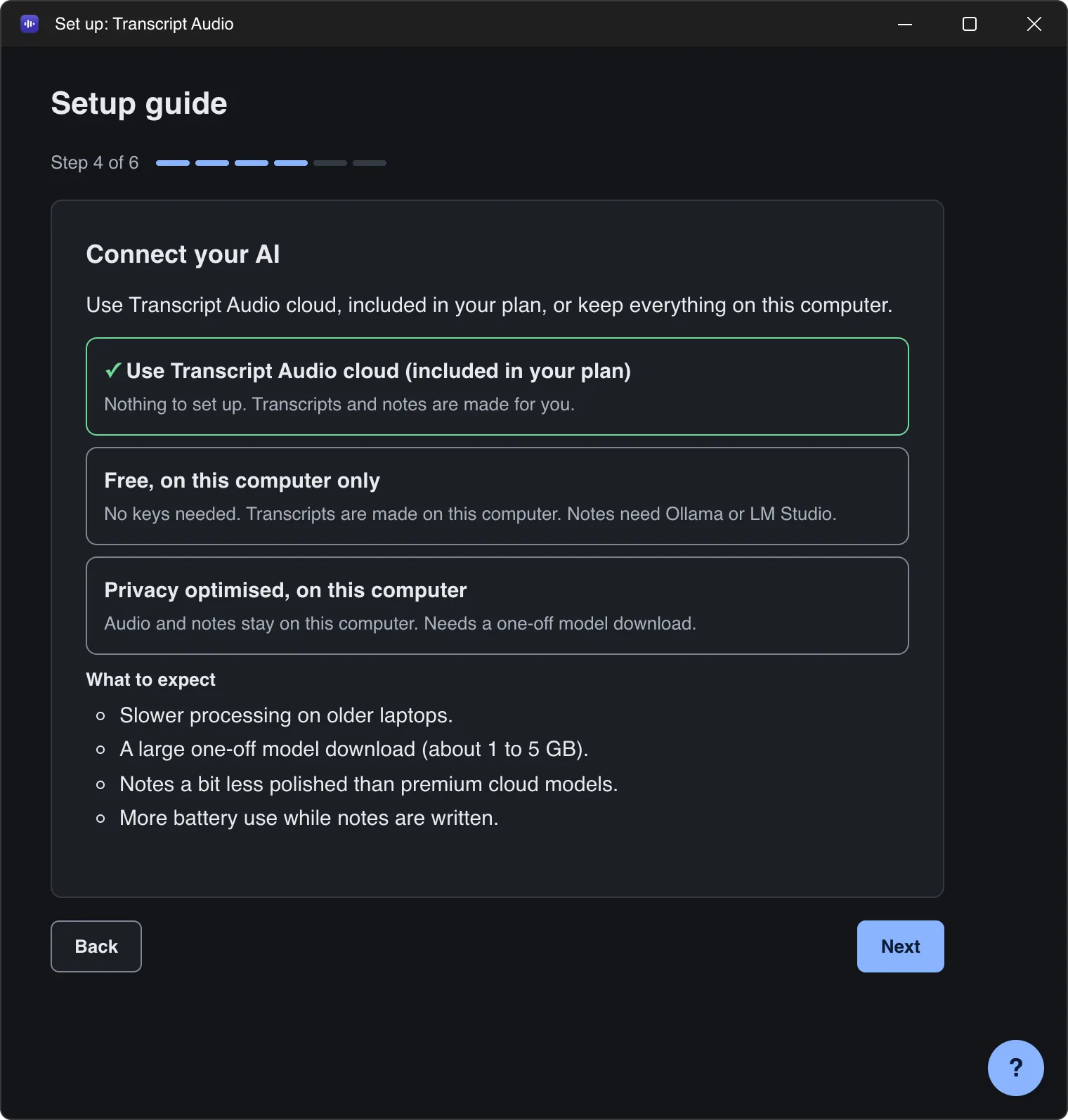
4. Connect your AI
Choose how transcripts and notes are made. You can change this later in Settings > AI.
- Use Transcript Audio cloud (included in your plan): nothing to set up. Transcripts and notes are made for you. Needs you to be signed in.
- Free, on this computer only: transcripts are made on your computer. Notes on your computer need Ollama or LM Studio installed; without them you get the transcript only.
- Privacy optimised, on this computer: audio and notes stay on your computer. Needs a one-off model download. See Privacy optimised mode.
5. Where to save meetings
Each meeting gets its own folder here. The default, Documents/Transcript Audio in your home folder, is fine for most people. Choose folder... picks another, such as a synced cloud folder.
6. You're all set
On a Mac
Click Finish. Join a call and it records by itself, or use Start recording in the menu bar.
On Windows
Click Finish. Join a call and it records by itself, or use Start recording in the system tray.
Next: Record your first meeting.
Still stuck? Contact us and we’ll help.