Using Questions as you go
A live transcript and answers about the meeting while it happens, in a small panel beside your call: the Transcript and Ask tabs, and glance mode.
Last updated
While a meeting records, open Questions as you go to see a live transcript and ask questions about the meeting so far. It is in every meeting on Pro, and in 1 meeting a month on Free and Plus.
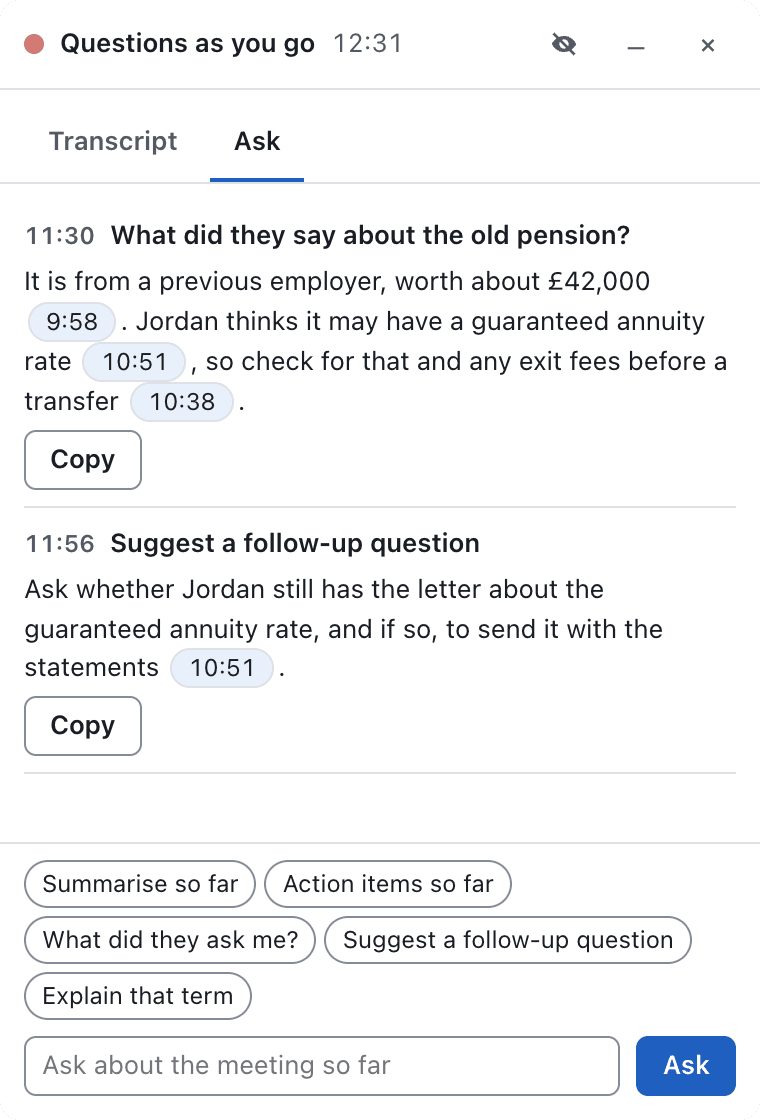
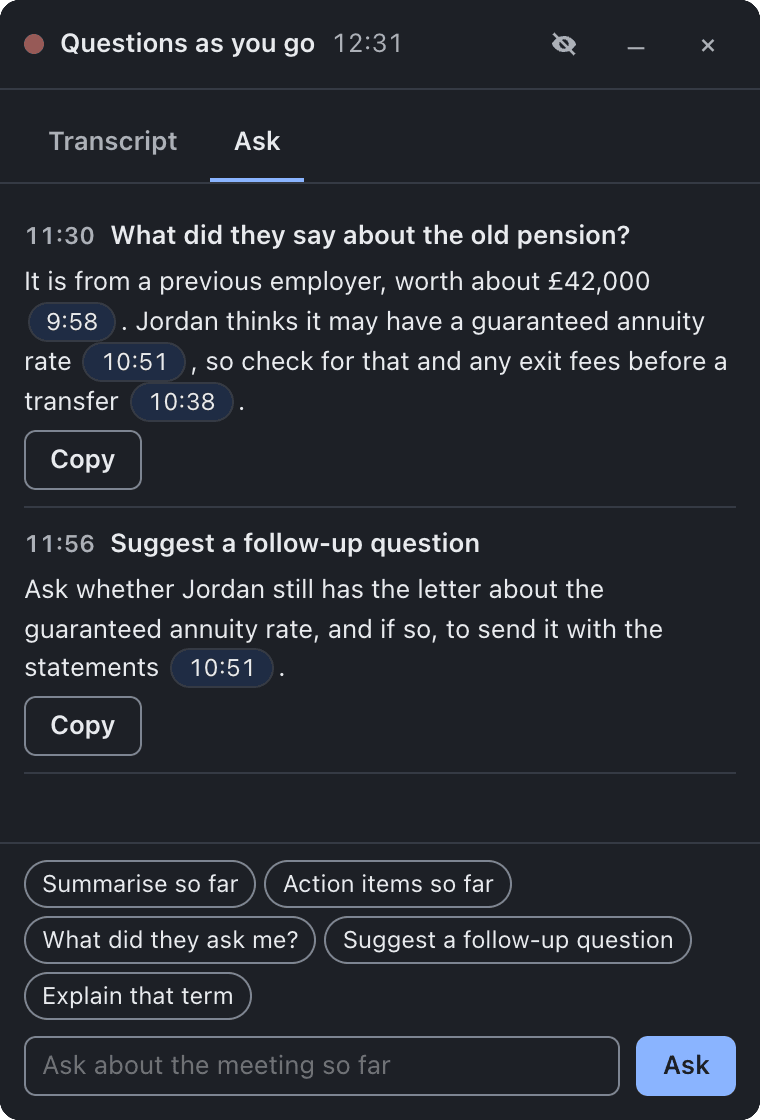
Open the panel
- Click Questions on the recording bar, or choose Questions as you go... in the menu bar or tray menu.
- Or press the shortcut while recording:
On a Mac
Cmd Shift K opens or closes the panel.
On Windows
Ctrl Shift K opens or closes the panel.
The Transcript tab
Lines appear a few seconds after someone stops speaking, labelled Me and Others (or the names you give). Click Start live transcript if it is not running. On this computer it is free and private. Jump to live takes you back to the latest line.
The Ask tab
- Type a question in Ask about the meeting so far, or pick a quick question: Summarise so far, Action items so far, What did they ask me?, Suggest a follow-up question or Explain that term.
- Answers use only what has been said so far, and link to the moments they came from. Click a time to see it in the transcript.
- Stop ends an answer early, and Copy copies it.
- On Free and Plus, the app asks Use your free Questions as you go for this meeting? (1 per month) before your first question.
Glance mode
Choose glance mode for a small, faint bar at the top of the screen, so you can keep an eye on it without a full panel. Leave glance mode brings the panel back. Collapse and Expand shrink and restore it.
After the call
Your questions and answers are saved in the meeting folder as Live Q&A.md. The notes written after the call are made from the whole recording and do not change.
Sharing your screen? See Staying hidden when you share your screen.
Still stuck? Contact us and we’ll help.